












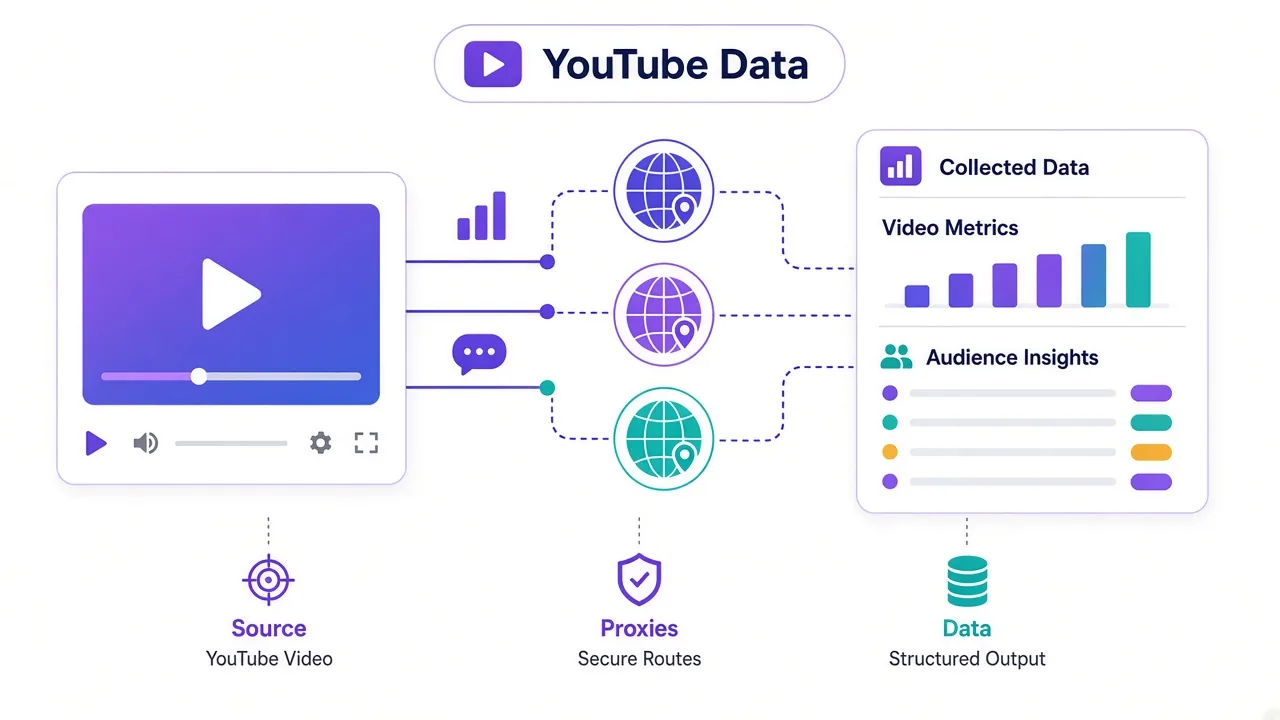
Telegram opens. The spinner spins. Nothing loads.
Or it works for a minute, then drops mid-chat. Sound familiar?
Network blocks hit Telegram hard in some places, and a full VPN is often more than you need for one app.
Telegram supports a SOCKS5 proxy right in Settings. You'll set it up on desktop and mobile in a few minutes.
There's a reason the built-in proxy beats a system-wide one for this app. There's also one setting people skip that still blocks media.
And sometimes SOCKS5 isn't the right tool at all. We'll close each of those loops as we go.
First: why Telegram fails on your network in the first place.
Why won't Telegram connect on your network?
Telegram talks to its own servers over specific ports and domains. When your ISP, workplace, or country filters those paths, the app looks broken.
It isn't broken hardware. The path is blocked, and that's a different fix.
You might see an endless loading screen, or "Connecting…" that never finishes. Chats can open while photos and voice notes stall forever.
Why does that happen? Blocks aren't always total. Some networks drop Telegram's default routes but leave other traffic alone, while others throttle it until the app times out.
A common fix people try first is a system VPN. That can work, but it also routes everything on the device. For one app, that's overkill.
Telegram already knows how to use a proxy for its own traffic. That's the angle of this guide: SOCKS5 for Telegram only, not a new network for your whole phone.
Still stuck on what SOCKS5 even is? Next section is the plain version.
What is a SOCKS5 proxy, in plain words?
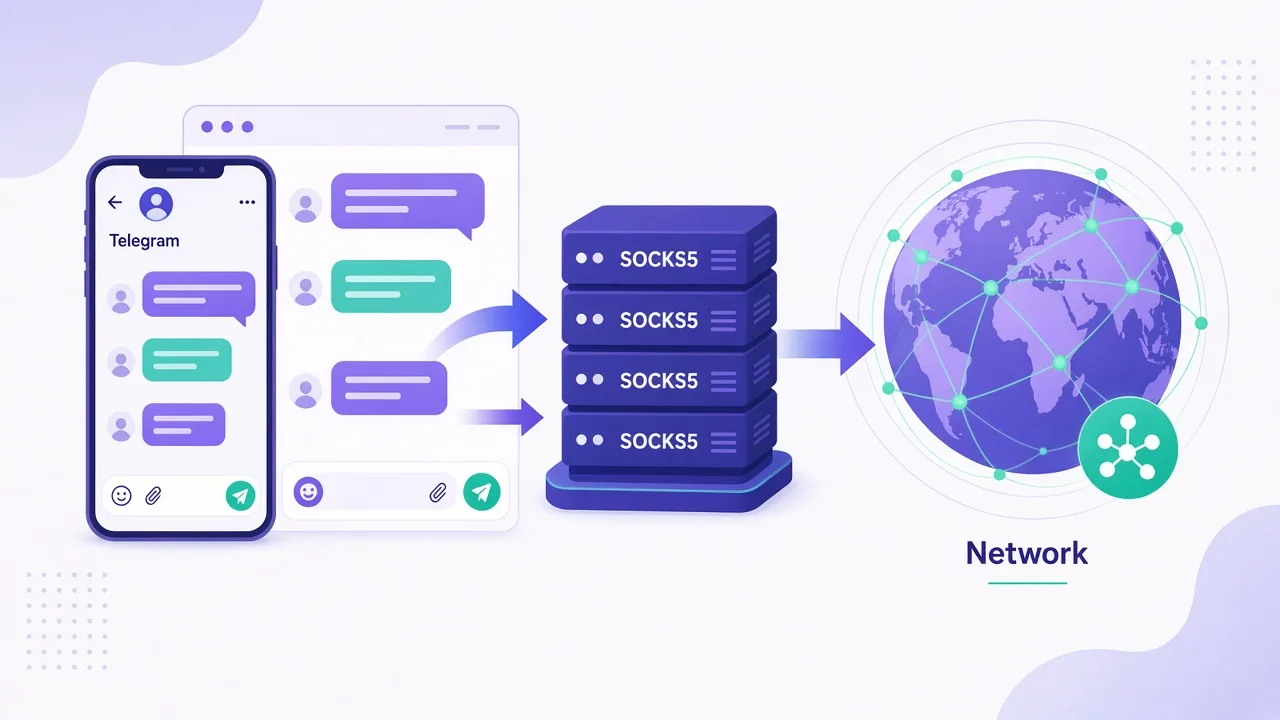
A SOCKS5 proxy is a middle hop for your internet traffic between your device and Telegram.
Your device sends Telegram's packets to that hop, and the hop talks to Telegram's servers. Replies come back the same way.
To Telegram's servers, the connection looks like it comes from the proxy's IP, not yours. To your network, you're talking to the proxy instead of Telegram's blocked endpoints.
Think of it like asking a friend in another city to place a call for you. The other end hears their number, while your local phone company only sees you calling your friend.
SOCKS5 is a protocol, not a brand. Providers sell access to SOCKS5 endpoints, and you get a host, a port, and usually a username and password.
You paste those into Telegram, and the app handles the rest of the handshake.
Is it magic? No. If the proxy itself gets blocked, or the credentials are wrong, nothing improves. We'll cover those traps later.
For a broader primer on proxy types, see our glossary. For now, one question matters most for Telegram.
Why SOCKS5 (not HTTP) for Telegram?
Telegram's built-in proxy setting expects SOCKS5, and that is the short answer for this app.
HTTP proxies were built for web requests, so they understand URLs and headers. Chat apps move more than pages: they push media, calls, and long-lived connections.
SOCKS5 sits lower in the stack. It forwards TCP connections without rewriting them as HTTP, and that fit matches Telegram better.
So what happens if you pick HTTP by mistake? Telegram may reject the setting, or connect in a half-broken way where chats crawl and media never starts.
Here is a quick side-by-side so you can see the difference at a glance.
| Feature | HTTP proxy | SOCKS5 proxy |
|---|---|---|
| Built for | Web pages and APIs | General TCP traffic |
| Telegram Settings support | Not the right pick | Native option |
| Media and long chats | Often awkward | Designed for this kind of flow |
| Auth | Usually username/password | Usually username/password |
| When to use it | Browsers, scrapers | Telegram's own proxy field |
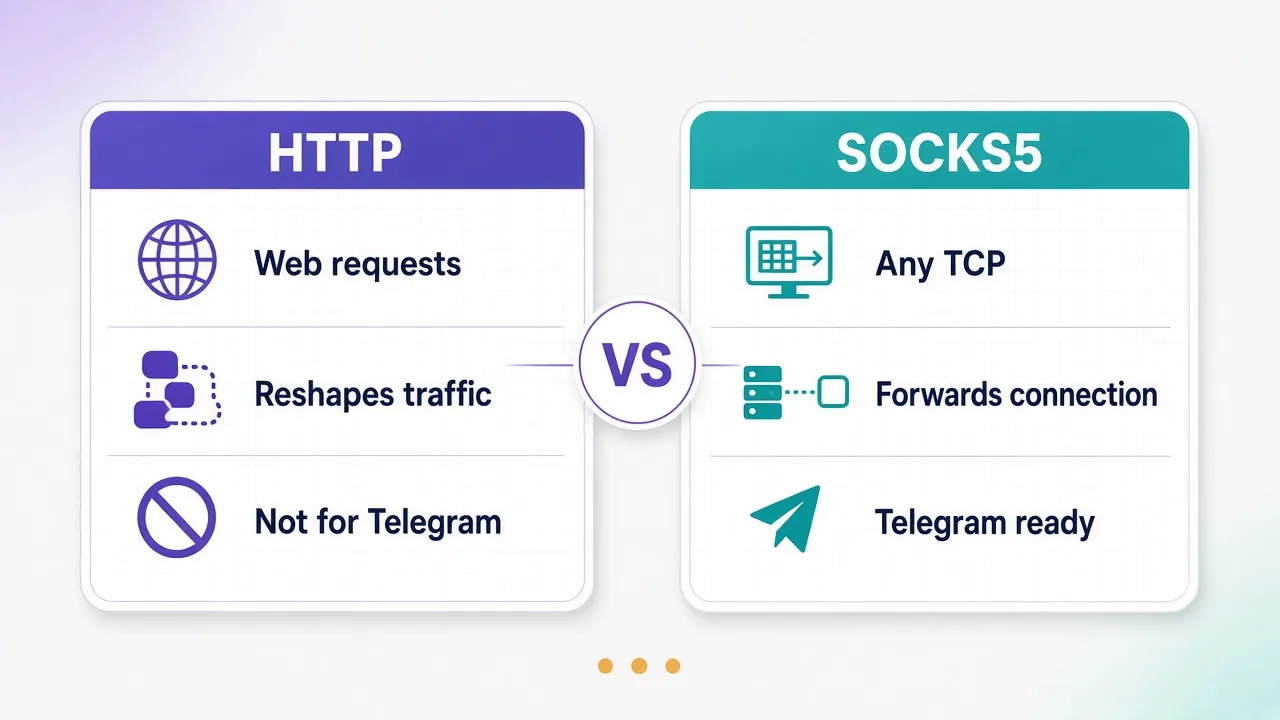
Could an HTTP proxy ever help Telegram somehow? Through a browser wrapper, maybe. Inside Telegram's Settings panel, stick to SOCKS5.
Pick the type Telegram asks for
If your provider dashboard shows both HTTP and SOCKS5 ports, copy the SOCKS5 host and port. Mixing them is the fastest way to get a "connected" state that still fails.
Ready to change Settings? Grab a few things first so you don't bounce between tabs mid-setup.
What do you need before you change any settings?
You need four pieces of data from your proxy provider:
- Host (an IP or hostname)
- Port (a number, often in the 1000–60000 range)
- Username
- Password
Some free public proxies skip auth. Skip those for anything that carries your chats, because untrusted free lists get recycled, logged, and blocked fast.
Also check that the proxy is online. Many dashboards show a status light or a test button, and you should use it before you touch Telegram.
Where should the proxy sit geographically? Closer to you often means lower latency for typing, while closer to Telegram's busy regions can help media.
There's no single perfect country. Start with a nearby location and switch if chats feel laggy.
One more prep step: note whether your provider labels the endpoint as SOCKS5. If the label says HTTP only, don't force it into Telegram's SOCKS5 field.
Looking for a provider to compare? Filter for SOCKS5 support in a directory before you buy, and skip anything that only lists HTTP.
Got host, port, and login ready? Then it is time for Telegram Desktop.
How do you add a SOCKS5 proxy in Telegram Desktop?
On Telegram Desktop, the proxy lives under connection settings, not under your profile.
Open Settings. Look for Advanced, then something like Connection type or Proxy. Menu labels shift a little by version, so search for "Proxy" in Settings if the path looks different.
Choose to add a proxy, then pick SOCKS5 as the type.
Paste the host and the port. Add username and password if your provider gave them.
Save the entry, then enable the proxy so Telegram shows it as the active connection.
Remember the open loop from the intro? Here's the first payoff.
Why Telegram's built-in proxy beats a system-wide one for this app: it only wraps Telegram.
Your browser, email, and other apps keep their normal routes. You also get a clear on/off switch inside the app when the network is fine again.
A system proxy or OS-level VPN can clash with Telegram's own setting. If both are on, traffic can bounce in weird ways, so prefer one path. For this guide, prefer Telegram's.
Desktop tip
After you save, watch the connection status near the proxy entry. If it flips to connected and chats start loading, you're done on this device. If not, jump to the troubleshooting section before you rewrite every field.
That finishes Desktop. Phone is next, and the idea is the same even though the menus aren't.
How do you set it up on Android or iPhone?
On mobile, Telegram usually parks proxies under Settings → Data and Storage → Proxy. If you don't see that exact path, open Settings and search for "Proxy".
Tap to add a proxy, then choose SOCKS5 from the type list.
Enter host, port, username, and password, then save and enable the new entry.
Same built-in-proxy payoff applies here. The setting is per Telegram app, not per phone OS.
Your Instagram and Maps stay on the normal network. Only Telegram takes the SOCKS5 hop.
That matters on mobile data plans. You aren't tunneling every background sync through a paid proxy by accident.
Android vs iPhone quirks
Android builds sometimes surface the proxy list a little deeper. Keep hunting under Data and Storage until you find it.
iPhone builds follow a similar Settings path. If iOS itself has a Wi-Fi HTTP proxy set, turn that off while you test Telegram's SOCKS5.
Two layers fight each other, and the fight wastes your evening.
Shared accounts on family tablets? Each Telegram install needs its own proxy entry. Settings don't sync that detail across devices the way your chat history does.
Wondering if "connected" means "working"? Don't guess from the status alone. Check it with a real message.
How do you check that the proxy is actually working?
First signal: Telegram stops saying "Connecting…" and loads your chat list.
Second signal: you can send a short text to Saved Messages and see it land.
Third signal: open a photo or short video that failed before. If media loads, the path is carrying more than tiny text packets.
Still unsure? Disable the proxy, confirm Telegram breaks again, then re-enable it. That A/B check is boring and reliable.
Some providers show live bandwidth in their dashboard. If Telegram is fine but the dashboard shows zero traffic, you might be on a different endpoint than you think.
Double-check the host string against the one you pasted.
Latency feel off? Typing delays of a second or two can be normal on a distant proxy. Multi-second stalls on every message usually mean a bad node, so swap locations.
What about MTProto proxies you see shared in channels? Those are a Telegram-specific option, separate from SOCKS5. This guide stays on SOCKS5, so don't mix the fields.
Checks passed but media still hangs? That's the classic "connected but broken" state. Next section is for you.
What usually breaks after you "connect"?
This is where most people get stuck. The status says connected. Text might even work, but photos don't, and voice notes spin forever.
Wrong host or port is mistake one. A single transposed digit is enough, so copy-paste from the provider dashboard and don't retype from memory.
Mistake two: HTTP credentials in a SOCKS5 field. Same username can work on both protocols at some providers, but the ports differ. Use the SOCKS5 port.
Mistake three: leaving an old system VPN on. Telegram connects through the VPN, then also tries your SOCKS5. Pick one for the test.
Now we close the second open loop from the start of this post.
The one setting people skip that still blocks media: they save the proxy, then forget to select it as the active connection.
Telegram shows the entry in the list, but another route stays live. They also leave call-related options untouched while only testing text.
Tiny packets pass. Larger transfers fail.
In practice, open the proxy list after saving. Confirm the SOCKS5 entry is selected, not merely saved.
Send a photo to Saved Messages. If text works and media fails, your proxy may be unstable or filtered for larger transfers.
Switch nodes before you blame Telegram.
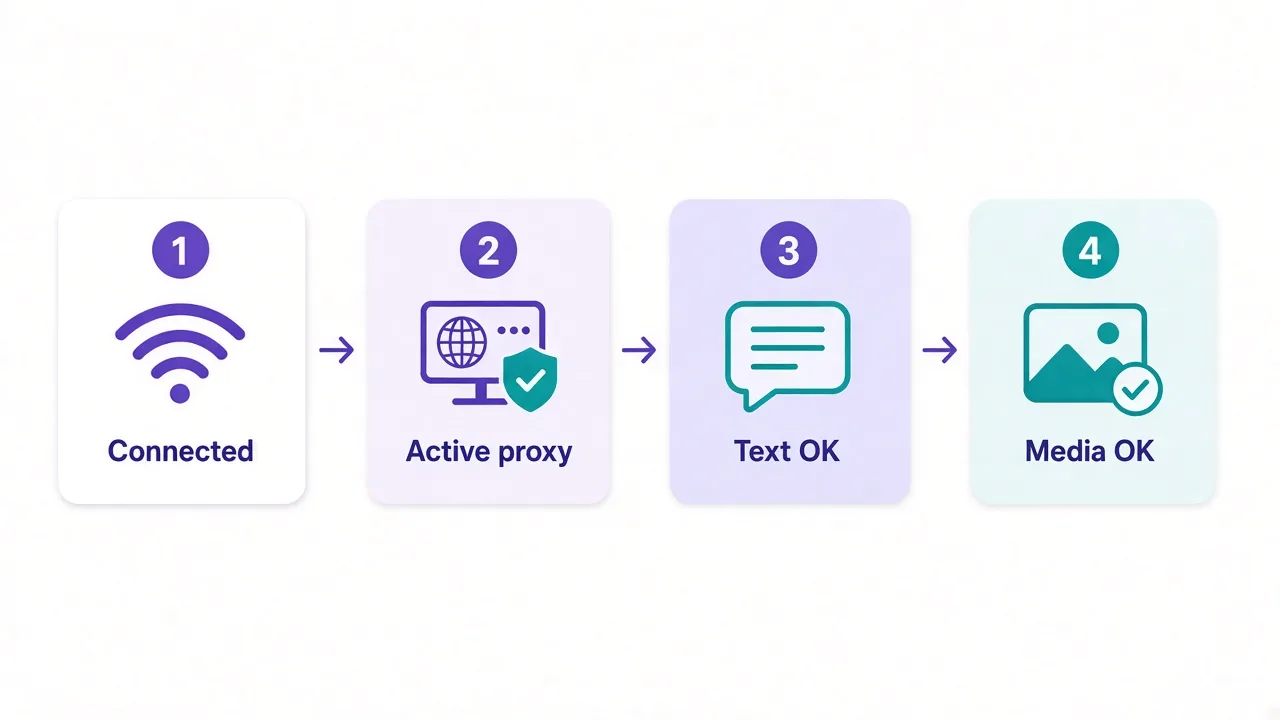
Connected ≠ done
Always send a photo or short video after the status turns green. Text packets are tiny. Media is the real stress test for a SOCKS5 path.
Quick fix order
- Re-copy host, port, username, password
- Confirm type is SOCKS5
- Disable any system VPN for the test
- Select the proxy so it's active, not only saved
- Test text, then media, in Saved Messages
- Swap to another proxy location if media still stalls
Still broken after all six? Your network may be blocking the proxy host itself. That's a different problem, and we'll cover when SOCKS5 stops being the right tool in a minute.
First, a privacy question people ask once chats load again.
Is a SOCKS5 proxy private enough for Telegram?
Honest take: a SOCKS5 proxy hides your home IP from Telegram's servers. It does not make you invisible.
The proxy provider can see that you're talking to Telegram endpoints. They see timing and volume.
The link to the proxy often lacks the full tunnel encryption a VPN uses. Local observers on cafe Wi-Fi can still spot proxy traffic patterns.
Telegram already encrypts chat content end to end for secret chats, and client-server for cloud chats. The proxy doesn't replace that. It changes the network path.
So who should care? If your goal is "open Telegram on a blocked network," SOCKS5 is usually enough. If your goal is "nobody can tell I'm using Telegram at all," a proxy alone may not get you there.
Pick a provider you trust with traffic metadata, and read their logging policy. Paid plans with clear terms beat random free lists that vanish next week.
Want the vocabulary behind logging, sticky sessions, and IP types? The blog has more explainers that define the jargon without the sales pitch.
Which brings us to the third loop.
When should you skip SOCKS5 and use something else?
Close the third loop from the intro: SOCKS5 isn't always the right tool.
Skip it when your whole device needs a different route, not just Telegram. Work laptops that must reach several blocked services at once are often simpler on a VPN.
Skip it when every SOCKS5 host you try is itself blocked. Some networks hunt known proxy ports.
In that case Telegram's MTProto proxies circulating in trusted channels, or a VPN with obfuscation, can fare better. We're not pitching one. We're naming the fork.
Skip it when you need UDP-heavy features and your SOCKS5 path is flaky for calls. Test calls separately. If they die while chats live, try another node or another tool.
Skip free public proxies for accounts you care about. Untrusted hops can log, inject, or disappear, so for personal chats, pay for a reputable endpoint or use nothing.
And skip SOCKS5 as a "privacy upgrade" if Telegram already opens fine. Extra hops add latency. Don't route healthy traffic through a proxy for vibes.
Still want chats working tonight, not a philosophy debate? Last section is the short path.
What's the fastest path if you just want chats working tonight?
Do this in order, and stop the moment Telegram loads your chats again.
- Get a SOCKS5 host, port, username, and password from a provider you trust
- On Desktop: Settings → Advanced → Connection / Proxy → add SOCKS5 → enable
- On phone: Settings → Data and Storage → Proxy → add SOCKS5 → enable
- Send a text to Saved Messages
- Send a photo to Saved Messages
- If media fails, re-check type and port, then swap locations
Keep system VPNs off while you test, and use Telegram's own proxy switch. That's the cleanest path for one app.
If nothing works after two solid nodes, stop thrashing Settings. Your network may be blocking proxies wholesale, and that's the moment to consider a different tool, not a third identical SOCKS5 paste.
You don't need a perfect setup tonight. You need one working hop, one successful photo, and a note of the credentials that got you there.
Tomorrow you can compare providers in the directory and pick something you'll keep. Tonight the only job is getting that chat list back on screen.
Frequently asked questions
Yes. Telegram lets you add a SOCKS5 proxy in Settings on desktop and mobile. Use the SOCKS5 type, not HTTP, and enable it so the app routes through that hop.
Open Settings, then Advanced, and look for Connection type or Proxy. Menu labels vary by version, so search Settings for Proxy if the path differs.
Text packets are tiny; media stresses the path. Confirm the SOCKS5 entry is active, ports match, no system VPN conflicts, then test a photo in Saved Messages.
Use SOCKS5. Telegram's built-in proxy field expects it. HTTP proxies fit browsers better and often leave Telegram half-broken.
It hides your home IP from Telegram's servers, not from the proxy provider. Chat content still uses Telegram's own encryption; pick a provider you trust with metadata.
Skip it when you need a whole-device route, every SOCKS5 host is blocked, or Telegram already works fine. Extra hops only add latency then.