











You open Discord Settings looking for a Proxy box, then check Voice & Video, Advanced, and Connection.
Nothing. Sound familiar?
Discord still runs fine behind a SOCKS5 proxy. You just set it outside the app, not inside it.
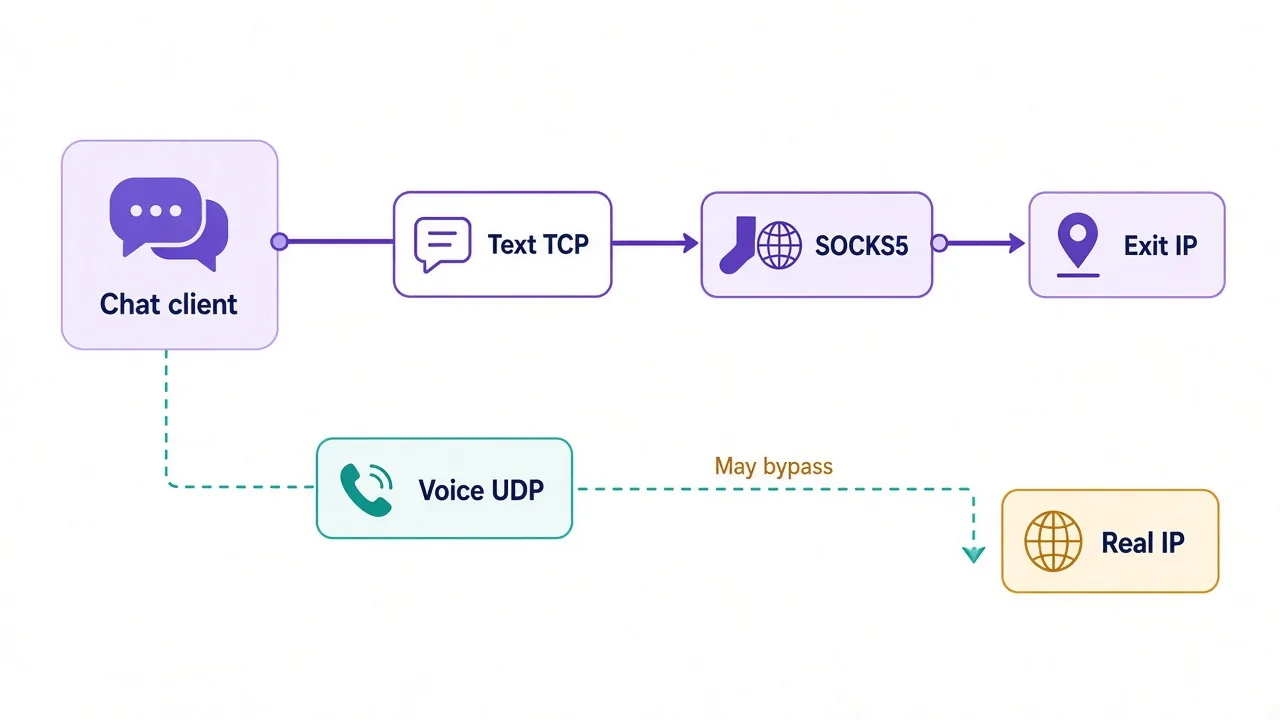
There's a catch most guides skip: voice can still leak your real IP while text looks proxied. We'll close that loop after the setup steps.
First, why bother at all?
Why put Discord behind SOCKS5?
Discord sees the IP that reaches its servers.
That IP can shape login checks, rate limits, and how "normal" you look from a new place.
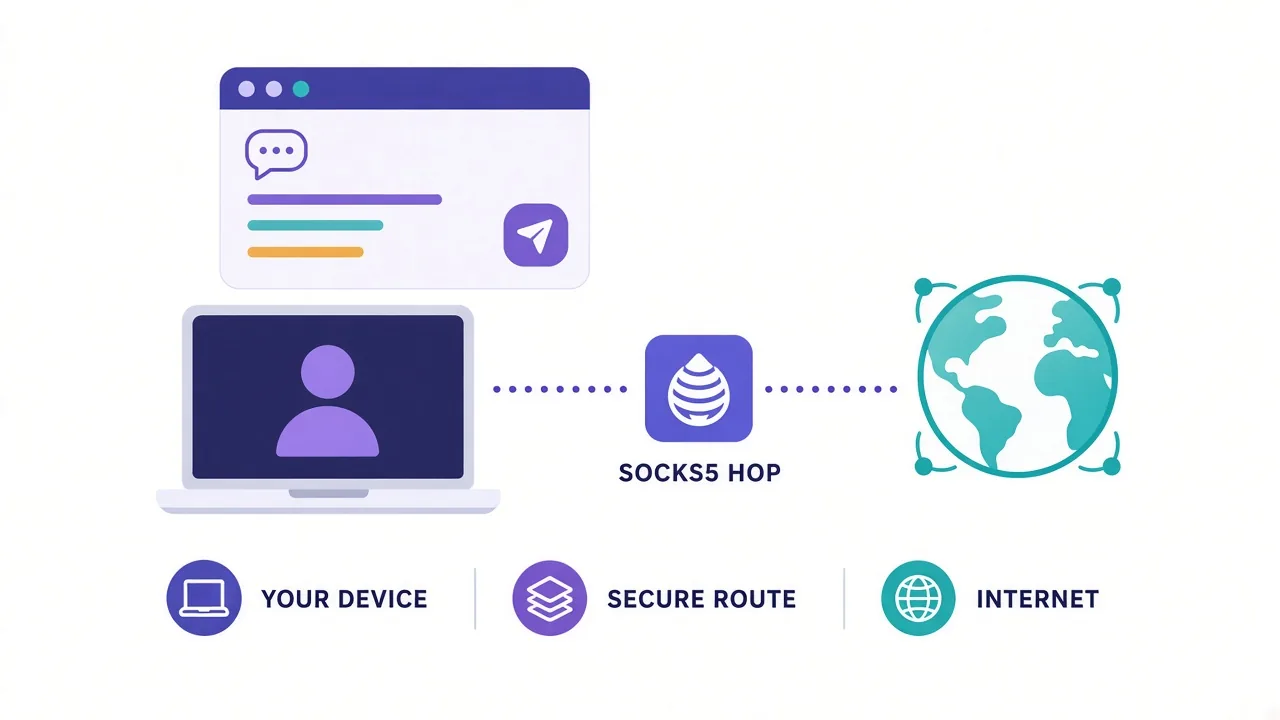
A SOCKS5 proxy sits between you and Discord. Discord talks to the proxy; the proxy talks to Discord. Your home address stays off that path for the traffic the proxy actually carries.
Why SOCKS5 instead of a plain HTTP proxy? SOCKS5 is built for TCP apps like Discord's chat and gateway, and it also has a UDP path on paper. That matters later for voice.
People reach for this when Discord is blocked on a network.
Others need a stable region for an account, or want the desktop client off their home IP.
What it does not do: wipe device fingerprints, hide your Discord account ID, or undo a ban by itself. An IP change is one signal. It is not a cloak of invisibility.
SOCKS5 vs VPN, in one line
SOCKS5 can target Discord (or one browser). A VPN tunnels the whole device, including UDP voice. Pick the tool for the job, not the louder marketing page.
Curious how Telegram does the same job with an in-app field? Our SOCKS5 proxy for Telegram guide shows that cleaner path.
Ready to gather the four values you'll type?
What you need before you start
Don't open Discord yet. Write these four things down from your provider dashboard:
- Host (IP or hostname)
- Port (often 1080, but use what they give you)
- Username (if the proxy needs auth)
- Password (if the proxy needs auth)
Confirm the protocol is SOCKS5, not HTTP or HTTPS. Wrong type is the #1 silent failure.
Also check the exit country. Discord can look odd when you log in from a country you never used before. Sticky sessions help if your provider offers them (same exit IP for a set time).
You'll want a working desktop or browser Discord install. Fully quit Discord from the tray before you change network settings. The window close button is not enough.
One more thing: have a second way to browse. If the system proxy breaks other apps, you need an escape hatch.
Test the proxy first
A dead SOCKS5 host makes Discord sit on "Connecting…" forever. That looks like a Discord outage. Check the proxy with a simple TCP tool or your provider's checker before you blame Discord.
Got host, port, and credentials? Good. Now comes the awkward part: where Discord actually listens for that config.
How do you set SOCKS5 on Discord desktop?
Discord's desktop app is Chromium under the hood, and it does not ship a SOCKS5 form in User Settings on current builds.
Searching Voice & Video or Advanced for "Proxy" wastes ten minutes for a lot of people. If your build shows nothing, you're not missing a hidden menu—the setting lives outside Discord.
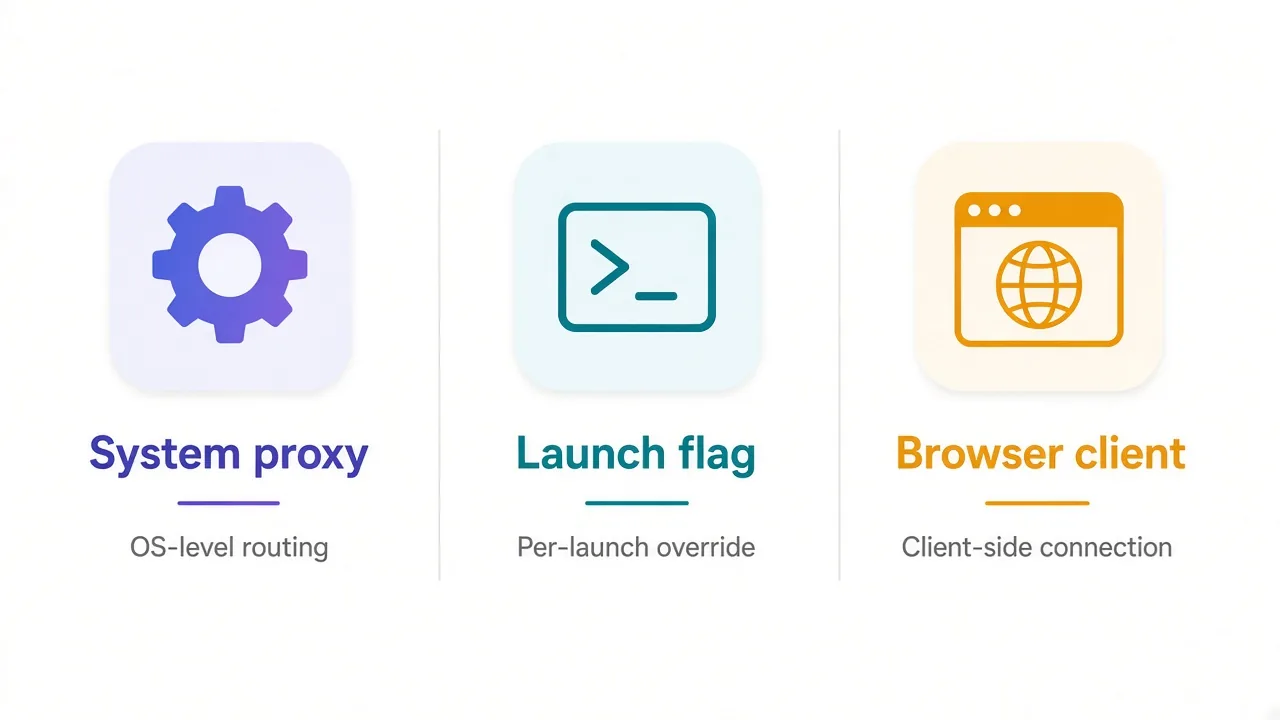
You have three practical routes, so pick the one that matches how much of your machine you want behind the hop.
Option A: system proxy (simple, broad)
Set SOCKS5 in the OS. Discord usually picks it up on a full restart.
macOS: System Settings → Network → your interface → Details → Proxies. Enable SOCKS Proxy. Enter host and port. Add user and password if needed. Apply, then fully quit and reopen Discord.
Linux: set the desktop SOCKS proxy in your network settings.
Or export ALL_PROXY=socks5://user:pass@host:port for the Discord process if your distro allows it. Restart Discord after.
Windows: Settings → Network & internet → Proxy. The built-in UI is mainly HTTP/HTTPS. Authenticated SOCKS5 usually needs a redirector such as Proxifier, or Option B/C below.
Trade-off: everything that follows the system proxy also goes through it. Fine if you want that. Annoying if you only wanted Discord.
Option B: launch flag (Discord only)
Chromium accepts --proxy-server. Discord inherits it when you start from a edited shortcut.
On Windows, right-click the Discord shortcut → Properties. After the closing quote in Target, add a space and:
--proxy-server="socks5://HOST:PORT"Fully quit Discord. Start it from that shortcut only.
The catch? Chromium ignores username and password in that flag. No formatting trick fixes it. For auth, run a local no-auth relay on 127.0.0.1 that attaches credentials, then point the flag at localhost.
Option C: Discord in the browser
Open discord.com/app. That client follows the browser's proxy, not Discord's missing settings panel.
Firefox is handy here: its own SOCKS5 settings stay separate from Windows. Chrome often follows the system proxy unless you use an extension or flags.
Which option fits you?
| Method | Best for | Auth SOCKS5? | Scope |
|---|---|---|---|
| System proxy | Quick desktop setup | macOS/Linux yes; Windows limited | Many apps |
| Launch flag | Proxy only Discord | Needs local relay | Discord process |
| Browser client | Separate browser profile | Yes, via browser | That browser |
Next up: phones, where the story gets thinner.
What about Discord on mobile?
Discord's iOS and Android apps do not give you a SOCKS5 field either.
On Android, a Wi‑Fi proxy can cover the session while you're on that network. It usually does nothing on mobile data. Per-app SOCKS5 needs extra tooling your carrier may fight.
On iOS, the Wi‑Fi proxy field is easy to ignore for apps like Discord. Many people end up on a device VPN instead.
Honest take: if you need Discord mobile behind a new IP, a whole-device VPN is often the less painful path. SOCKS5 shines more on desktop and in the browser.
Still set on SOCKS5 for the phone? Confirm your provider supports mobile-friendly exits, then test text first. Voice is a separate problem on every platform.
Before voice, though, let's lock auth so you don't chase a ghost failure.
How do you get auth, host, and port right?
Remember the launch-flag trap from earlier? Auth is where most Discord SOCKS5 setups die quietly.
Checklist when Discord won't connect:
- Protocol is SOCKS5, not HTTP.
- Host has no
http://prefix. - Port matches the SOCKS5 port, not the HTTP one.
- Username and password have no trailing spaces.
- Your IP is allowlisted if the provider uses IP auth instead of a password.
IP-allowlist auth is common on datacenter plans. You whitelist your home IP in the dashboard. The proxy then needs no password. Mix that with a username field and you get confusing errors.
Username/password auth is common on residential and rotating pools. System SOCKS on macOS can take both. Chromium's --proxy-server cannot.
Two ports, two protocols
Providers often print HTTP on 8080 and SOCKS5 on 1080 for the same host. Discord setup wants the SOCKS5 port. Using the HTTP port with a SOCKS5 label fails in weird ways.
Still stuck? Paste host and port into a tiny SOCKS5 test outside Discord. If that fails, Discord never had a chance.
Auth fixed. Now we close the open loop from the intro: does voice actually follow the proxy?
Does voice chat actually go through the proxy?
Short answer: often no, or at least not in a way you can trust without testing.
Discord text, images, and the gateway mostly ride TCP, and SOCKS5 handles that well when the client is configured.
Voice and video lean on UDP (RTC). Classic HTTP proxies cannot carry UDP at all. SOCKS5 can relay UDP when the server supports UDP ASSOCIATE, but many cheap SOCKS5 exits do not.
So what happens in practice?
- Text works. Voice fails with "RTC Connecting".
- Or text works, and voice quietly uses your real path.
That second case is the dangerous one. Your chat looks proxied. Your voice announces the home IP. Remember the intro warning? This is the payoff.
How do you reduce the risk?
- Prefer a VPN or TUN-style tunnel when voice identity matters.
- Or keep voice on a trusted network and only proxy text (know the trade-off).
- Or use a SOCKS5 provider that documents UDP ASSOCIATE, then verify with a voice join.
We won't pretend every SOCKS5 product tunnels Discord RTC cleanly. Test a short voice join after text works. Watch for RTC hang, then confirm your public IP outside Discord if you can.
Honesty over hype
If voice must match the proxy IP, a full tunnel beats a half-working SOCKS5 path. Paying for residential SOCKS5 and assuming UDP "just works" is how people get surprised.
What about bots that never join voice?
What about Discord bots?
User clients and bots are different animals.
A Discord bot is your code talking to Discord's API (and sometimes the gateway). You set the proxy in the HTTP client or bot library, not in Discord Settings.
Typical pattern: pass a SOCKS5 agent into your request library, keep secrets in env vars, and log the egress IP on startup.
Bots still hit rate limits. A proxy does not raise Discord's official limits. It can only change which IP Discord sees for those requests.
Also: automating user accounts (self-bots) breaks Discord's rules. This section is about proper bot tokens for your own application. Don't mix the two.
Need many exits for API work? Browse proxy providers in the DriftProxy directory and filter by SOCKS5 and sticky session support.
New to the protocol itself? Skim our SOCKS5 glossary entry before you buy.
Client or bot, you still need proof the new IP is live.
How do you test that Discord is using the new IP?
Discord will not print "you are on 203.0.113.10" in Settings. You verify sideways.
- Confirm the proxy works outside Discord (browser or CLI SOCKS5 check).
- Apply the method you chose (system, flag, or browser).
- Fully restart Discord or reload the web app.
- Compare your apparent public IP before and after on a what-is-my-ip page that shares the same path.
On the browser client, open an IP check tab in the same browser profile.
With a system proxy, the whole machine should show the proxy exit.
With the launch flag, only Discord is proxied. A normal browser tab still shows your home IP. That's expected.
How do you check Discord itself? Indirect signs help:
- Login or captcha flows that match the exit country
- Stable connect after a known-good proxy
- Failure modes that vanish when you disable the proxy
Do not scrape Discord for your IP. Use your own egress check on the same network path.
If text is on the new IP but you care about voice, do the voice join test from the last section. Text green + voice leak is still a fail for many goals.
Passing the IP check is useful, but it is not the same as staying out of trouble with Discord.
Why might Discord still ban or rate-limit you?
Here's the third loop: a new IP is not a clean slate.
Discord can weigh account age, phone verification, client behavior, payment history, reports, and device signals. IP is one input. Swap the IP and keep the same banned account on the same device, and little changes.
Rate limits are mostly token- and route-based. A SOCKS5 hop will not mint you a higher API budget for a bot.
It may stop a shared office IP from looking like one hot client. That helps some multi-seat setups. It still does not rewrite Discord's rules.
Common ways people still get burned:
- Logging into many unrelated accounts from one exit in a short window
- Jumping countries every hour on a rotating residential pool
- Using free public proxies that hundreds of others already burned
- Trying to dodge an enforcement action Discord already tied to the account
Stay inside Discord's terms. A proxy for network access or privacy is one thing. Ban evasion is another, and it's a bad plan even when the IP "works".
Terms matter
If your goal is dodging a ban, stop. Change the behavior that caused it. A SOCKS5 host will not make policy risk go away.
So which IP type should you buy if you're still going ahead for a legitimate reason?
Residential or datacenter for Discord?
Discord holds a long-lived connection. That shapes the buy decision.
Datacenter SOCKS5 is usually the better default for a single desktop client. It's fast, stable, and cheaper for an all-day session. Many Discord blocks people hit are network-level, not "this IP looks like AWS" drama.
Residential SOCKS5 helps when a network treats datacenter ranges harshly.
It also fits when you need a consumer-looking exit in a specific city. You pay more per GB, and flaky exits show up as random reconnects.
ISP / static residential sits in between for people who want a sticky consumer ASN without rotating every request.
| Type | Fit for Discord desktop | Watch-outs |
|---|---|---|
| Datacenter | Great for stable text clients | Some networks block hosting ranges |
| Residential | When you need a home-like exit | Cost and churn on long sessions |
| ISP / static | Sticky region, fewer rotates | Price; still verify UDP if voice matters |
Free public lists? Skip them for Discord. Persistent connections hate flaky peers. You'll chase "Connecting…" and blame Discord.
Compare live options on our proxies directory, and read provider notes for SOCKS5 and UDP if voice is on your checklist.
Want the short version you can tape next to the monitor?
What's the quick checklist?
Run through this once before you call the setup done:
- Confirm SOCKS5 host, port, and auth type from the provider.
- Test the proxy outside Discord.
- Pick a method: system proxy, launch flag (+ local relay if auth), or browser.
- Fully quit Discord, then reopen on the new path.
- Verify egress IP on the same path Discord uses.
- Send a DM or open a server. Confirm text is healthy.
- Join a quiet voice channel. Note RTC success or failure.
- If voice must match the proxy IP and UDP fails, move voice to a VPN/TUN plan.
- Keep account behavior boring. Don't treat the proxy as a ban eraser.
- Save the working host/port somewhere you can find at 1 a.m.
Print that list if it helps. Most "Discord proxy is broken" threads miss step 2 or step 7.
Still comparing tools? If you mainly live in Telegram too, keep the Telegram SOCKS5 setup handy. Same protocol, friendlier in-app UI.
So, what should you do next?
Stop hunting a Proxy toggle that Discord doesn't ship. Put SOCKS5 on the system, the shortcut, or the browser, then prove the IP before you trust the session.
Treat voice as its own test. If RTC must follow the proxy, plan for UDP support or switch to a full tunnel.
Pick datacenter for a steady desktop hop unless you have a clear reason to pay for residential.
Next step: grab a SOCKS5 endpoint from a provider you trust, run the checklist once, and only then bring Discord back online.
Frequently asked questions
No. Current Discord desktop, web, and mobile builds do not include a SOCKS5 field in User Settings. You configure SOCKS5 at the OS, launch flag, browser, or redirector level instead.
Use a system SOCKS5 proxy and fully restart Discord, launch Discord with --proxy-server="socks5://HOST:PORT", or open discord.com/app in a browser that already uses SOCKS5.
Often not reliably. Text uses TCP and usually follows SOCKS5; voice uses UDP and may fail or fall back to your real path unless the proxy supports UDP ASSOCIATE or you use a full tunnel.
No. Chromium's --proxy-server flag ignores credentials. For authenticated SOCKS5, run a local relay on 127.0.0.1 that adds the login, then point the flag at localhost.
No. Bans and limits weigh more than IP alone, including account and device signals. A new address does not clear enforcement, and ban evasion breaks Discord's terms.
Datacenter is usually enough for a stable desktop text client. Choose residential or ISP/static when you need a consumer-looking exit or face datacenter blocks; still verify voice separately.