








Windows is the platform every major VPN supports — which makes choosing one harder, not easier. The differences that matter show up in the details: how reliable the kill switch is when your laptop wakes from sleep, whether the app handles hotel and café Wi-Fi gracefully, how much it drains your battery, and whether it plays nicely with the rest of your security software. This guide ranks the seven VPNs we rate highest for Windows PCs and laptops in 2026, explains why a dedicated app beats Windows' built-in VPN client, and walks through setup and the problems Windows users most often run into.
Quick comparison
| VPN | From | Devices | Servers | Best for |
|---|---|---|---|---|
| NordVPN | $3.39/mo | 10 | 6,000+ in 111 countries | Best overall on Windows |
| Proton VPN | Free / $4.49/mo | 10 | 8,500+ in 110 countries | Best free plan & privacy |
| Surfshark | $2.19/mo | Unlimited | 3,200+ in 100 countries | Best value, many PCs |
| ExpressVPN | $4.99/mo | 8 | 105 countries | Easiest to use |
| Mullvad | EUR 5/mo | 5 | 650+ in 45 countries | Maximum anonymity |
| CyberGhost | $2.03/mo | 7 | 11,000+ in 100 countries | Beginners & streaming |
| Private Internet Access | $2.03/mo | Unlimited | 10,000+ in 91 countries | Power users |
Prices are starting rates on long-term plans and change often, so check each provider's current offer.
How we chose the best Windows VPNs
Every provider here has a native Windows app. What separated them was how well that app behaves on real Windows machines:
- A reliable kill switch that blocks traffic if the tunnel drops — including after sleep, hibernation, and switching networks.
- Modern protocols like WireGuard or an equivalent in-house protocol, for speed and lower battery drain on laptops.
- Leak protection for DNS and IPv6, so your real address doesn't escape while you're connected.
- Useful Windows features such as split tunnelling and auto-connect on untrusted Wi-Fi.
- Audited privacy — an independently verified no-logs policy rather than a marketing promise.
- Value — especially how many devices one subscription covers in a household with several PCs.
The best VPNs for Windows
1. NordVPN — best overall for Windows
NordVPN has the most complete Windows app in the category. Its WireGuard-based NordLynx protocol delivers some of the fastest speeds we see, which matters for large downloads and video calls on a desktop, and its 6,000+ servers across 111 countries mean there's nearly always an uncongested option nearby. Beyond the tunnel, Threat Protection blocks malicious sites and trackers, Meshnet links your own devices securely, and specialty servers cover Double VPN and P2P. The no-logs policy is independently audited and runs on diskless RAM-only servers.
The trade-off is that so many features can feel overwhelming if you just want a simple on/off switch, and renewal prices rise after the introductory term. Ten simultaneous connections comfortably cover a household's PCs and phones.

2. Proton VPN — best free plan and best for privacy
Proton VPN is the rare provider whose free tier is genuinely usable on Windows: unlimited data, no ads, and no speed caps, from a company with fully open-source, independently audited apps. Paid plans add 8,500+ servers in 110 countries, Secure Core multi-hop routing through hardened servers, NetShield malware and tracker blocking, and a Stealth protocol for restrictive networks. Its no-logs policy is audited and backed by Swiss privacy law.
The free plan is limited to a few countries and isn't built for streaming, and the Windows app packs in enough options to feel dense to first-timers. Secure Core also slows connections noticeably, so keep it for when you need it.

Privacy-first, from the makers of Proton Mail.
3. Surfshark — best value for households with many PCs
Surfshark's standout is unlimited simultaneous connections, which is uniquely useful if your household runs several Windows desktops and laptops alongside phones and tablets. It's also one of the cheapest options from about $2.19 a month, without cutting corners: fast WireGuard speeds, an audited no-logs policy on a RAM-only network, and CleanWeb to block ads, trackers, and malware. The Windows app is clean and approachable.
Its network of 3,200+ servers in 100 countries is ample but smaller than NordVPN's or Proton's, and there's no free plan — only a 30-day money-back guarantee.

4. ExpressVPN — easiest to use
ExpressVPN has the most beginner-friendly Windows app here. Its Lightway protocol connects quickly and reconnects near-instantly after your laptop wakes or changes networks — exactly the moments where weaker apps stall. Servers span 105 countries, the widest geographic coverage in the category, and the no-logs policy is independently audited on RAM-only TrustedServer infrastructure. Responsive 24/7 live chat helps if something goes wrong.
It's among the more expensive mainstream options, allows eight connections rather than ten or unlimited, and offers fewer power-user toggles than NordVPN or Proton.

5. Mullvad — best for maximum anonymity
Mullvad is built for people who want their VPN to know as little about them as possible. Accounts are anonymous numbers with no email or name, you can pay in cash or Monero, and its strict no-logs policy has been tested by a real police visit. The open-source Windows app has passed multiple independent audits, includes quantum-resistant tunnels, and provides a reliable kill switch with DNS and IPv6 leak protection. Its lean network is rarely congested, which keeps WireGuard speeds high.
It's not built for streaming, covers only 45 countries with 650+ servers, and allows five devices. Flat EUR 5 monthly pricing is refreshingly simple but not the cheapest long-term.

6. CyberGhost — best for beginners and streaming
CyberGhost's one-click Windows app is designed for people who don't want to think about VPN settings. It groups dedicated streaming- and torrent-optimised servers so you can pick by activity rather than by location, draws on a huge 11,000+ server network across roughly 100 countries, and backs everything with an unusually generous 45-day money-back guarantee. Its audited no-logs policy is based in Romania.
Power users will find the configuration options limited, it allows seven connections, and speeds can vary on distant or busy servers.

Beginner-friendly VPN with a huge streaming-optimized network
7. Private Internet Access — best for power users
Private Internet Access suits Windows users who like to tune things. Its open-source app exposes unusually granular control over encryption and connection settings, supports port forwarding, and includes an ad and tracker blocker. Its no-logs policy has been proven in US court proceedings, it allows unlimited simultaneous connections, and 10,000+ servers across 91 countries give plenty of choice.
The sheer number of settings can overwhelm casual users, and its US base places it inside the Five Eyes intelligence alliance, which matters to some privacy-focused buyers.

Highly configurable VPN with open-source apps and unlimited devices
Do you need an app? Windows' built-in VPN client
Windows has a VPN client built into its network settings, and it's reasonable to wonder whether you need a separate app at all. For most people, you do.
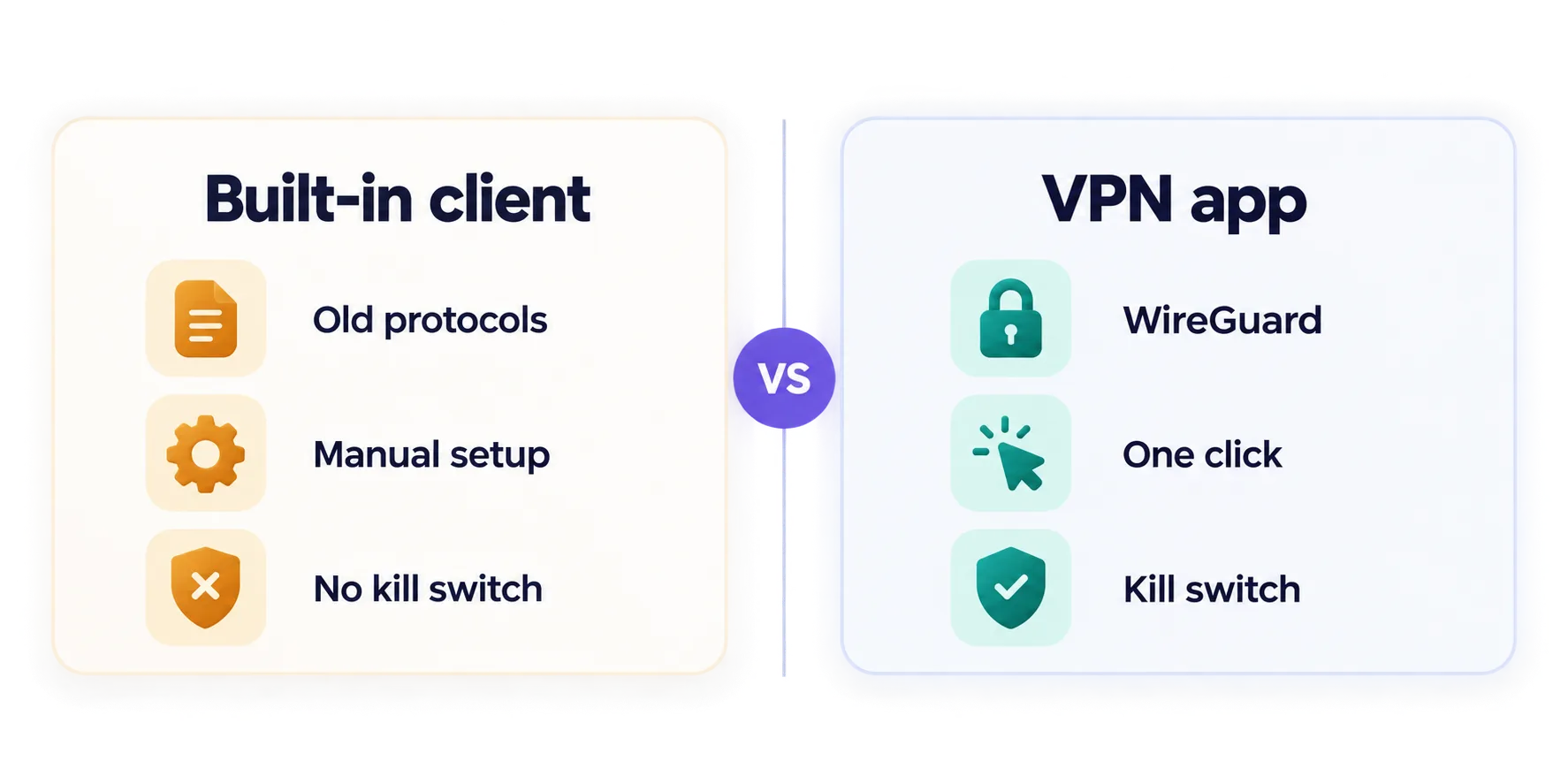
The built-in client supports older protocols such as IKEv2, L2TP/IPsec, and SSTP, but not WireGuard or OpenVPN without extra software. You configure each server by hand, it has no kill switch, and it offers none of the leak protection, auto-connect rules, or split tunnelling that provider apps include. It's genuinely useful for connecting to a company's own VPN server, which is what it was mainly built for — but for a consumer VPN service, the provider's app is faster, safer, and far easier.
Avoid PPTP
If a guide tells you to set up a VPN on Windows using PPTP, don't. It's a decades-old protocol with well-documented security weaknesses and shouldn't be used to protect anything that matters.
Windows features that actually matter
Kill switch
A kill switch blocks all internet traffic if the VPN connection drops, so nothing leaks out over your normal connection in the gap. On Windows this matters most after sleep and hibernation, when the network comes back before the tunnel does. Turn it on, and test it by disconnecting your Wi-Fi briefly while connected.
Split tunnelling
Split tunnelling lets you choose which apps go through the VPN. It's invaluable on Windows: route your browser through the tunnel while games, local network printers, or work tools that dislike VPNs connect directly. Most major Windows VPN apps offer it, though where it lives in the settings varies.
Auto-connect on untrusted Wi-Fi
The best laptop setting you can enable. It connects the VPN automatically whenever you join a network you haven't marked as trusted, so you're protected in cafés, hotels, and airports without having to remember.
Protocol choice
Stick with WireGuard or the provider's own modern protocol unless you have a reason not to — they're faster and lighter than older OpenVPN configurations. Our WireGuard vs OpenVPN comparison explains when OpenVPN still makes sense.
Leak protection
Enable DNS and IPv6 leak protection in the app, and remember that browser features like WebRTC can reveal your real IP independently of Windows. Our guide to whether VPNs can leak your real IP covers how to test and fix each type.
Extra considerations for laptops
- Battery life. Encryption costs some processing power. Modern protocols like WireGuard are noticeably lighter, so choosing one helps a laptop last longer away from the charger.
- Sleep and network switching. Laptops constantly sleep, wake, and hop between Wi-Fi networks. Apps with fast-reconnecting protocols handle this far better, and a working kill switch prevents leaks in the gaps.
- Public Wi-Fi. This is where a laptop VPN earns its keep. Pair it with auto-connect so protection doesn't depend on memory.
- ARM-based laptops. If you use a Windows laptop with an ARM processor, check that your chosen provider offers a native ARM version of its app before buying — support varies between providers.
How to set up a VPN on Windows
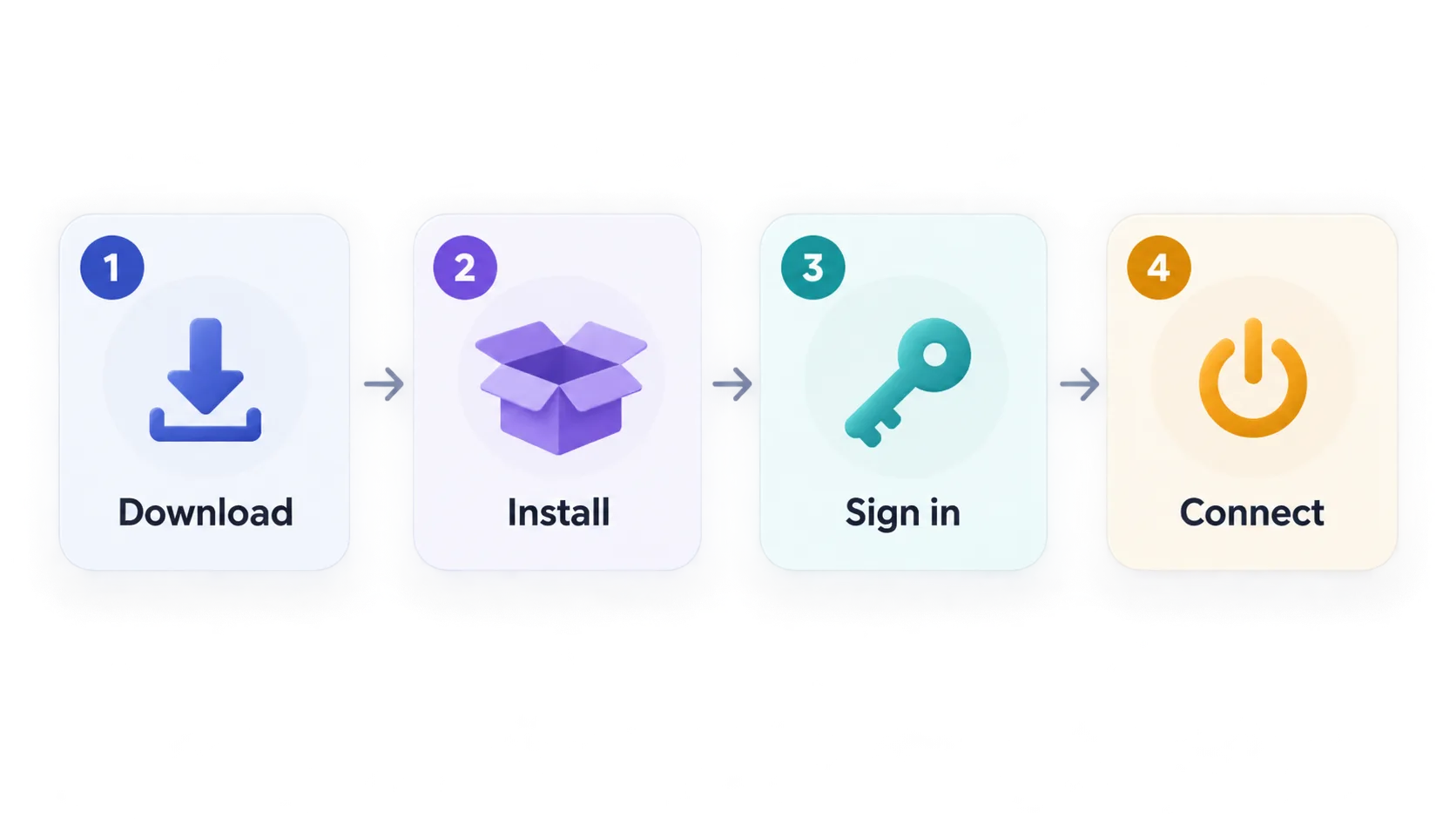
- Download the app from the provider's official website. Avoid third-party download sites, which sometimes bundle unwanted software.
- Install it and approve the Windows prompt allowing it to create a network adapter — that's how the VPN routes your traffic.
- Sign in with your account, then open settings to turn on the kill switch, auto-connect on untrusted networks, and leak protection.
- Connect to a recommended or nearby server.
- Verify it's working. Check your public address with our IP lookup tool — it should show the VPN server's location, not yours.
Fixing common Windows VPN problems
- It won't connect. Try a different protocol in the app's settings, then another server. Third-party firewalls and some antivirus suites can block VPN traffic — check whether yours has a setting to allow the VPN app.
- Websites won't load while connected. Often a DNS issue. Enable the app's own DNS or leak protection, and restart the app.
- Everything is slow. Switch to a nearby server and a modern protocol before assuming the VPN is at fault. Our explainer on whether server distance affects VPN speed covers what really drives performance.
- No internet after sleep. The kill switch may be blocking traffic while the tunnel reconnects. Wait a moment or reconnect manually; if it happens often, try the provider's fastest-reconnecting protocol.
- A work app stops working. Exclude it with split tunnelling rather than turning the VPN off entirely.
Running two VPNs at once causes trouble
If your employer's VPN client is also installed, running both at the same time frequently breaks connectivity. Disconnect one before connecting the other, or use split tunnelling if your provider supports excluding the work client.
Is a free VPN good enough for Windows?
Mostly no — with one clear exception. Proton VPN's free plan is trustworthy, has no data caps, and shows no ads, which makes it a genuinely good option for basic use. Most other free VPNs are a poor trade: they cap data, limit speeds, and many fund themselves by collecting and selling browsing data or bundling adware. Because a VPN sees all of your traffic, a questionable free provider can leave you worse off than having no VPN at all, a risk we explain in does a VPN protect against hackers? If you need more than basic browsing, a low-cost paid plan is a far safer choice.
The bottom line
For most Windows users, NordVPN is the best all-round choice, pairing top-tier speed with the most complete Windows feature set. Proton VPN is the pick if you want a trustworthy free plan or the strongest privacy credentials, Surfshark gives the best value for households running several PCs thanks to unlimited connections, and ExpressVPN is the easiest to live with. Privacy purists should look at Mullvad, beginners and streamers at CyberGhost, and tinkerers at Private Internet Access. Whichever you choose, install the provider's own app rather than relying on Windows' built-in client, switch on the kill switch and auto-connect for untrusted Wi-Fi, stick with a modern protocol, and confirm your IP has changed before you rely on it.
Frequently asked questions
NordVPN is our best all-round pick for Windows, combining fast WireGuard-based speeds with the most complete app feature set and an audited no-logs policy. Proton VPN is best if you want a trustworthy free plan, and Surfshark offers the best value for households with several PCs thanks to unlimited connections.
Windows includes a built-in VPN client, but it isn't a VPN service — you still need a server to connect to. It supports older protocols like IKEv2, L2TP/IPsec and SSTP, has no kill switch, and requires manual setup, so a provider's own app is faster, safer and easier for consumer VPN use.
Proton VPN's free plan is the standout, with unlimited data, no ads and audited open-source apps, though it offers only a few countries and isn't built for streaming. Most other free VPNs cap data or fund themselves by collecting browsing data, so a low-cost paid plan is safer for anything beyond basic use.
A modern VPN on a nearby server typically keeps most of your normal speed. Encryption uses some processing power and battery, so choose WireGuard or the provider's own modern protocol, which are noticeably lighter than older OpenVPN configurations.
Download the provider's app from its official website, install it and approve the network adapter prompt, sign in, then connect to a nearby server. Turn on the kill switch and auto-connect for untrusted Wi-Fi, and confirm your IP address has changed before relying on it.
Occasionally. Some third-party firewalls and antivirus suites can block VPN traffic or its network adapter. If your VPN won't connect, check whether your security software has a setting to allow the VPN app, and try switching the VPN's protocol.