











You open Chrome settings, type "proxy", and… nothing useful shows up.
No host field. No port. Just a button that dumps you into your operating system's network panel.
Sound familiar? Chrome can use a proxy. It just refuses to manage one the way Firefox or an antidetect browser does.
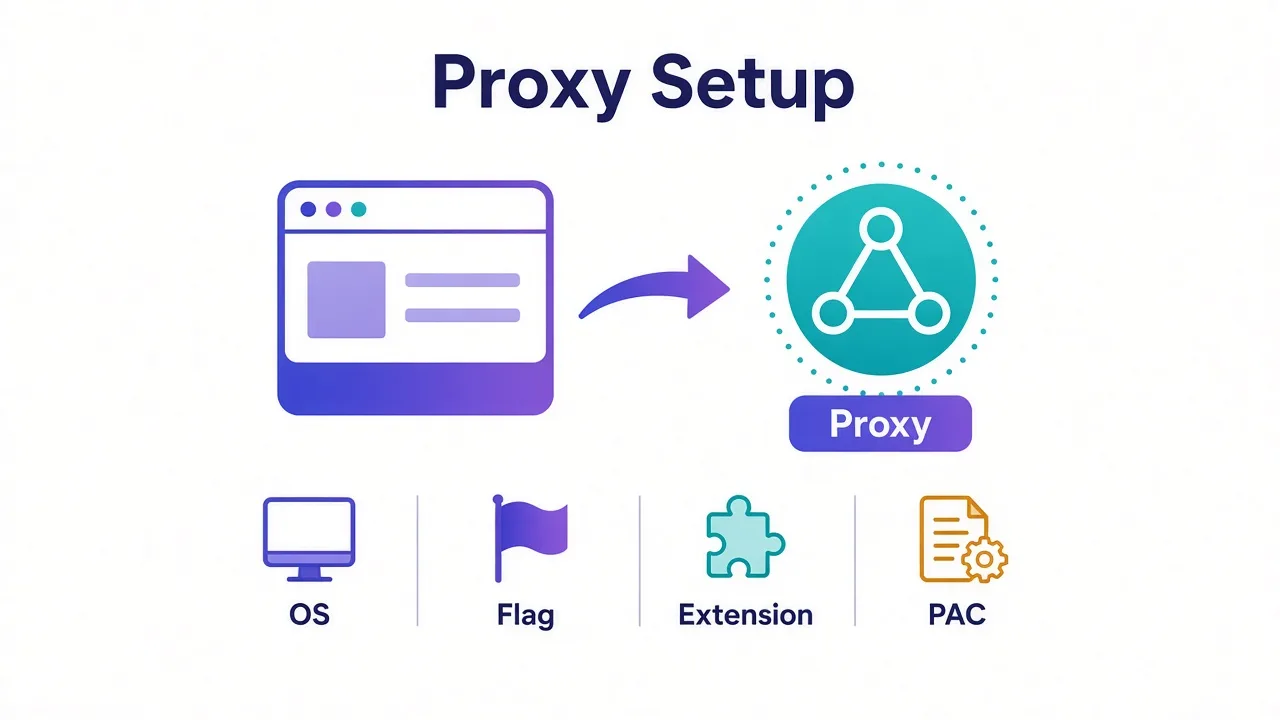
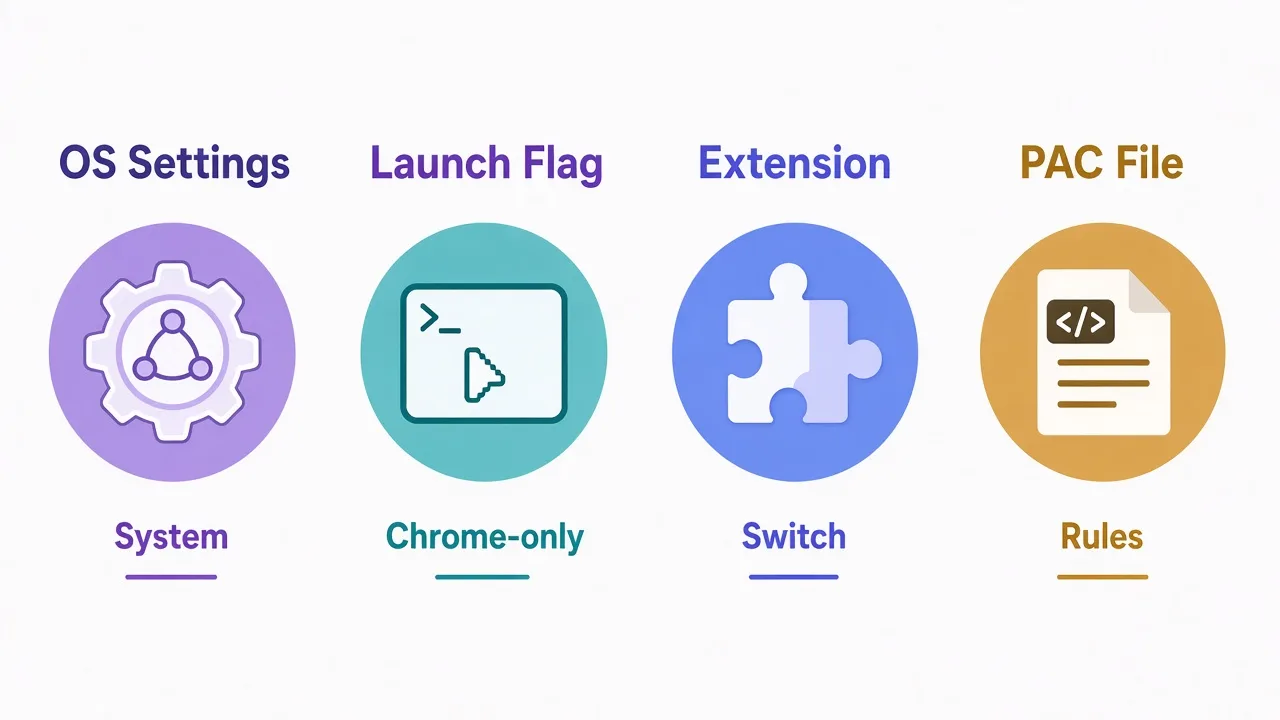
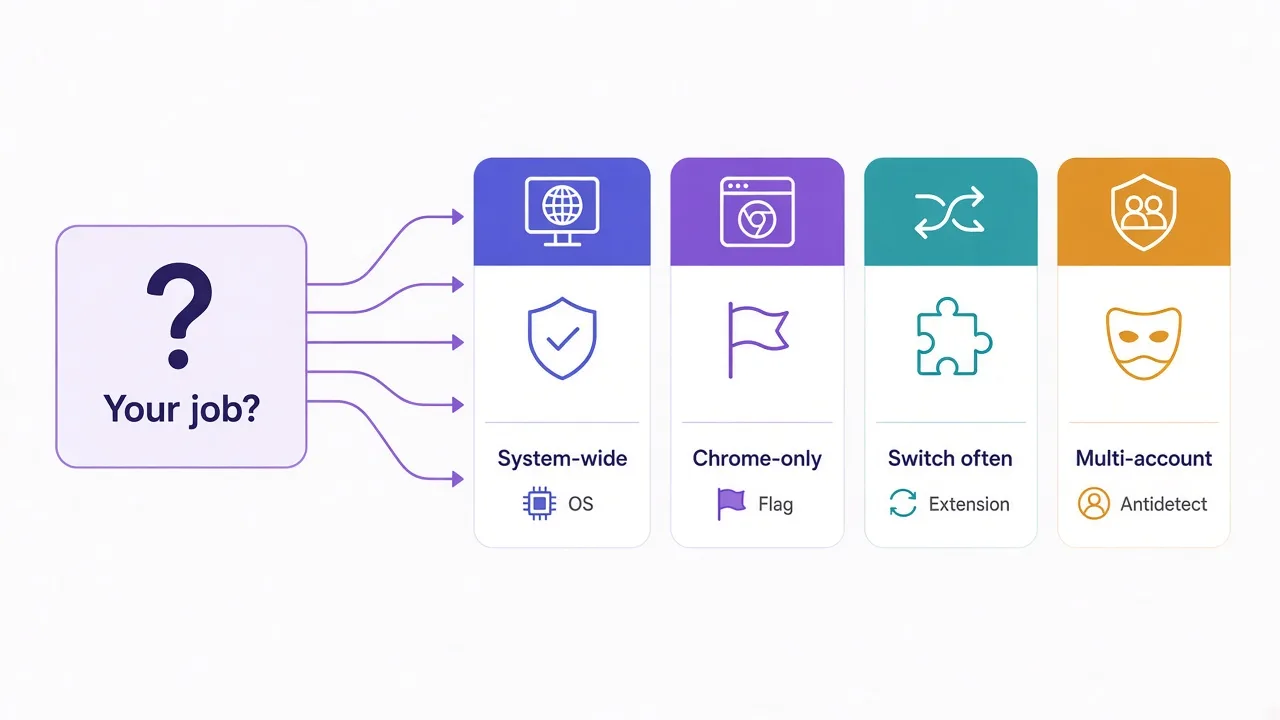
Here's the plain answer. To set a proxy in Chrome, you pick one of four paths.
OS settings, a launch flag, an extension, or a PAC file.
Each path works. Each one breaks in a different way.
This guide walks through those options, the Windows / macOS / Linux notes that trip people up, and authenticated proxies.
You'll also see the failure modes that make you think the proxy "isn't working" when it is.
There's a quiet reason Chrome alone is the wrong tool for multi-account work. We'll get there after the setup most people need first.
Why can't you find proxy settings inside Chrome?
Chrome's own settings page almost never holds the answer.
On desktop Chrome, searching for "proxy" usually surfaces System → Open your computer's proxy settings. That link is not a Chrome feature. It opens Windows, macOS, or your Linux desktop's network UI.
Chromium-based browsers share this habit. Edge does it. Brave does it. The browser defers to the OS so one system-wide setting covers every Chromium app.
So when a guide says "set a proxy in Chrome," what they usually mean is "set a proxy where Chrome looks."
That's useful to know before you install the first extension that promises one-click routing. Extensions can work. They also sit on top of the OS setting and fight it. More on that fight later.
Quick map
Need Chrome + one proxy for everything on the machine? Use OS settings. Need Chrome only, leave other apps alone? Use a launch flag or a scoped extension. Need rules per site? Use a PAC file.
What's the fastest path: OS proxy settings?
For most people, the OS path is the one that sticks.
Chrome reads the system proxy on Windows, macOS, and most Linux desktops. Set it once, restart Chrome, and every tab should follow that route.
Here's what that looks like on each platform. Keep your provider's host, port, and scheme handy before you start.
Windows
Open Settings → Network & internet → Proxy.
Under Manual proxy setup, turn on Use a proxy server. Enter the address and port. Save.
Windows' built-in panel is mostly HTTP/HTTPS oriented.
If your provider gave you SOCKS5 only, you'll usually need another path.
Use an extension, a launch flag, or a local helper that exposes an HTTP front-end.
Don't paste a socks5:// URL into the host field and hope.
Close every Chrome window (check the tray too), then reopen. Chrome caches the proxy decision at startup more often than people expect.
macOS
Open System Settings → Network, pick the active interface (Wi-Fi or Ethernet), then Details → Proxies.
Tick Web Proxy (HTTP), Secure Web Proxy (HTTPS), and/or SOCKS Proxy depending on what you bought. Fill host and port. Apply.
macOS lets you set schemes separately. That's good. It's also easy to enable HTTPS but forget HTTP, then wonder why half your sites bypass the tunnel.
Linux
It depends on the desktop.
GNOME: Settings → Network → Network Proxy. Choose Manual, fill HTTP, HTTPS, and SOCKS rows as needed.
KDE: System Settings → Network → Proxy.
On headless or minimal setups, export http_proxy, https_proxy, and all_proxy in the environment before launching Chrome. Chromium respects those when no desktop proxy service is in play.
System-wide means system-wide
OS proxy settings hit more than Chrome. Your package manager, some CLIs, and other browsers may follow the same route. Turn it off when you're done testing, or use a flag/extension when you only want Chrome routed.
When should you use a PAC file instead of a fixed host?
A PAC file (Proxy Auto-Config) is a small JavaScript file that returns which proxy to use for each URL.
You point the OS at a PAC URL or local path. Chrome asks that file: direct, or this proxy, or that one.
Why bother? Because a single host:port is blunt. Maybe you want only overseas storefronts through the proxy, and your bank left alone. Maybe internal hosts must stay direct. PAC rules encode that.
A minimal PAC looks like this:
function FindProxyForURL(url, host) {
  if (dnsDomainIs(host, ".example.com"))
    return "PROXY 203.0.113.10:8000";
  return "DIRECT";
}
Host that file somewhere Chrome can fetch (HTTPS preferred), then set Automatic proxy configuration in the OS panel.
The catch? PAC files fail silently when the URL 404s or the script throws. Chrome falls back to direct, and you keep browsing as if nothing happened. Always test with an IP-check page after you change a PAC.
Can you launch Chrome with a proxy flag?
Yes. And for "Chrome only, leave the rest of the machine alone," this is often the cleanest move.
Chromium accepts --proxy-server on the command line. Examples:
chrome.exe --proxy-server="http://203.0.113.10:8000"google-chrome --proxy-server="socks5://203.0.113.10:1080"--proxy-server="https://proxy.example.com:443"
On macOS, the binary usually lives under /Applications/Google Chrome.app/Contents/MacOS/Google Chrome. On Linux, it's google-chrome or chromium.
Pair it with a dedicated user-data directory if you want a clean profile that doesn't fight your daily Chrome:
--user-data-dir=/tmp/chrome-proxy-profile
That combo is how a lot of QA folks spin a geo-specific Chrome without touching system settings.
Two gotchas.
First, if another Chrome instance is already running with your default profile, a second launch may ignore your flags.
It just opens a new window in the existing process. Quit Chrome fully, or always pass a separate --user-data-dir.
Second, --proxy-server does not invent authentication UI. If the proxy needs a username and password, see the authenticated-proxy section below.
Flag vs OS vs extension
Flags win when you want one disposable Chrome window. OS settings win when everything on the machine should route the same way. Extensions win when you switch proxies often and accept the trust trade-off.
Are proxy extensions a good idea?
Sometimes. Not by default.
A Chrome extension can call the chrome.proxy API and override the system setting for that browser only. Handy when you hop between residential endpoints all day.
The trust problem is real. A proxy extension sees every URL you load. Some ask for broad permissions. A shady free extension is a credential harvester wearing a rocket icon.
If you use one:
- Prefer extensions from vendors you already pay for, or ones with a long public track record.
- Read the permission list. "Read and change all your data on all websites" is a big ask.
- Disable or remove it when you're done. An idle proxy extension that still holds
chrome.proxycontrol is a classic "why is half my traffic still routed?" bug.
Also know the override order. An extension that sets a proxy wins over the OS setting inside Chrome.
Your Windows panel can say "off" while the extension quietly keeps routing.
When debugging, open chrome://extensions and turn proxy extensions off before you blame the OS.
Remember that sneaky override from the start? This is usually it.
How do authenticated proxies work in Chrome?
Most paid proxies need a username and password, not just host:port.
Chrome's behavior here is awkward. For HTTP proxies with basic auth, Chrome may show a credentials dialog on first connect. For SOCKS5 with auth, support is thinner and depends on version and how you launched the browser.
Common patterns that actually work:
- Provider dashboard IP allowlisting. You whitelist your machine's IP, and the proxy accepts connections without a password. Simple for a home office. Bad on dynamic residential ISPs.
- Username:password in the proxy URL where the tool supports it:
http://user:pass@host:port. Launch flags and some extensions accept this. Don't paste secrets into a shared screenshot. - Local forwarder. A small local client (many providers ship one) listens on
127.0.0.1without auth and adds credentials upstream. Point Chrome at localhost.
If the dialog never appears and pages hang, you're often looking at a scheme mismatch.
Or the proxy expects SOCKS while Chrome is speaking HTTP CONNECT. Flip the scheme before you reset the password.
Why is the proxy set but sites still see your real IP?
This is the section that saves people hours.
You configured everything. an IP check still shows home. Or worse: some sites show the proxy, others show you.
Work through these failure modes in order.
Extension overrides
A leftover VPN or proxy extension is still managing chrome.proxy. Disable every network-related extension, restart Chrome, retest.
Wrong scheme
You entered a SOCKS host into an HTTP-only field, or the reverse. Symptoms: timeouts, ERR_PROXY_CONNECTION_FAILED, or silent direct fallback. Match http, https, and socks5 to what the provider documented.
HTTPS CONNECT problems
For HTTPS sites, Chrome asks the proxy to open a tunnel with the CONNECT method. If your proxy plan is HTTP-only for plaintext, or the port blocks CONNECT, secure sites fail while plain HTTP "works." That split is a clue, not a random flake.
WebRTC and sticky leaks
A proxy changes where TCP (and often UDP for SOCKS5) goes. It does not rewrite every browser API.
WebRTC can still expose local or related addresses unless you tighten flags or use a browser built for isolation.
For casual geo checks this rarely matters. For account work it does.
DNS still local
Depending on scheme and OS, DNS may resolve on your machine before the proxy sees the host.
That can leak the sites you visit to your ISP even when the page fetch goes through the proxy.
SOCKS5 often handles this better than a naive HTTP proxy.
If DNS privacy is part of the goal, confirm how your provider expects resolution to work.
Cached Chrome process
You changed the OS setting but Chrome never fully quit. On Windows especially, background apps keep the old process alive. Use the task manager once, then reopen.
Don't stack fixes blindly
OS proxy + VPN app + two extensions is how you get a mystery route nobody can debug. Change one layer at a time. Verify with an IP check after each change.
HTTP, HTTPS, or SOCKS: which scheme should Chrome use?
If you're unsure, start from what you bought, not from a blog's favorite acronym.
HTTP proxies are common and fine for many scraping and geo-check jobs. Chrome uses them with CONNECT for HTTPS destinations.
HTTPS proxies (TLS to the proxy itself) add encryption between you and the proxy. Useful on hostile networks. Support in consumer setups varies; follow your provider's Chrome notes.
SOCKS5 is a general tunnel. It can carry more than web traffic and often plays nicer with DNS when configured correctly.
Chrome accepts socks5:// in --proxy-server and in many extensions.
Compare the trade-offs in our HTTP vs SOCKS5 guide if you're still choosing a product.
One more split people mix up: proxy type is not the same as proxy scheme.
Datacenter, residential, and mobile describe where the IP comes from. HTTP and SOCKS5 describe how you connect.
You can have residential SOCKS5 or datacenter HTTP. Pick the type for the target's defenses, and the scheme for your tools.
Our residential vs datacenter comparison covers the type side.
When is Chrome alone the wrong tool?
Here's the loop we opened earlier: Chrome alone won't save multi-account work.
A system proxy or a launch flag changes your IP. It does not give each account a separate cookie jar, canvas fingerprint, or timezone story.
To a platform, five logins from one Chrome profile still look like one person wearing five hats.
That stays true even if each request exits a different IP.
Reach for a dedicated antidetect browser or a proper profile manager when you:
- run more than one login on the same site,
- need per-profile proxies that never cross-contaminate,
- care about fingerprint consistency across sessions.
Pair those tools with proxies chosen for the job. We've covered that pairing in best proxies for antidetect browsers.
For a one-off geo check, a QA pass, or a single work profile, stock Chrome is enough.
Pair it with OS settings or a launch flag.
Don't buy an antidetect stack for a problem a PAC file solves.
What's the legal and ToS line before you route traffic?
Using a proxy is legal in most places. What you do through it is what gets people in trouble.
Stay on the right side of three lines:
- The law where you are — fraud, unauthorized access, and similar offenses don't become fine because an IP changed.
- The site's terms — many platforms ban automated access or multi-accounting. A proxy doesn't rewrite that contract.
- Your provider's AUP — abuse gets your subnet burned, which hurts everyone sharing the pool.
We're not here to lecture. Just don't treat "I bought residential IPs" as a permission slip. If the workflow would be sketchy on your home IP, it's still sketchy through a proxy.
So which method should you actually use?
Match the method to the job.
One Chrome, one proxy, whole machine can follow: use OS proxy settings, restart Chrome, verify on an IP check.
Chrome only, leave Slack and your package manager alone: launch with --proxy-server and a separate --user-data-dir.
Different sites, different routes: write a small PAC file and point the OS at it.
Constant switching inside the browser: use a trusted extension from a vendor you already rely on, and disable it when idle.
Multiple accounts that must never look related: skip solo Chrome. Use an antidetect browser with per-profile proxies from a provider you've vetted in the proxy directory.
Set one layer. Test. Then stop adding knobs.
That's how you set a proxy in Chrome without spending the afternoon chasing ghosts.
Frequently asked questions
Desktop Chrome has almost no proxy UI of its own. Searching settings usually opens your OS network panel, where Chrome reads the system proxy.
Use Settings → Network & internet → Proxy, enable a manual proxy, enter host and port, save, then fully quit and reopen Chrome.
Yes. Launch Chrome with --proxy-server and a separate --user-data-dir, or use a trusted extension that calls the chrome.proxy API.
Usually a leftover extension override, a wrong scheme (HTTP vs SOCKS5), HTTPS CONNECT blocked, or Chrome never fully quit after the OS change.
Only from a vendor you trust. Extensions can override the OS proxy and see every URL; disable them when idle so they don't keep routing traffic.
When you run multiple logins that must not share cookies or fingerprints. A proxy changes IP only; it does not isolate Chrome profiles by itself.