










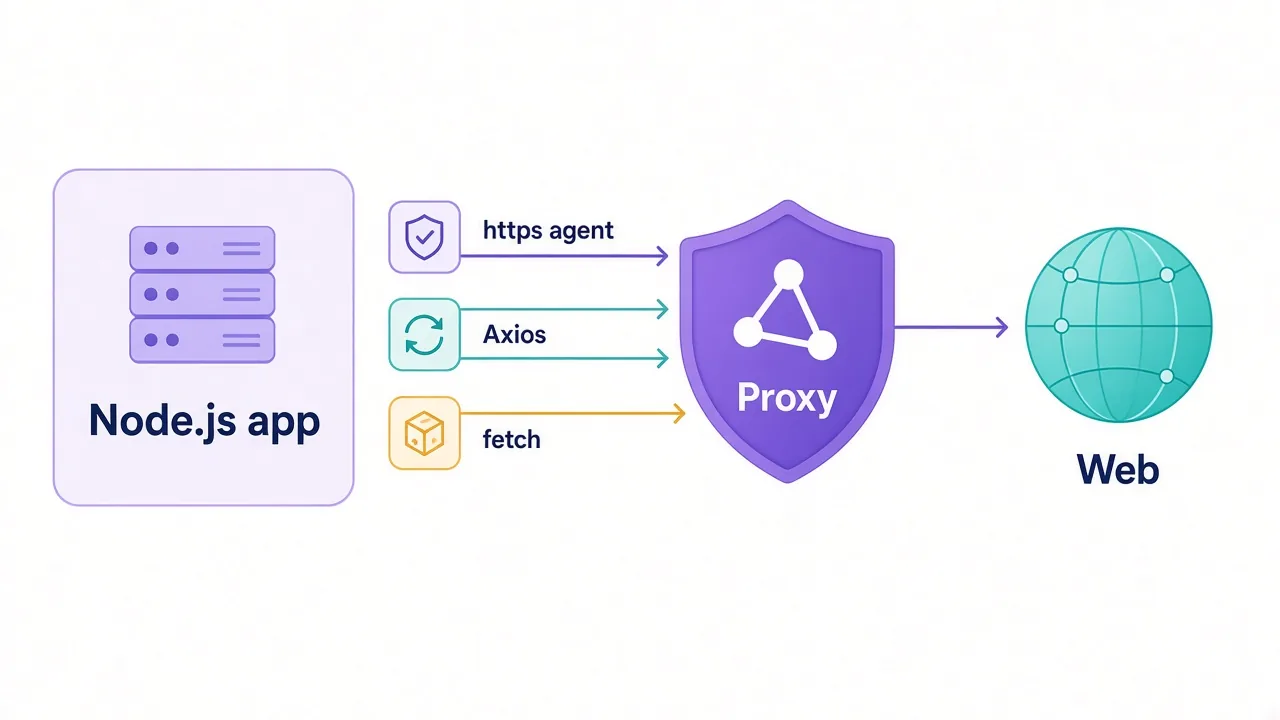
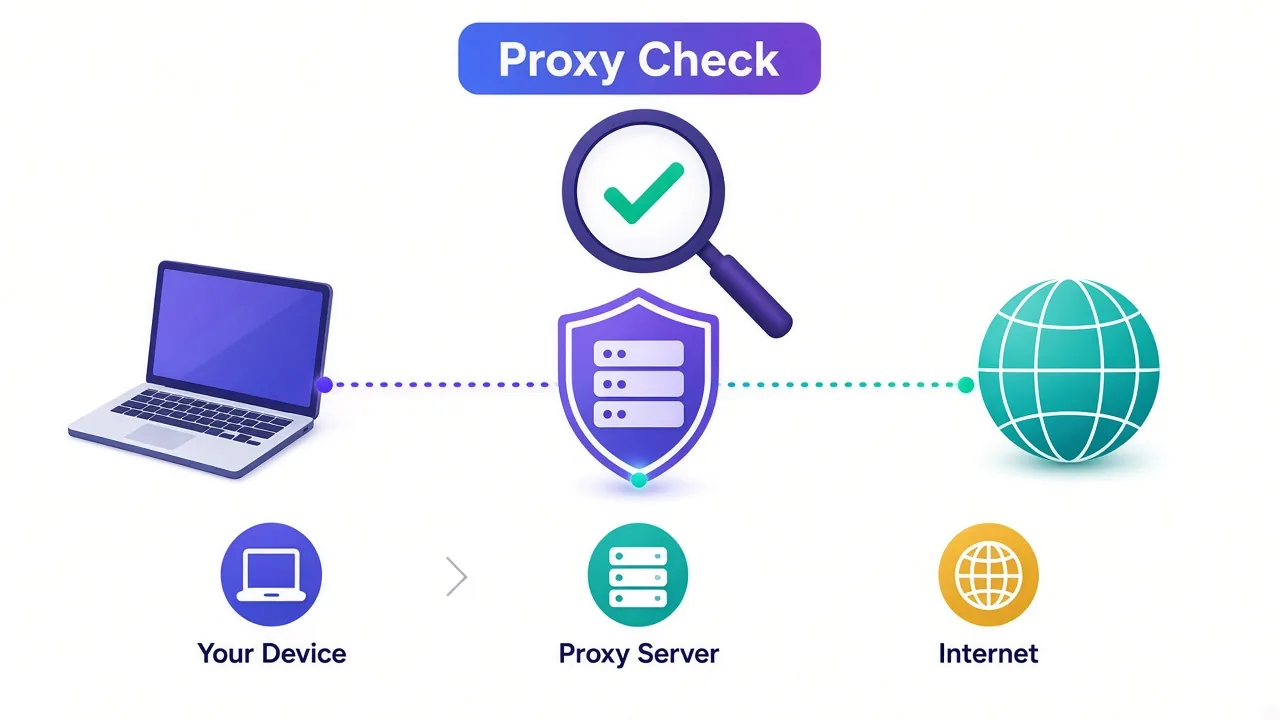
You pasted in the proxy details, hit save, and the page loaded. So it works, right?
Not necessarily. A page that loads only proves you have internet. It doesn't prove your traffic went through the proxy, or that the site sees the IP you paid for.
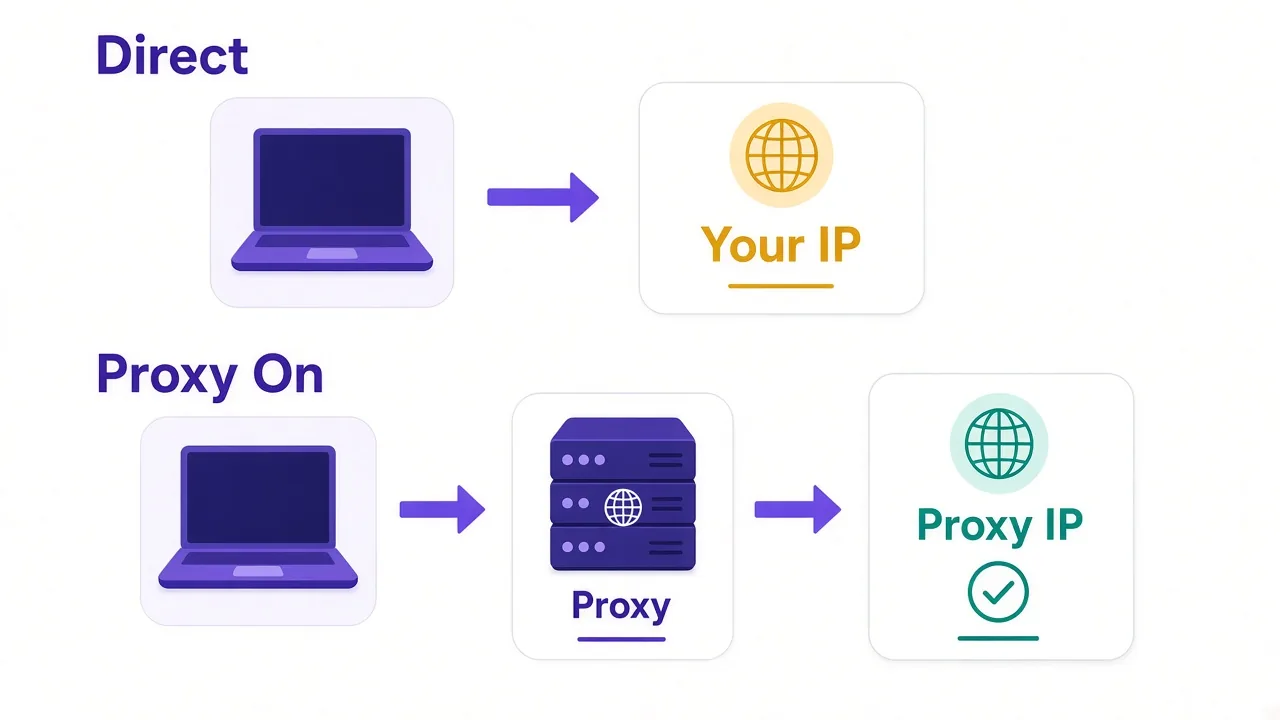
Here's the plain answer. To check if your proxy is working, compare your public IP with the proxy off and on. If the IP changes to the proxy's address, your traffic is going through it.
That takes 30 seconds. But there's one more check most people skip, and it catches proxies that "work" while still giving away your real location. We'll get to it right after the basics.
Did your IP actually change? Start with the 30-second test
Start with the simplest test there is. Look up your public IP with the proxy off, then again with it on.
Open our IP lookup tool in a normal window and note the address. Then switch the proxy on in your browser or app and reload the page.
One of three things will happen:
- The IP changes to the proxy's address. Traffic is going through it.
- The IP stays the same. Your app is ignoring the proxy, or the setting never saved.
- The page won't load at all. The proxy is down, the details are wrong, or the login failed.
The second result is the sneaky one.
Everything looks fine, so people carry on. They only notice weeks later, when an account gets flagged or a report shows the wrong country.
Why would a browser ignore a proxy you just set? Usually an extension or a system setting is overriding it. If you set it up in Chrome, our guide to setting a proxy in Chrome shows where those conflicts hide.
Pro tip
Run the "after" check in a private window. Cached pages and open sessions can make an old result look current.
How do you test a proxy from the command line?
A browser hides a lot. When something breaks, the command line tells you exactly where it broke.
The curl tool comes with macOS, Linux and recent versions of Windows. Point it at an IP echo service through your proxy:
curl -x http://user:pass@proxy.example.com:8080 https://api.ipify.orgIf it prints an IP that isn't yours, the proxy works. If it prints your own IP, you're not going through it.
And if it prints an error? Keep reading, because that error tells you more than you'd think.
For a SOCKS5 proxy, change the scheme at the front:
curl -x socks5h://user:pass@proxy.example.com:1080 https://api.ipify.orgNotice the h in socks5h? It tells curl to let the proxy look up domain names instead of your own machine. That one letter matters more than it looks, and it's tied to the check most people skip.
Not sure which scheme your provider gave you? Our breakdown of HTTP vs SOCKS5 proxies explains the difference in plain words.
Want more detail? Add -v to the command. curl then prints each step: connecting to the proxy, sending your login, and opening the tunnel to the site.
The first step that fails is where your problem lives.
What is that proxy error trying to tell you?
Proxy errors look cryptic. Most of them come down to a handful of causes, and each one points somewhere different.
| What you see | What it usually means | What to check |
|---|---|---|
| 407 Proxy Authentication Required | The proxy rejected your login | Username, password or IP allowlist |
| Connection refused | Nothing is listening on that host and port | Port number and proxy type |
| Connection timed out | The proxy is down, or a firewall blocks you | Another endpoint or another network |
| Could not resolve proxy | The proxy hostname is wrong | Spelling of the host |
| 403 or 429 from the website | The proxy works, but the site is blocking you | IP type, rotation and request rate |
| SSL or certificate error | Wrong scheme for the proxy | http, https or socks5 at the front |
The 407 is easy to misread. It means you reached the proxy fine. The proxy just doesn't know who you are.
Many providers let you log in two ways: a username and password, or an allowlist of your own IP addresses. If you use the allowlist and your home IP changed overnight, you'll get a 407 with no other warning.
Now look at the 403 and 429 row. Those codes come from the website, not the proxy.
Your proxy is doing its job there. The site just doesn't like the IP it sees, which is a different problem with a different fix. We'll come back to it.
Don't judge on one error
Run the same request three or four times. One timeout can be a blip. Four in a row is a real problem.
Is the IP the right type, in the right place?
An IP that changed isn't the finish line. You also want it to be the kind of IP you paid for.
Paste the proxy's IP back into the lookup tool and read two fields: the location and the network owner.
Location first. Say you bought German IPs to check local Google results, and the lookup says the Netherlands. Your geo-targeting setting isn't being applied, so check the country code in your proxy username or dashboard.
A word of caution, though. IP location databases often disagree with each other, especially at city level. Treat the country as reliable and the city as a rough guide.
Then the network owner. Every IP belongs to an ASN, a numbered network run by one company. That owner tells you a lot about what you're really using.
| If the owner is | You probably have |
|---|---|
| A home internet provider, like Comcast or BT | A residential or ISP proxy |
| A mobile carrier, like Vodafone or T-Mobile | A mobile proxy |
| A hosting or cloud company, like AWS or OVH | A datacenter proxy |
So what if you paid for residential and the owner is a cloud company? Then you're on datacenter IPs, whatever the sales page says.
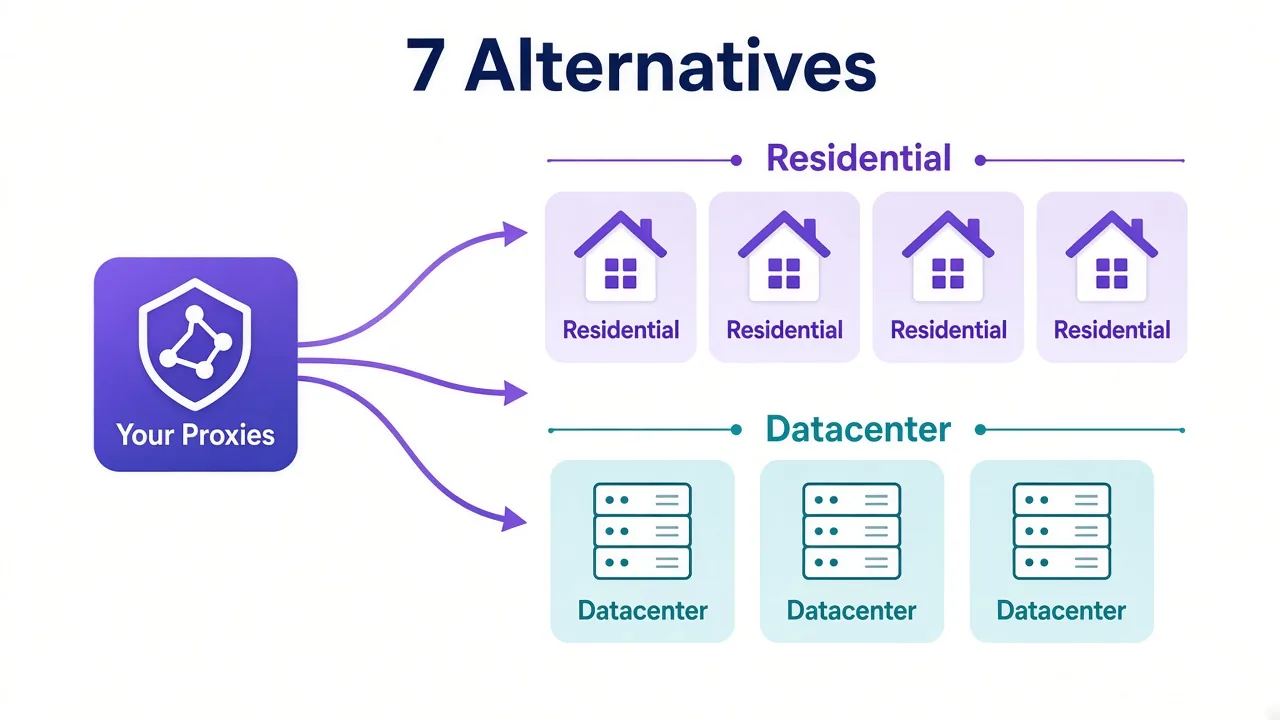
Sites spot that fast. It's the main reason the gap between residential and datacenter proxies matters so much for blocks.
ISP proxies are the one gray area. They sit in data centers but are registered to a consumer internet provider, so they show up as residential. That's how they're meant to work, not a trick.
The check most people skip: is your real IP leaking anyway?
Remember the check from the start? Here it is. Your proxy can pass every test above and still give away where you really are.
There are two common leaks. Both happen outside the main request, which is why an IP check alone won't catch them.
The first is a DNS leak. Before your browser loads a site, it asks a DNS server for that site's address.
If that lookup goes over your normal connection, your internet provider sees every site you visit. A leak test page can also show the lookup came from your real country, not the proxy's.
This is where the socks5h letter from earlier pays off. With plain socks5, curl looks up names on your own machine. With socks5h, the proxy does it, so the lookup never touches your real connection.
The second is a WebRTC leak. WebRTC is the browser feature behind video calls. It can reveal your real IP to a page even while the proxy handles everything else.
How do you test for both? Open a DNS and WebRTC leak test page with the proxy on. If any IP or DNS server from your real connection shows up, you have a leak.
Our browser fingerprint checker is a good companion test. It shows what a site can read from your browser beyond the IP.
If you run many accounts, watch for mismatches there. A US proxy paired with a browser set to Indian time and Hindi is its own red flag.
One app, one proxy
A proxy set inside one app only covers that app. Everything else on your computer still uses your real connection.
Is the proxy fast enough to be useful?
A proxy that works but takes eight seconds per page isn't really working. Not for scraping, and not for anything you do by hand.
curl can time each stage of a request for you:
curl -x http://user:pass@proxy.example.com:8080 -o /dev/null -s \
  -w "connect: %{time_connect}s  first byte: %{time_starttransfer}s  total: %{time_total}s\n" \
  https://example.com
Run it a few times with the proxy, then a few times without it. The gap between the two is what the proxy costs you in speed.
What should you look for? A slow connect time points at the proxy server itself, or the distance to it. A fast connect followed by a slow first byte points at the route from the proxy to the site.
Distance adds up quickly. Say you're in Chicago, the site is in Germany, and the proxy is in Singapore. Every request crosses the world and back, and it feels like it.
Expect residential and mobile IPs to be slower than datacenter ones, too. They run over real home and phone connections. That's the trade you make for looking like a normal visitor.
Test at the right hour
Run speed checks at the time of day you'll use the proxy. A shared pool can feel quick at 6 a.m. and sluggish at peak hours.
Why can a working proxy still fail on your target site?
Here's the frustrating one. Every test passes. Then you point the proxy at the site you care about and get a 403, a captcha or an empty page.
That's because IP echo services accept anyone. Your real target doesn't.
Sites like Amazon, Google and Instagram judge the IP's reputation, how fast you send requests, and the browser behind them. An IP checker judges none of that.
So always finish with a test against the real target. And don't stop at the status code. Check the content of the page too.
A 200 status can still hide a block. Some sites return a normal-looking page that's really a captcha or a "verify you're human" screen. Search the response for something you expect, like a product title or a price:
curl -x http://user:pass@proxy.example.com:8080 -s https://example.com/page \
  | grep -c "Expected text"
A result of zero means the page you got isn't the page you wanted.
Remember the 403 and 429 errors from the table? This is that problem. The proxy is fine, and the setup around it needs work. Our guide on why proxies get banned walks through the usual fixes.
Is it rotating, or sticking, like you asked?
Rotating proxies give you a new IP on each request or every few minutes. Sticky sessions hold one IP for a set time. Both can break quietly.
Test it with a short loop that asks for your IP five times:
for i in 1 2 3 4 5; do
  curl -s -x http://user:pass@proxy.example.com:8080 https://api.ipify.org; echo
done
On a rotating setup, you should see different IPs. On a sticky one, you should see the same IP all five times.
Seeing the opposite? The session setting usually lives in the username, as a session ID or a duration. Each provider uses its own format, so check their docs for the exact syntax.
This matters most for logins. If your IP changes halfway through a session, many sites log you out or flag the account.
Our explainer on sticky vs rotating proxies covers which one to use for which job.
How do you check a whole proxy list at once?
Testing one proxy by hand is fine. Testing 200 that way is a lost afternoon.
A short Python script can check them in parallel. It needs the requests library and a file called proxies.txt with one proxy URL per line.
import requests
from concurrent.futures import ThreadPoolExecutor

def check(proxy):
    try:
        r = requests.get("https://api.ipify.org",
                         proxies={"http": proxy, "https": proxy},
                         timeout=10)
        return proxy, "OK", r.text.strip(), round(r.elapsed.total_seconds(), 2)
    except requests.RequestException as e:
        return proxy, "FAIL", type(e).__name__, None

with open("proxies.txt") as f:
    proxies = [line.strip() for line in f if line.strip()]

with ThreadPoolExecutor(max_workers=20) as pool:
    for result in pool.map(check, proxies):
        print(*result)
Each line of output shows the proxy, whether it passed, the IP it returned and the response time in seconds. Failures show the error type instead, like ProxyError or ConnectTimeout.
For SOCKS5 proxies, install requests[socks] and use socks5h:// URLs in the file.
Keep the worker count modest. Twenty parallel checks is plenty for most lists, and some providers cap how many connections you can open at once.
Building a scraper on top of this? Our guide to rotating proxies in Python picks up from here. For browser automation, see using a proxy with Playwright.
What order should you run these checks in?
You don't need every test every time. But when a proxy is new, or something just broke, this order finds the problem fastest:
- Check that the IP changed.
- Read the error, if there is one.
- Confirm the location and network owner.
- Run a DNS and WebRTC leak test.
- Time a few requests.
- Test the real target and check the content.
- Confirm rotation or sticky sessions behave.
Each step rules out one layer. So when a step fails, you know which layer to fix, and you skip an hour of guessing.
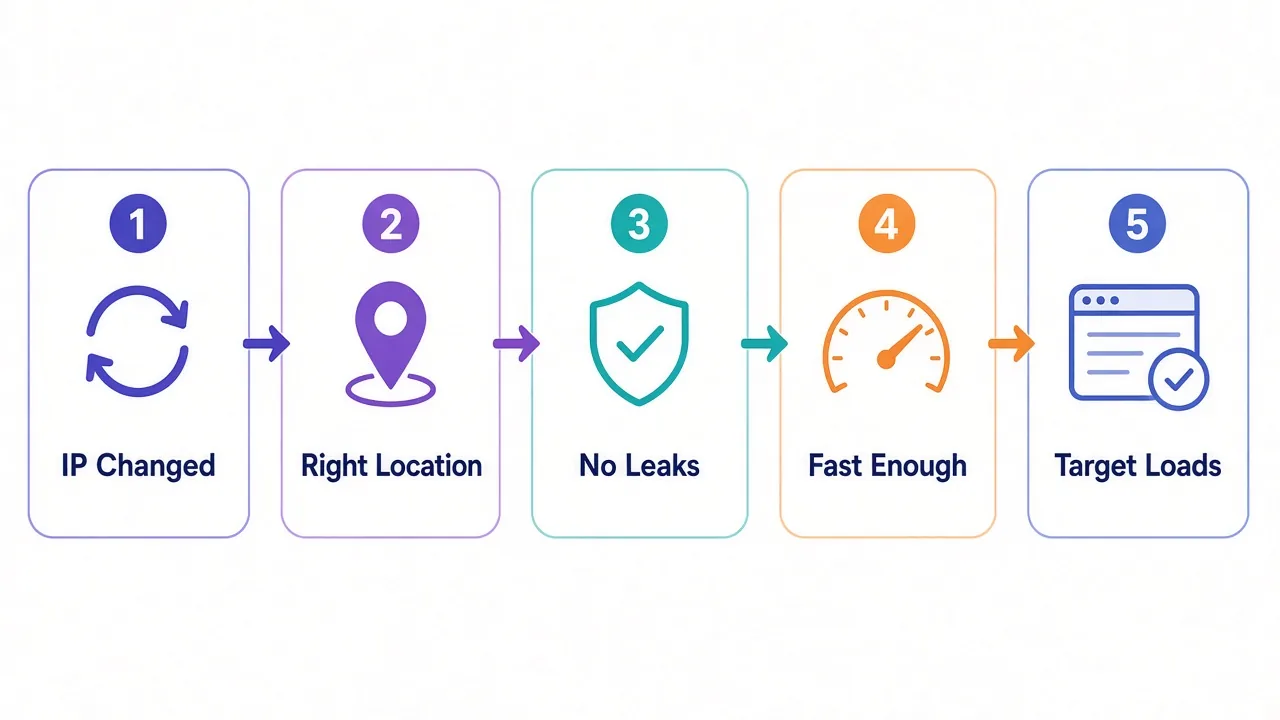
One habit helps more than any tool. Write down what "working" looked like on day one: the IP type, the country and the rough speed.
When things go wrong later, you'll have something real to compare against.
So, is your proxy working or not?
If the IP changed and the location matches, your proxy is working. That's the 30-second answer.
Working well is the bigger question. No leaks, a sensible speed and real pages from your target are what count. That's the gap between a proxy that connects and one that does the job.
Still failing those checks with the setup right? Then the IPs are the problem. Compare providers in our proxy directory and pick one built for your target.
Then run the checks again.
Frequently asked questions
Compare your public IP with the proxy off and on. If an IP lookup shows the proxy's address instead of yours, your traffic is going through the proxy. Then confirm the location matches what you bought.
A 407 means you reached the proxy but it rejected your login. Check your username and password, or add your current IP to the provider's allowlist if you use IP authentication.
Run curl with the -x flag, for example curl -x http://user:pass@host:port https://api.ipify.org. If it prints the proxy's IP, the proxy works. Add -v to see exactly which step fails.
IP checkers accept any connection, but sites like Amazon or Instagram judge IP reputation, request rate and browser signals. A 403 or 429 from the site usually means the proxy works and the setup needs changing.
Run a DNS and WebRTC leak test with the proxy on. If any IP or DNS server from your real connection appears, you have a leak. For SOCKS5, use socks5h so the proxy resolves domain names.
Look up the proxy IP and check the network owner, or ASN. A home internet provider means residential or ISP, a mobile carrier means mobile, and a hosting or cloud company means datacenter.