











You pasted the proxy into Firefox, hit OK, and loaded a page. It still shows your home IP.
Or worse, the page won't load at all. Firefox just says the proxy server is refusing connections, and you've no idea which box you got wrong.
Here's the good news. Setting a proxy in Firefox takes about two minutes.
Better still, Firefox is the one major browser that can do it without touching the rest of your computer.
So why does it go wrong so often? Usually it's one checkbox most people never tick. We'll get to it. First, let's see why Firefox works differently.
Why does Firefox have its own proxy settings?
Most browsers hand the job to your operating system.
Chrome and Edge read the proxy you set in Windows or macOS. Change it there, and every app that follows system settings changes with it. We covered that route in our guide on how to set a proxy in Chrome.
Firefox ships its own network settings. By default it copies the system proxy, but you can switch that off and give Firefox a proxy of its own.
Why does that matter?
You can route one browser through a proxy. Your email app, game launcher and system updates stay on your normal connection.
Good to know
A Firefox proxy only covers Firefox. If you need every app on the machine behind the proxy, set it at the system level or use a VPN instead.
That separation is also why people pick Firefox for testing. You can keep a second browser on your real IP and compare the two side by side.
What do you need before you open the settings?
Have four things ready. Your provider's dashboard shows all of them, usually on a page called setup, endpoints or access.
- The proxy host, either an IP address or a hostname.
- The port number that goes with it.
- The protocol: HTTP, HTTPS or SOCKS5.
- How it logs you in: a username and password, or a whitelist of your own IP.
The protocol decides which box you'll fill in.
Get it wrong and nothing connects, so check it twice.
| Your proxy type | Firefox field to use | Notes |
|---|---|---|
| HTTP proxy | HTTP Proxy | Tick "Also use this proxy for HTTPS" |
| HTTPS proxy | HTTPS Proxy | Rare in practice; most providers sell HTTP |
| SOCKS5 proxy | SOCKS Host | Pick SOCKS v5 and proxy DNS |
| SOCKS4 proxy | SOCKS Host | Pick SOCKS v4; old and limited |
| PAC file URL | Automatic proxy configuration URL | For rule-based routing |
Not sure which protocol you bought? Our breakdown of HTTP vs SOCKS5 proxies explains the difference in plain words.
One more thing about logins. If your provider offers IP whitelisting, it's often the smoother option in Firefox. You'll see why in a moment.
How do you set a proxy in Firefox, step by step?
This works the same on Windows, macOS and Linux. The menu names below match current Firefox releases.
- Open the menu (the three lines at the top right) and choose Settings.
- Stay on the General panel and scroll to the bottom, to Network Settings.
- Click the Settings button next to it. A dialog called Connection Settings opens.
- Select Manual proxy configuration.
- Type the host and port into the right field for your protocol.
- Click OK. There's no restart needed.
In a hurry? Type "proxy" into the search box at the top of the Settings page. Firefox jumps straight to Network Settings.
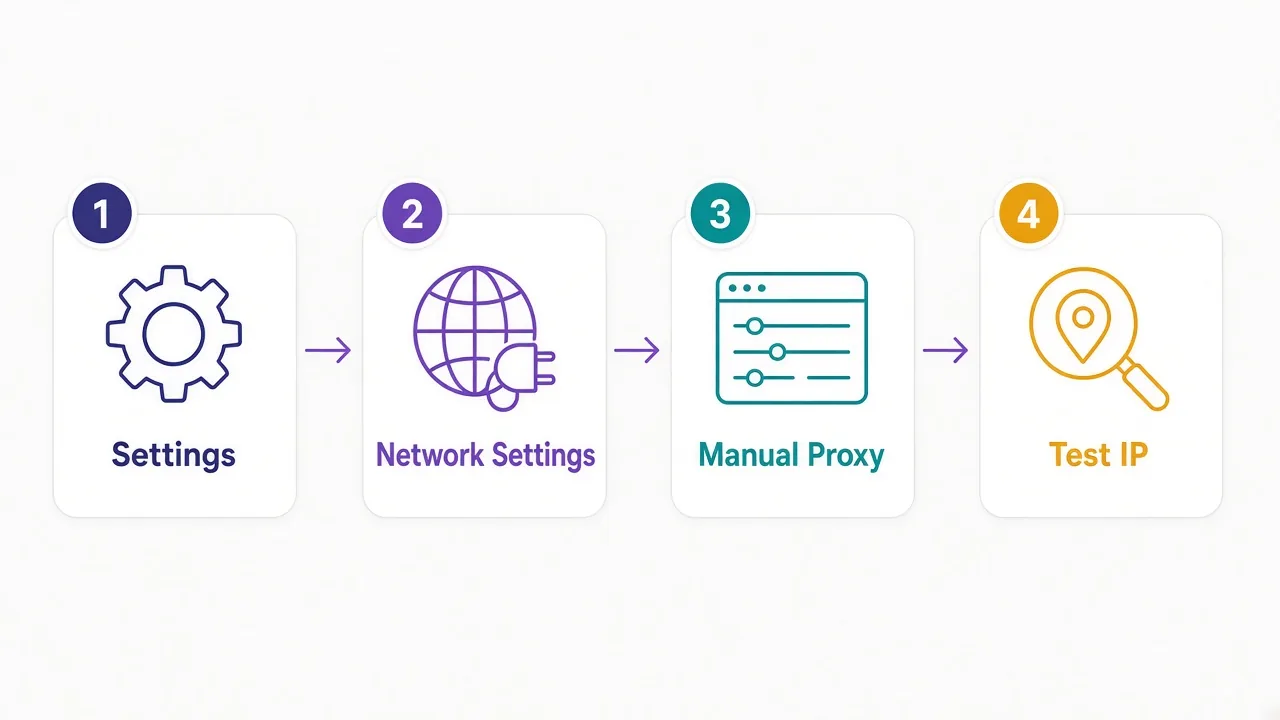
Now open a new tab and load any page. If it loads, you're halfway there. If it doesn't, jump to the troubleshooting section further down.
Loading isn't proof, though.
A page can load fine over your real connection if a setting didn't stick. You'll want to confirm the IP, which we'll do shortly.
HTTP, HTTPS or SOCKS: which box does your proxy go in?
The Connection Settings dialog has more fields than you need. Here's what each one does.
HTTP Proxy is the box for the most common kind of paid proxy. Put the host on the left and the port on the right.
Right under it sits a checkbox: "Also use this proxy for HTTPS". Tick it. Almost every site you visit runs on HTTPS, so leaving it off means most of your browsing skips the proxy.
The HTTPS Proxy field is for the less common case where your provider gives you a separate endpoint for secure traffic. If you ticked the checkbox above, Firefox fills it for you.
The SOCKS Host field is for SOCKS proxies. Pick SOCKS v5 unless your provider says otherwise. SOCKS v4 can't handle logins or IPv6, and it can't send your DNS lookups through the proxy.
Don't fill every box
Use either the HTTP fields or the SOCKS fields, not both. Filling both with different proxies makes it hard to tell which one is in use when something breaks.
Then there's No proxy for. It's a comma-separated list of addresses that should skip the proxy, like a local router page or an internal company site.
Firefox never sends localhost or 127.0.0.1 through the proxy, so you don't need to add those.
What happens when your proxy needs a username and password?
The Connection Settings dialog has no username or password field. That surprises a lot of people.
For HTTP proxies, it's not a problem. The first time you load a page, Firefox shows a login popup asking for the proxy's username and password. Enter them, and you're through.
Tired of retyping them? Let Firefox save the login.
Then tick "Do not prompt for authentication if password is saved" in the same dialog. The popup stops coming back.
SOCKS5 is the awkward one. Firefox's built-in settings have no way to send a SOCKS5 username and password, so an authenticated SOCKS5 proxy just fails to connect.
You have three ways around it:
- Whitelist your own IP in the provider's dashboard, so no login is needed.
- Use the provider's HTTP endpoint instead, which handles the login popup fine.
- Install a proxy-manager extension that can store SOCKS credentials for you.
That's why we flagged IP whitelisting earlier. If your home IP changes often, though, you'll be updating that whitelist a lot. In that case, the HTTP endpoint is the calmer choice.
How do you check that Firefox is really using the proxy?
Open a site that shows your public IP. Then compare it with what you see in a browser that isn't using the proxy.
If the two match, the proxy isn't doing anything. If Firefox shows the proxy's IP and location, you're set.
Check the location too. A residential proxy sold as "United States" should show a US city, not the country where you're sitting.
Our guide on how to check if your proxy is working walks through the full set of tests. That includes the two leaks below, which an IP check page alone won't always show.
Is your real IP still leaking through DNS or WebRTC?
Remember that checkbox from the start? Here it is: Proxy DNS when using SOCKS v5.
Every time you visit a site, your browser first looks up its address. That lookup is a DNS request. With the box unticked, Firefox can do that lookup on your own connection, even while the page itself loads through the proxy.
The result is a DNS leak. Your internet provider, and anyone watching the lookup, can see which sites you visit. Some sites can also spot that the DNS server and the proxy IP don't match.
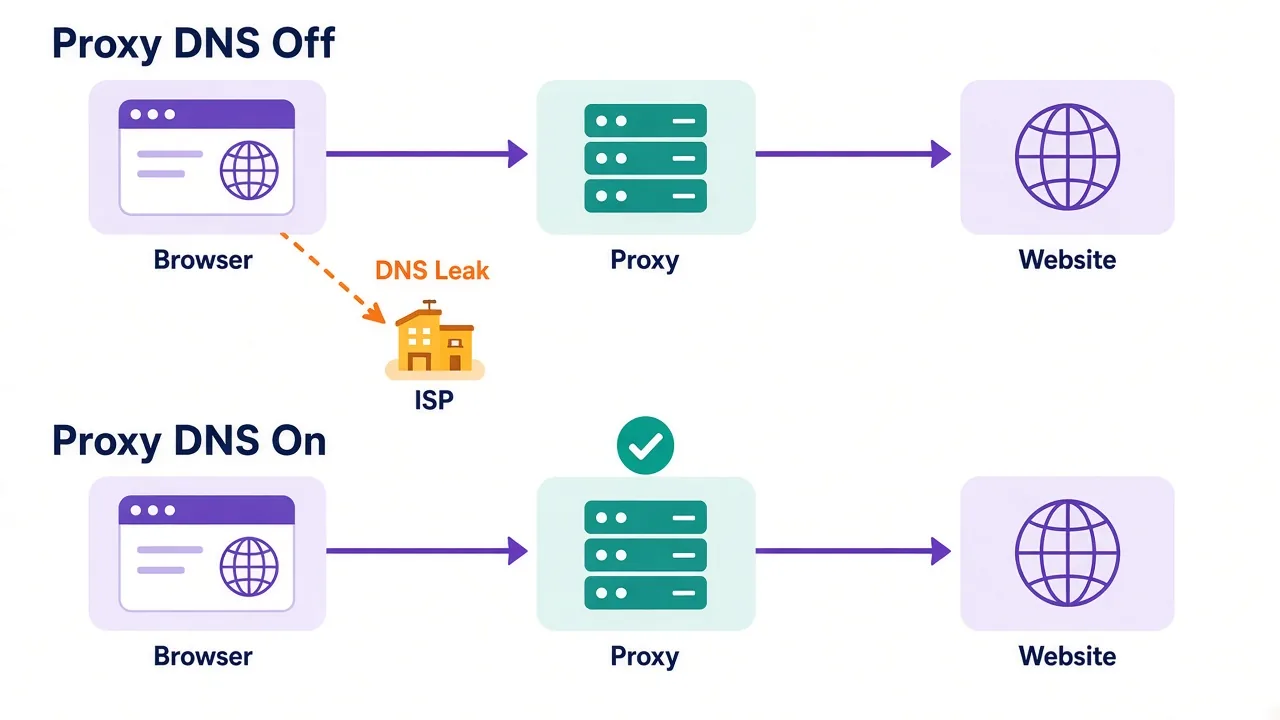
Tick the box whenever you use SOCKS5. With HTTP proxies, the proxy does the lookup for you, so this setting doesn't apply.
WebRTC is the second leak.
It's the tech behind browser video calls. It can hand your real IP to a site's script, even with a proxy on.
Don't make calls in this browser? You can switch WebRTC off. Type about:config in the address bar, accept the warning, search for media.peerconnection.enabled, and set it to false.
The catch
Turning off WebRTC breaks video calls in that profile, and some sites treat a missing WebRTC as unusual. Do it in a profile you keep for proxy work, not your everyday one.
For a deeper look at how sites spot these mismatches, see how browser fingerprinting works.
Want a different proxy for each task?
The built-in setting gives you one proxy for the whole browser. That's fine for a single job, but it gets old fast if you juggle several.
Firefox profiles are the free fix. Each profile keeps its own settings, cookies, logins and proxy.
Type about:profiles in the address bar and click "Create a New Profile". Give it a name like "US proxy", launch it, and set that profile's proxy. Your main profile stays untouched.
Say you check prices in three countries. Make three profiles, each with a proxy in a different country, and open them side by side.
Here's the honest limit.
Profiles separate cookies and proxies, but they still share the same device fingerprint, like your screen size, fonts and graphics card.
Running several accounts on one site? A platform can still link those profiles. That's the job antidetect browsers do, and we compare them in our antidetect browser directory.
Extensions sit in between. Proxy-manager add-ons let you switch proxies from the toolbar, or send only certain sites through a proxy. They're handy, but each one can see your traffic, so stick to well-known ones with clear reviews.
Can a PAC file send only some sites through the proxy?
Yes. A PAC file (proxy auto-config) is a small script that tells Firefox which sites use which proxy.
It's the built-in way to say "use the proxy for these sites, go direct for everything else". You don't need any extension.
Here's a short example. Save it as a .js file, with your own proxy host and port in place of the example ones:
function FindProxyForURL(url, host) {
  if (dnsDomainIs(host, ".example.com")) {
    return "PROXY proxy.example.net:8080";
  }
  return "DIRECT";
}
Then, in Connection Settings, choose Automatic proxy configuration URL and point it at the file. A local file uses a file:/// address, and a hosted one uses its web address.
Edited the file? Click Reload next to the URL box so Firefox reads the new rules.
PAC files are great for one fixed setup. They're clumsy if you swap proxies every day, since you'll be editing code each time.
What about about:config for power users?
Everything in the Connection Settings dialog is also stored in about:config. That's handy if you set up Firefox on many machines, or want to check what a setting really says.
| Preference | What it controls |
|---|---|
| network.proxy.type | The mode: 0 is no proxy, 1 is manual, 2 is PAC, 4 is auto-detect, 5 is system |
| network.proxy.http and network.proxy.http_port | The HTTP proxy host and port |
| network.proxy.socks and network.proxy.socks_port | The SOCKS host and port |
| network.proxy.socks_version | 4 or 5 |
| network.proxy.socks_remote_dns | The "Proxy DNS" checkbox |
| network.proxy.no_proxies_on | The "No proxy for" list |
Change these with care.
A typo here won't show a friendly error. Pages just stop loading, and you're left guessing.
Can't change a setting because the dialog has it greyed out? Your organization may manage Firefox. Type about:policies to see whether a policy has locked the proxy.
Why isn't your Firefox proxy working?
Most failures come down to a handful of causes. Match the error you see to the likely fix.
| What you see | Likely cause | Fix |
|---|---|---|
| "The proxy server is refusing connections" | Wrong port, wrong protocol, or your IP isn't whitelisted | Recheck the port and type; add your IP in the dashboard |
| "Unable to find the proxy server" | Typo in the hostname | Copy the host straight from the dashboard |
| Login popup keeps coming back | Wrong username or password | Re-enter them; check for extra spaces |
| Pages load, but IP is unchanged | HTTPS box left unticked, or still on system settings | Tick "Also use this proxy for HTTPS" |
| SOCKS5 proxy never connects | Proxy needs a login Firefox can't send | Whitelist your IP or use the HTTP endpoint |
| Some sites block you anyway | The IP type is easy to spot | Try residential IPs for tough sites |
That last row deserves a word.
A proxy can be set up perfectly and still get blocked, because some sites distrust datacenter IP ranges on sight.
If that's you, read residential vs datacenter proxies before you change anything else. It's often the IP type, not your settings.
Still stuck? Test the same proxy with a second tool. If it fails there too, the problem is on the provider's side, and their support team can check it.
So, which Firefox proxy setup should you actually use?
Start simple. For one proxy and one job, the manual setting with the HTTPS box ticked is all you need.
Using SOCKS5? Tick "Proxy DNS" every time, and whitelist your IP if the proxy wants a login.
Juggling several locations? Give each one its own Firefox profile. If those profiles log into the same platform, move up to an antidetect browser.
Still need a proxy that fits the job? Compare the providers in our proxy directory side by side.
You'll be set up before your coffee cools.
Frequently asked questions
Open Settings, scroll to Network Settings, click Settings, choose Manual proxy configuration, and enter your proxy host and port. For HTTP proxies, also tick "Also use this proxy for HTTPS" so secure sites go through it too.
Yes, by default Firefox uses your system proxy settings. You can switch to Manual proxy configuration to give Firefox its own proxy without changing anything else on your computer.
Not through its built-in settings, which have no field for SOCKS5 credentials. Whitelist your IP with the provider, use their HTTP endpoint instead, or use a proxy-manager extension that stores SOCKS logins.
It sends your DNS lookups through the SOCKS5 proxy instead of your own connection. Leave it on whenever you use SOCKS5, or your internet provider can still see which sites you visit.
Create separate Firefox profiles at about:profiles and give each one its own proxy. Profiles keep separate cookies and settings, but they share one device fingerprint, so use an antidetect browser for multiple accounts on one platform.
The usual causes are a wrong port or protocol, an IP that isn't whitelisted, or the HTTPS checkbox left unticked. Check the error message, recheck the details in your provider's dashboard, and confirm the result on an IP check page.