











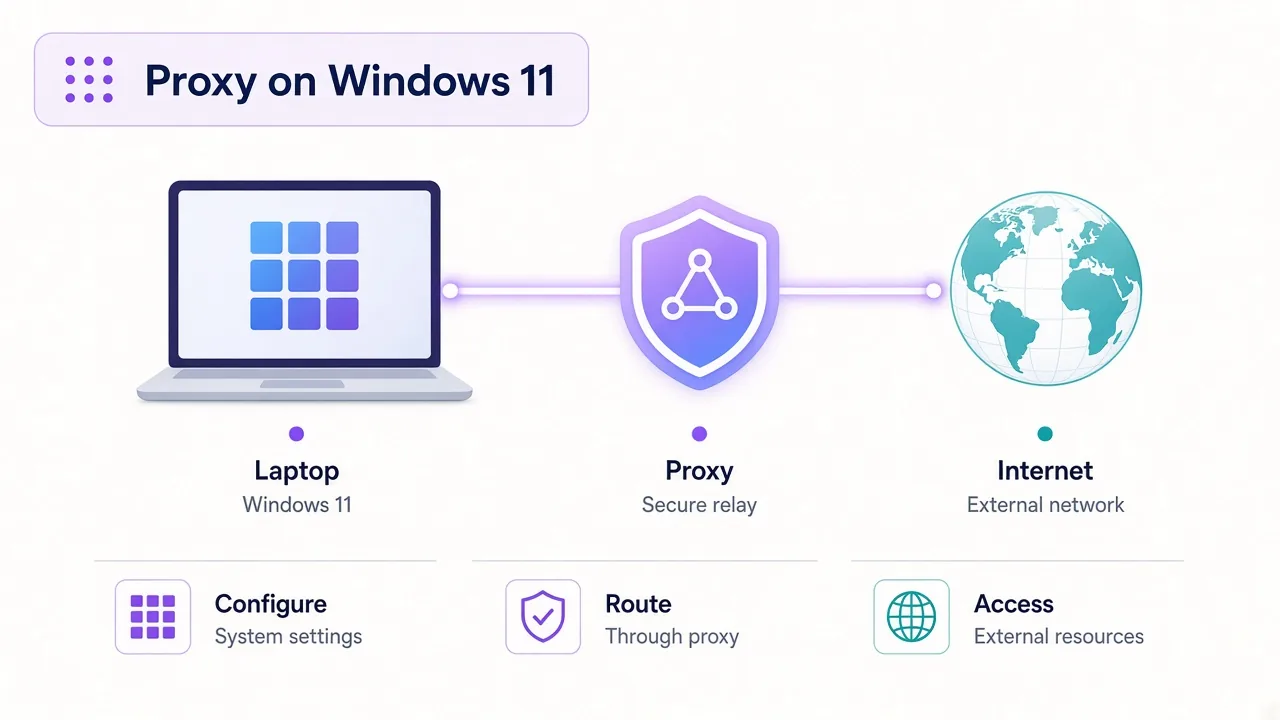
You've got a proxy address, a port and maybe a username. Now you want Windows 11 to actually use it.
Good news: setting up a proxy on Windows 11 takes about two minutes in Settings. The catch is what happens after. Some apps follow your setting, some quietly ignore it, and there's no box anywhere for your password.
So where does the password go? And which apps are still leaking your real IP? We'll cover both. First, the quick setup.
What does the Windows 11 proxy setting actually change?
Windows keeps one system proxy setting for your user account. Apps can read it and send their traffic through the address you enter.
Notice the word "can". Windows doesn't force anything through the proxy. It publishes a setting, and each app decides whether to follow it.
Most of the apps you care about do. Edge and Chrome use the system proxy by default. Firefox does too, unless you've changed its own network settings. Plenty of desktop apps that use the standard Windows networking libraries follow along.
That's different from a VPN, which wraps the whole connection at the network level. If you're not sure which one you need, our proxy vs VPN comparison lays out the trade-off.
Before you start
Have four things ready: the host, the port and the protocol (HTTP or SOCKS5). Also check whether the proxy uses a password or an IP allowlist.
How do you set up a proxy on Windows 11 manually?
This is the path for most people. You have a host and a port from your provider, and you want the browser and system apps to use it.
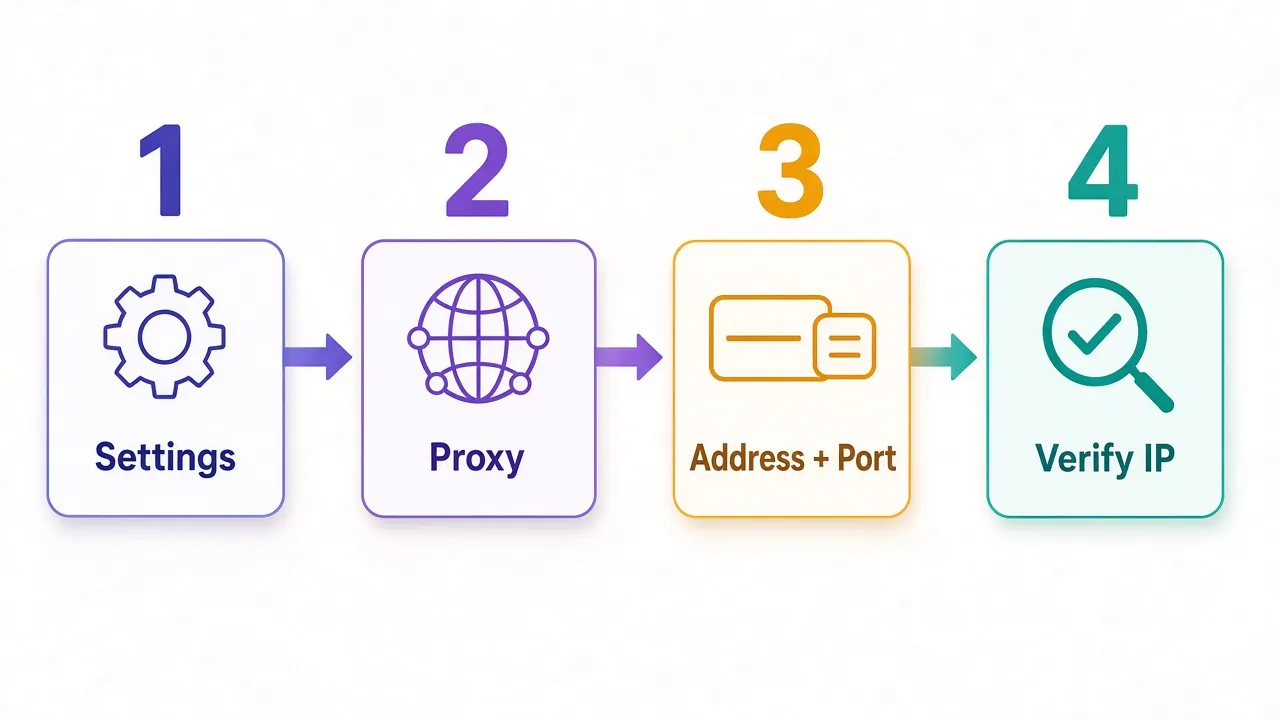
- Press Win + I to open Settings.
- Click Network & internet in the left menu, then Proxy.
- Under "Manual proxy setup", find "Use a proxy server" and click Set up.
- Turn on the "Use a proxy server" toggle.
- Type the proxy IP or hostname into "Proxy IP address" and the number into "Port".
- Leave "Don't use the proxy server for local (intranet) addresses" ticked.
- Click Save.
That's it. The change applies right away, with no restart needed. Apps that were already open sometimes hold the old setting, so close and reopen your browser.
Type only the host in the address box. Don't paste "http://" in front of it, and don't add the port on the end. Windows wants them in separate fields.
What goes in the exceptions box?
Below the port there's a box for addresses that should skip the proxy. Separate each entry with a semicolon.
Use it for anything that should stay direct: your router page, a work intranet, or a local dev server. A typical entry looks like 192.168.*;*.local;localhost.
Why bother? Because a residential proxy bills you per GB. There's no reason to pay for traffic to your own printer.
Where do you put the proxy username and password?
Here's the part that confuses almost everyone. The Windows 11 proxy dialog has no username or password field.
That's not a bug you're missing. Windows stores only the address and port. Authentication happens later, between each app and the proxy.
In practice, you get two options.
Option 1: Let the browser ask you
When Chrome or Edge hits a proxy that needs a login, the proxy replies with a 407 error. The browser then pops up a sign-in box. Enter your proxy username and password there.
It works, but it's clumsy. You may see the prompt again after a restart, and many non-browser apps never show a prompt at all. They just fail.
Option 2: Allowlist your IP with the provider
Most paid providers let you add your own public IP to an allowlist in their dashboard. The proxy then lets you in without any password.
This is what we'd do on Windows. No prompts, no stored credentials, and every app that follows the system proxy just works.
The catch? Your home IP has to stay the same. If your internet provider changes it, the proxy starts refusing you until you update the allowlist.
Watch the dynamic home IP
If the proxy suddenly stops working after a router reboot, check your public IP first. A changed home IP is the most common reason an allowlisted proxy goes dead.
Can you use a SOCKS5 proxy in Windows 11 settings?
Not cleanly. The manual setup in Windows 11 is built for HTTP proxies, the kind that speak to web traffic.
If your provider gave you a SOCKS5 endpoint, set it inside each app instead. Firefox, Telegram and every antidetect browser have their own SOCKS5 fields, and they support a username and password there too.
Not sure which protocol you've got, or which you should ask for? Our guide to HTTP vs SOCKS5 proxies explains where each one fits.
For a single browser, a per-app setup is often the better move anyway. You keep the rest of Windows on your normal connection, and you only pay proxy bandwidth for the work that needs it. Our Firefox proxy guide walks through it.
What about the automatic setup script?
Above the manual section, Windows 11 has an "Automatic proxy setup" block. It holds two controls.
"Automatically detect settings" tells Windows to look for a proxy on your network. That's for offices where IT runs the show. At home, leaving it on rarely helps, so turn it off if you're having trouble.
"Use setup script" points Windows at a PAC file. A PAC (proxy auto-config) file is a short script that decides, address by address, whether traffic goes through a proxy or direct.
Use it when your company or provider hands you a script address. Click Set up, turn on "Use setup script", paste the URL and save.
Should you write your own PAC file? Only if you want rules like "send these three sites through the proxy and everything else direct". For most people, the manual setup plus a few exceptions does the same job with less to break.
Which apps ignore your Windows proxy?
Remember the apps quietly leaking your real IP? This is where they hide.
Windows actually has two proxy settings, not one. The one you just set lives in the WinINet layer, which browsers and most desktop apps read. A second layer, WinHTTP, is used by Windows services and some background tools, and it has its own separate setting.
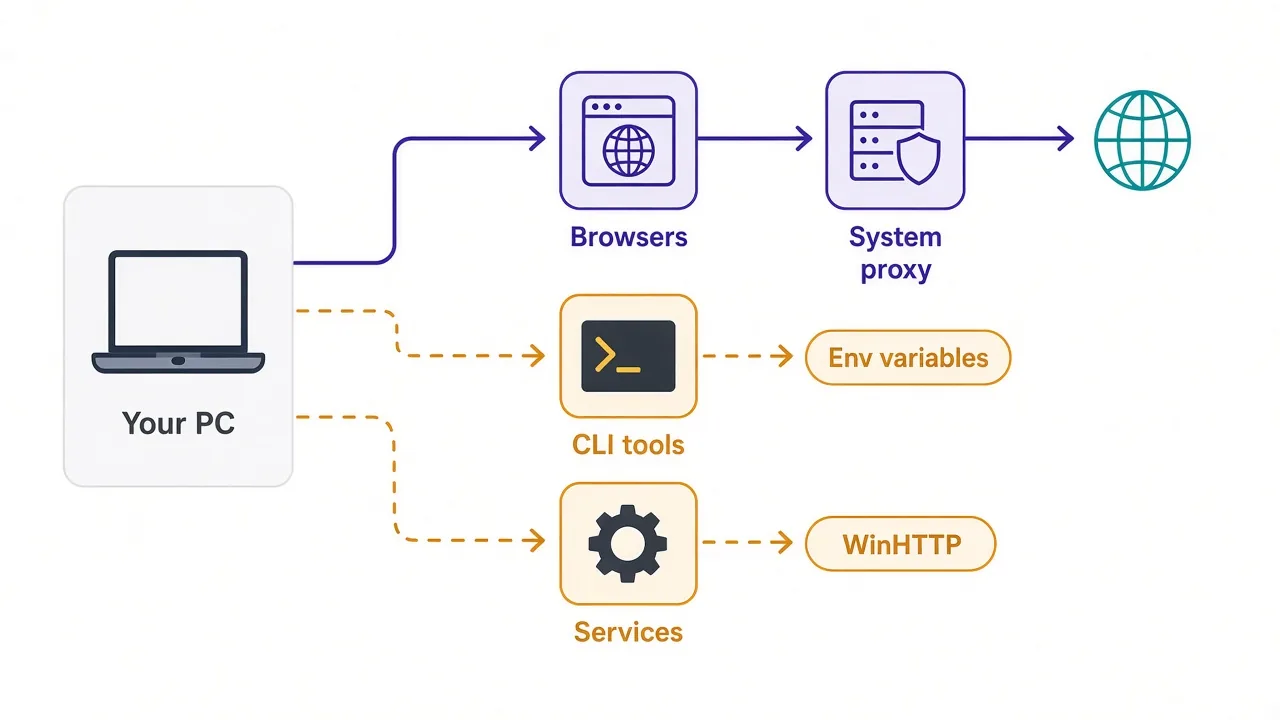
Here's how the common cases break down.
| App type | Follows Settings proxy? | Where to set it instead |
|---|---|---|
| Edge and Chrome | Yes, by default | Nothing extra needed |
| Firefox | Yes, if set to "Use system proxy settings" | Firefox network settings |
| Windows services and updates | No, they use WinHTTP | netsh winhttp |
| curl, git, pip, Node tools | Usually no | Environment variables |
| Games and many chat apps | Often no | The app's own network settings |
So if you set the proxy and your terminal still shows your home IP, nothing is broken. That tool never read the setting in the first place.
Copy the setting to WinHTTP
Open Terminal as administrator and run this to see the current WinHTTP proxy:
netsh winhttp show proxyTo copy the proxy you set in Settings over to WinHTTP, run:
netsh winhttp import proxy source=ieWhen you're done with the proxy, undo it with netsh winhttp reset proxy. Forget that step and some background services keep trying a proxy that no longer exists.
How do you send command-line tools through a proxy?
Developers hit this one fast. Your browser uses the proxy, but curl, git and pip go straight out on your own IP.
Most command-line tools read two environment variables: HTTP_PROXY and HTTPS_PROXY. Set them in PowerShell for the current window like this:
$env:HTTP_PROXY = "http://user:pass@proxy.example.com:8080"
$env:HTTPS_PROXY = "http://user:pass@proxy.example.com:8080"
Notice that this is where a username and password can live. The format is http://user:pass@host:port. If your password has symbols like @ or :, URL-encode them first.
Those variables vanish when you close the window. That's usually what you want, because it keeps the proxy scoped to the job at hand.
Need them to stick? setx HTTPS_PROXY "http://host:port" saves the value for your account, and it shows up in new windows. Be careful with passwords here, since they sit in plain text in your user environment.
Writing scripts? Most libraries also take a proxy directly in code. Our guide to using proxies with Python Requests shows the pattern.
How do you check the proxy is actually working?
This is the step people skip, and it's the one that matters most. A proxy that silently isn't applied looks exactly like one that is, right up until an account gets flagged.
Open your browser and load our IP lookup tool. You should see the proxy's IP and location, not your home connection.
Then check the terminal. Windows 11 ships with curl, so you can run:
curl.exe https://api.ipify.orgThat prints the public IP your terminal is using. If it shows your home IP while the browser shows the proxy, you've found an app that ignores the system setting. Set the environment variables above.
A matching IP is a good start, but it isn't the whole story. DNS and WebRTC can still give away your real location. Our full checklist on how to check a proxy is working covers those leaks.
Pro tip
Check the IP in every app you plan to use with the proxy, not just the browser. Each app can take a different route out of your machine.
Why does the internet stop working after you set a proxy?
You save the settings, open a page, and get nothing. Sound familiar?
It's almost always one of five things. Work down this list in order.
- A typo in the host or port. Re-check both against your provider's dashboard.
- A SOCKS5 endpoint typed into the HTTP-only Windows field.
- Your IP isn't on the provider's allowlist, or your home IP changed.
- The proxy plan ran out of bandwidth or expired.
- The proxy server itself is down, which a quick test from another device will show.
If you see "Windows could not automatically detect this network's proxy settings" from the network troubleshooter, check the automatic section first. Turn off "Automatically detect settings" and any setup script you don't need, then try again.
Still stuck? Turn the manual proxy off. If pages load again, the problem is the proxy, not Windows. Send your provider the exact error, because they can see the failed requests on their end.
How do you turn the proxy off again?
Go back to Settings, then Network & internet, then Proxy. Click Edit next to "Use a proxy server", switch the toggle off and click Save.
Windows keeps the address and port saved, so turning it back on later takes one click.
If you copied the setting to WinHTTP or set environment variables, undo those too. It's easy to forget, and the leftover setting tends to break something weeks later.
What if the toggle won't stay off?
Some software sets the proxy itself, and it can switch it back on. VPN clients, ad blockers that filter traffic, and some security tools all do this.
Behind the scenes, Windows stores the setting in the registry under HKEY_CURRENT_USER\Software\Microsoft\Windows\CurrentVersion\Internet Settings. The values ProxyEnable, ProxyServer and ProxyOverride hold the on switch, the address and the exceptions. If something keeps flipping ProxyEnable back to 1, look for an app you installed recently.
On a work laptop, the answer might be your company's IT policy. In that case, the setting is locked on purpose, and IT is who you'll need to ask.
Which proxy type should you use on Windows?
The setup steps are the same for every proxy type. What changes is how websites treat the IP you end up with.
Datacenter proxies are cheap and fast, which suits general browsing, price checks and sites that barely fight back. Residential proxies cost more per GB but look like normal home connections, which matters on platforms that block hosting IPs. Our residential vs datacenter breakdown goes deeper.
And if you run several accounts from one Windows machine, a single system-wide proxy is the wrong tool. Every account would share one IP and one browser fingerprint. An antidetect browser gives each profile its own proxy instead, and you can compare them in our antidetect browser directory.
So, what's the fastest way to get it right?
Set the proxy in Settings, allowlist your IP with the provider, and check the result in every app you'll use.
That last step is the one that saves you. Windows will happily accept a proxy that half your apps never touch.
Don't have a proxy yet? Browse the providers we've reviewed in our proxy directory and filter by type and price.
Two minutes of setup, one minute of checking.
Frequently asked questions
Open Settings, go to Network & internet, then Proxy, and click Set up next to Use a proxy server. Turn it on, enter the proxy IP and port, and click Save. Then check your IP to confirm it works.
Windows 11 has no username or password field in its proxy settings. Browsers like Chrome and Edge ask for the login when the proxy requests it, or you can allowlist your IP with the provider and skip passwords entirely.
No, only apps that choose to read it. Browsers and most desktop apps follow it, but command-line tools usually need HTTP_PROXY and HTTPS_PROXY variables, and Windows services use the separate WinHTTP setting.
Not cleanly, because the manual proxy setup is built for HTTP proxies. Set SOCKS5 inside each app instead, such as Firefox, Telegram or an antidetect browser, where you can also add a username and password.
Load an IP lookup page in your browser and confirm it shows the proxy's IP, not your home one. Then run curl.exe https://api.ipify.org in Terminal to check command-line traffic separately.
Usually it's a typo in the host or port, a SOCKS5 address in the HTTP field, or your IP missing from the provider's allowlist. Turn the proxy off; if pages load again, the problem is the proxy itself.