









You open Edge's settings, search for "proxy", and find no proxy box at all. Just a link that throws you out of the browser and into Windows.
Did you miss something? No. That's how Edge works.
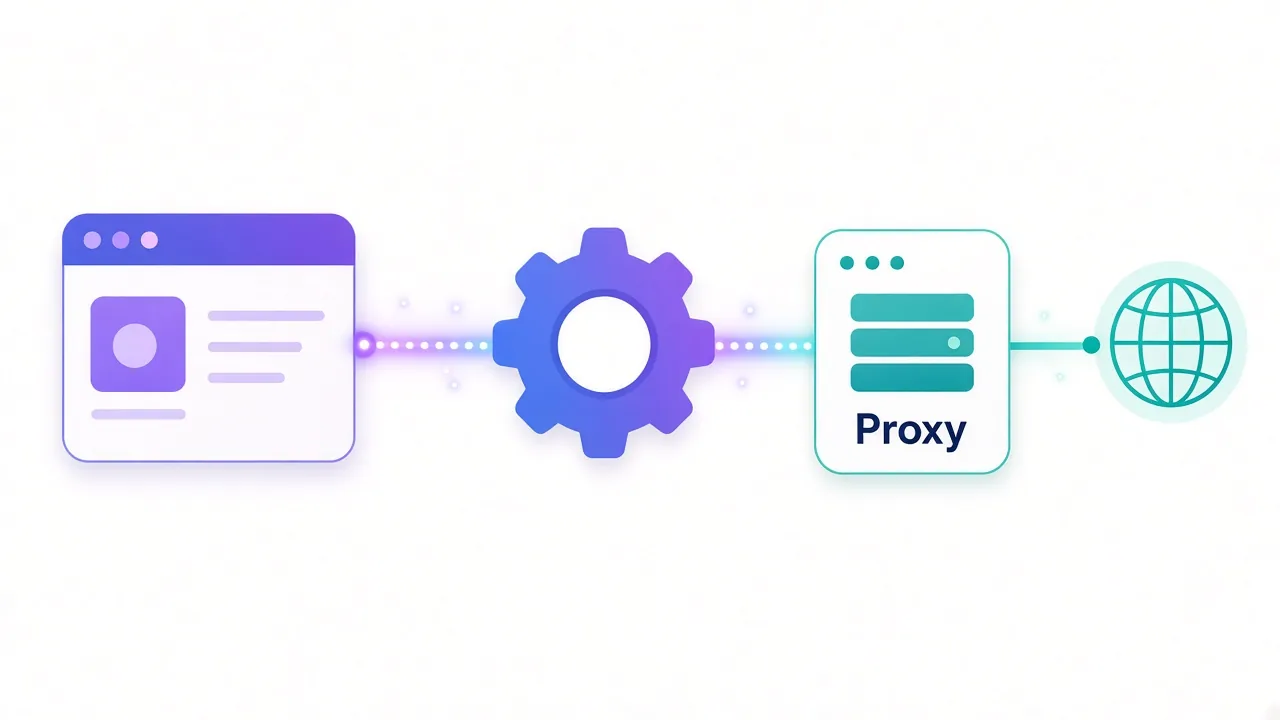
To set up a proxy in Microsoft Edge on Windows, you set it in Windows itself: Settings > Network & internet > Proxy. Edge reads that setting and sends its traffic through it. The whole job takes about two minutes.
The catch is that every other app on your PC follows the same setting.
So we'll do the standard setup first, then show you how to give Edge a proxy of its own. There's also one Edge feature that quietly breaks that second trick. We'll get to it.
Why doesn't Edge have its own proxy settings?
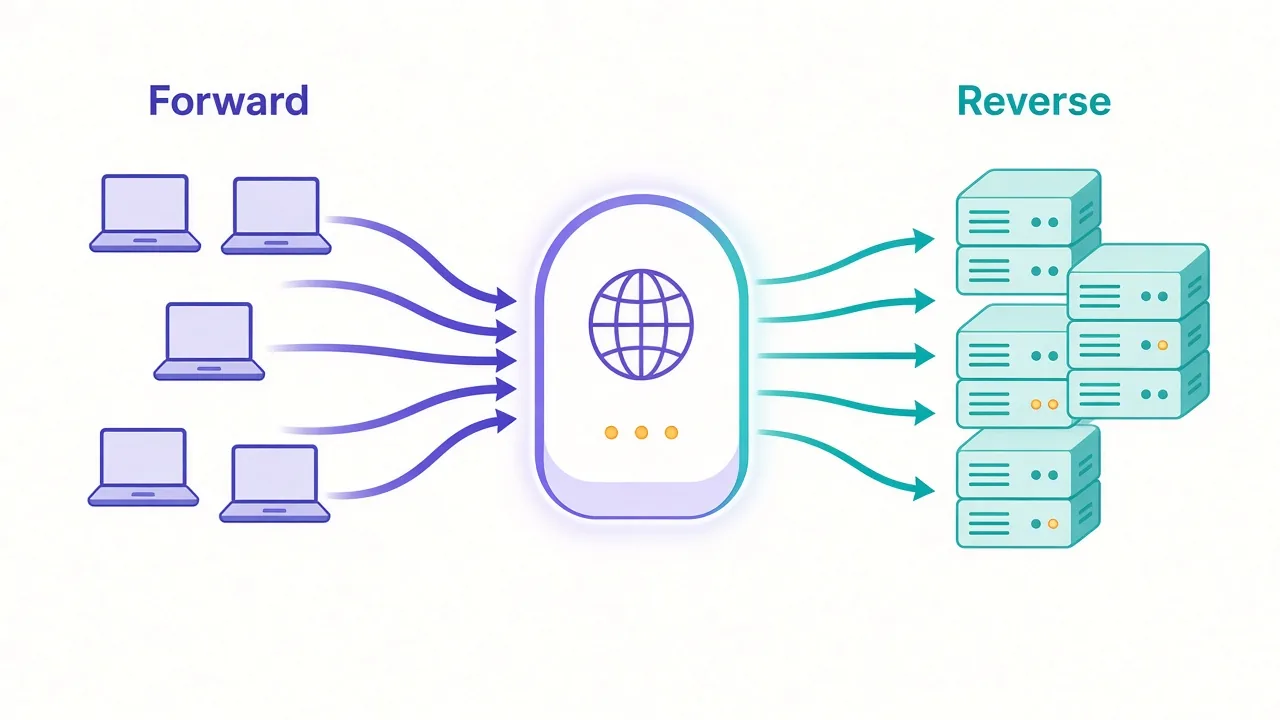
Edge is built on Chromium, the same engine as Chrome. And Chromium doesn't keep its own proxy list on Windows. It asks the operating system.
Microsoft says this plainly in its docs: the Edge network stack uses the system network settings by default. Those settings include the proxy. That's why the only thing you'll find in Edge is a button labelled "Open your computer's proxy settings".
Why does that matter to you? Because a proxy you set "for Edge" is really a proxy for Windows.
Chrome will use it. So will the Microsoft Store, Teams, and many desktop apps that follow the system proxy. If you only wanted Edge on a different IP, that's a lot of collateral traffic.
Edge does pick its proxy from four places, though, not one. The highest one that has a value wins:
- An organization policy (set by your IT team).
- A browser extension that controls the proxy.
- A command-line flag on the Edge shortcut.
- The Windows system proxy.
Most people only ever touch number four. Number three is your escape hatch when you want an Edge-only proxy, and we'll use it later.
What do you need before you start?
Get these details from your provider's dashboard first. Typing them in is the easy part. Finding them halfway through is what slows people down.
| Detail | Example | Where it goes |
|---|---|---|
| Host (IP or hostname) | 203.0.113.10 or gate.example.com | "Proxy IP address" box in Windows |
| Port | 8080, 3128 or a provider port | "Port" box in Windows |
| Username and password | user123 / ******** | Edge's sign-in pop-up, not Windows |
| Protocol | HTTP, HTTPS or SOCKS5 | Decides which method you can use |
Not sure what the port number means? Our guide to common proxy ports covers the usual suspects.
Don't paste the whole string
Providers often hand you one line like host:port:user:pass. Windows wants only the host in the address box and only the number in the port box. Paste the full string and nothing connects.
One more check: is it an HTTP proxy or SOCKS5? The Windows screen is built for HTTP proxies. SOCKS5 needs a different route, which we cover further down.
How to set up a proxy in Microsoft Edge on Windows 11
Here's the standard method. It works on current Windows 11 builds, and Windows 10 is nearly identical.
- Open Edge, click the three-dot menu, then Settings.
- Choose System and performance on the left. Or type
edge://settings/systemin the address bar. - Click Open your computer's proxy settings. Windows opens Settings at Network & internet > Proxy.
- Under Manual proxy setup, find "Use a proxy server" and click Set up.
- Turn on Use a proxy server.
- Type the host in "Proxy IP address" and the port in "Port".
- Click Save.
That's it. The change applies straight away, and you don't need to restart Edge or Windows.
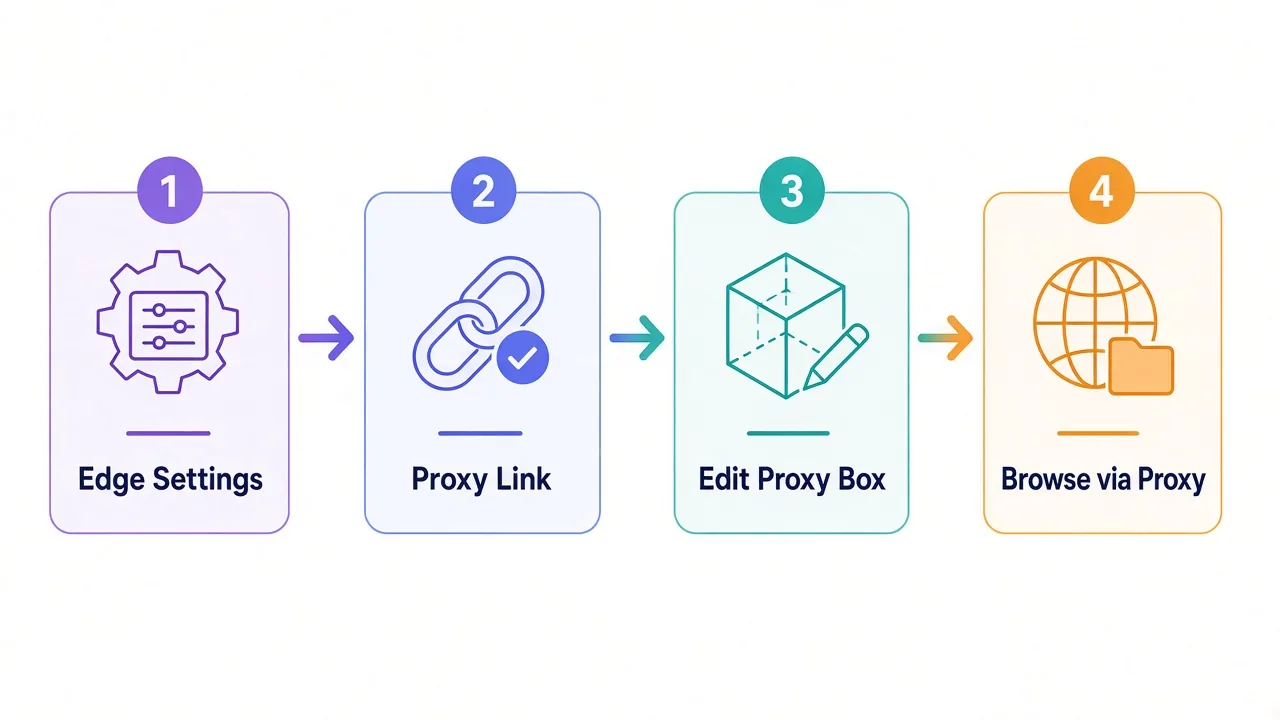
On Windows 10, the screen looks a little different. The "Use a proxy server" switch sits right on the Proxy page instead of behind a Set up button. The boxes and the Save button are the same.
Two settings in that box deserve a second look before you save.
The exception list takes sites that should skip the proxy. Microsoft's format is the end of the address with a wildcard, like *.contoso.com, with semicolons between entries. It's handy for your router page or a bank that dislikes proxy IPs.
Then there's the box labelled "Don't use the proxy server for local (intranet) addresses". Microsoft recommends you leave it ticked.
Just know what it does: it skips names without a dot, like printer. It doesn't skip IP addresses like 192.168.1.1, so add 192.168.* to the exceptions if you need that.
The Windows page has two more options above the manual section: "Automatically detect settings" and "Use setup script". Those are for office networks with a proxy auto-config (PAC) file. On a home PC with a proxy from a provider, you won't need either.
Microsoft's own steps are in its support article, Use a proxy server in Windows. For the wider Windows picture, including apps that ignore this screen, see how to set a proxy on Windows 11.
Where do the username and password go?
You've probably noticed the Edit proxy server box has no login fields. That isn't a bug. Windows leaves the login to each app.
So here's what happens. You save the proxy, open any site in Edge, and a sign-in box pops up. It says the proxy requires a username and password.
Type your proxy credentials there, not your Microsoft account. Edge remembers them for the session.
If the box keeps coming back the moment you sign in, the credentials don't match. Copy them again from the dashboard rather than retyping. A stray space at the end is a classic cause.
Don't want the pop-up at all? Use IP allowlisting (sometimes called whitelisting). You add your own public IP in the provider's dashboard, and the proxy lets you in with no password. Many providers support it, but check yours.
Why allowlisting is often better
Apps that can't show a sign-in box, like background services, simply fail on a password-protected system proxy. An allowlisted IP fixes that too. Our guide to proxy authentication methods explains the trade-offs.
The downside? If your home IP changes, the proxy stops working until you update the allowlist. On a connection whose IP changes often, the password route is less hassle.
How do you check Edge is really using the proxy?
Saving the setting proves nothing. You want to see the new IP with your own eyes.
Open a new tab and visit any IP checker site. The address it shows should be your proxy's IP, not your home one. If you're using a location-based proxy, the city or country should match too.
Still showing your real IP? Then something higher up the list is overriding Windows. Remember the four sources from earlier? Here's where they matter.
- Type
edge://policyand search for "proxy". Rows like ProxySettings or ProxyMode mean your organization controls it. - Open
edge://extensionsand switch off any proxy or VPN add-on, then reload the IP checker. - Type
edge://net-internals/#proxyto see the effective proxy settings Edge is using right now.
That last page is the honest one. Whatever it lists is what Edge actually uses, no matter what the Windows screen says.
For a fuller checklist, including DNS and WebRTC leaks, read how to check if your proxy is working.
Want a proxy in Edge only, not the whole PC?
This is the method most guides skip. It gives Edge its own proxy and leaves Windows alone.
You do it with a launch flag, the same --proxy-server switch Chrome uses. Edge passes it to Chromium, and it beats the system proxy.
- Right-click your desktop and choose New > Shortcut.
- For the location, enter the path to msedge.exe followed by the flags, like the example below.
- Name it something obvious, like "Edge (proxy)".
- Close every Edge window, then open Edge from the new shortcut.
"C:\Program Files (x86)\Microsoft\Edge\Application\msedge.exe" --proxy-server="http://203.0.113.10:8080" --user-data-dir="C:\EdgeProxyProfile"Your msedge.exe path may differ. Right-click your normal Edge shortcut, choose Properties, and copy the Target path from there.
Notice the second flag, --user-data-dir? It points Edge at a separate profile folder. You get a clean browser with its own cookies and history, and nothing leaks from your main profile.
It also solves the problem we hinted at in the intro. Let's look at that next.
Why does Edge ignore your proxy flag?
Say you create the shortcut, click it, and check your IP. It's your home IP. The flag did nothing.
The usual culprit is Startup boost.
It's an Edge feature that keeps Edge running in the background after you close the last window. The next launch feels faster. You'll find it at edge://settings/system, next to the proxy link.
Here's the problem.
When Edge is already running, a new launch just hands off to the existing process. Your flags arrive late and get ignored. The same thing happens with "Continue running background extensions and apps when Microsoft Edge is closed".
You have two fixes:
- Turn off Startup boost and the background-apps option, then make sure no msedge.exe is left in Task Manager.
- Keep the
--user-data-dirflag. A different profile folder starts a separate Edge instance, so your flags apply even while your main Edge is open.
We'd use the second one. It lets your everyday Edge stay fast while the proxy shortcut does its own thing.
To confirm the flag took, open edge://version in that window. The "Command line" row should show your --proxy-server value.
Can you use a SOCKS5 proxy in Edge?
Yes, with one big limitation.
Windows designed its proxy screen around HTTP proxies. For SOCKS5, the clean route is the same launch flag with a different scheme:
--proxy-server="socks5://203.0.113.10:1080"The limitation is login. Chromium, and so Edge, doesn't support username and password authentication for SOCKS proxies. There's no pop-up and no way to pass them in the flag.
So a SOCKS5 proxy in Edge only works if your provider lets you in by allowlisted IP. If it needs a password, use the provider's HTTP endpoint instead. Most providers offer both on the same plan.
Not sure which protocol suits you? Our comparison of HTTP vs SOCKS5 proxies walks through it. For browsing in Edge, HTTP is usually the simpler choice.
Edge still won't connect: what's broken?
Proxy errors in Edge look scary but usually point straight at the cause. Here are the common ones.
| What you see | Likely cause | Fix |
|---|---|---|
| ERR_PROXY_CONNECTION_FAILED | Wrong host or port, or the proxy is down | Re-copy host and port; test the proxy elsewhere |
| Sign-in box keeps returning | Wrong username or password | Paste credentials fresh; watch for spaces |
| ERR_TUNNEL_CONNECTION_FAILED | Proxy refused the HTTPS tunnel, often an auth or plan issue | Check credentials, allowlist and plan status |
| Home IP still showing | Policy, extension or flag overriding Windows | Check edge://policy, extensions and edge://net-internals/#proxy |
| Flag ignored | Edge already running (Startup boost) | Add --user-data-dir or close all Edge processes |
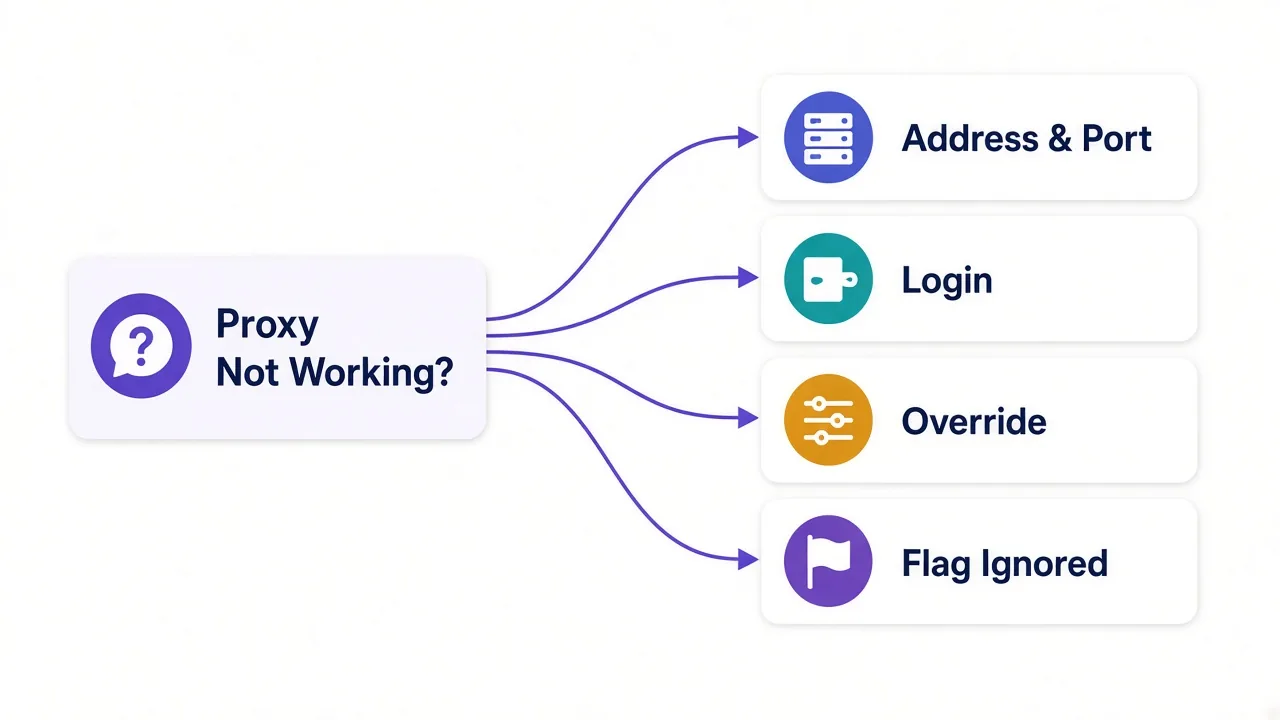
One more trap: a proxy left on after you're done. Has every app on your PC lost the internet? Go back to Network & internet > Proxy and switch "Use a proxy server" off.
It happens more than you'd think. A proxy plan expires, the system setting stays on, and the whole PC looks offline.
Free proxies and your logins
Everything you browse goes through the proxy. With an unknown free proxy, that includes pages where you sign in. See free vs paid proxies before you trust one with your accounts.
Which proxy should you put in Edge?
That depends on why you want it. Is it a different location for one site, or a fresh IP for each account you manage?
For plain location changes and light browsing, a cheap datacenter proxy is enough. For sites that block cloud IPs, like big marketplaces and social platforms, you'll want residential. Our residential vs datacenter breakdown explains why.
If you only want privacy on public Wi-Fi, be honest with yourself. A VPN covers the whole device and encrypts the traffic, which a plain proxy doesn't. Here's how a proxy and a VPN differ.
Webshare is a sensible place to start with datacenter proxies. It has a small free plan, so you can test the Edge setup before you pay anything.

The most affordable way to start with proxies.
IPRoyal suits occasional residential use. Its residential traffic doesn't expire, so a small top-up lasts as long as you need it.

Flexible proxies with true pay-as-you-go.
Decodo (formerly Smartproxy) fits if you want a large residential pool. It offers both HTTP and SOCKS5 endpoints, which helps with the flag method.

Powerful proxies without the enterprise price tag.
Want to see more options side by side? Browse the full proxy directory.
So, which setup should you actually use?
Pick by scope.
If you're happy for the whole PC to use the proxy, the Windows Settings route is fastest. Two minutes, no flags, and Edge asks for the login itself.
If you want only Edge on the proxy, build the shortcut with --proxy-server and --user-data-dir. That second flag is what stops Startup boost from swallowing your setting.
Either way, finish by checking your IP in a fresh tab.
Need a proxy worth setting up? Compare the residential providers we've reviewed and pick one for your target.
Frequently asked questions
No. On Windows, Edge uses the Windows system proxy, so its settings page only links to Settings > Network & internet > Proxy. To give Edge alone a proxy, launch it with the --proxy-server flag.
Create an Edge shortcut that adds --proxy-server="http://host:port" and a separate --user-data-dir folder. That instance uses the proxy while Windows and your other apps stay direct.
Edge asks for them in a sign-in pop-up the first time it uses the proxy. The Windows proxy screen has no login fields, so you can also use IP allowlisting to skip the password.
Usually because Edge is already running in the background, often due to Startup boost. Close every Edge process or add a separate --user-data-dir so the shortcut starts its own instance.
No. Edge, like Chrome, doesn't support username and password logins for SOCKS proxies. Use IP allowlisting with SOCKS5, or switch to your provider's HTTP endpoint if you need a password.
Open Settings > Network & internet > Proxy in Windows and switch off Use a proxy server. If you used a launch flag, open Edge from your normal shortcut instead.