









You pasted the proxy host, typed your username and password, and hit save. Then nothing loaded.
Nine times out of ten, the problem is a small number after the colon. The port.
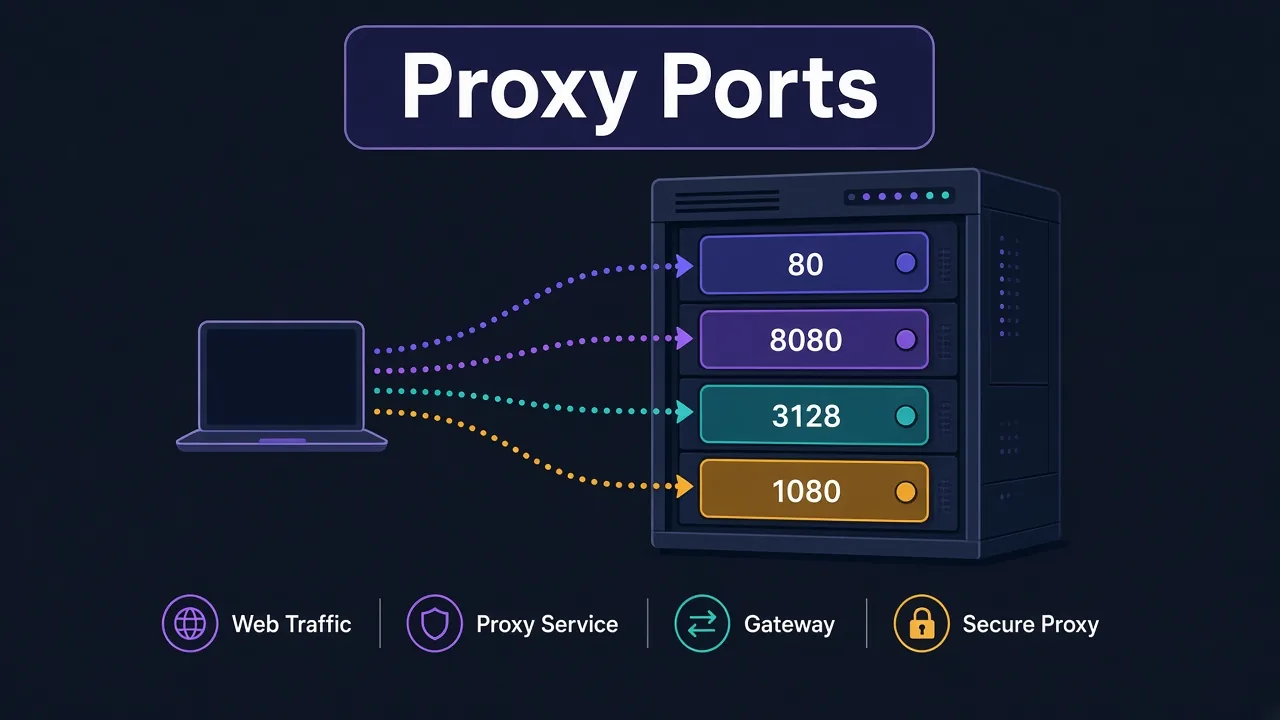
So what is a proxy port? It's the door number on the proxy server that your traffic knocks on. The IP address finds the building. The port finds the right door inside it.
Simple enough. But why do some providers hand you 8080, others 3128, and others a five-digit number nobody has heard of?
And why does picking the "right" one sometimes change which IP you get? That last part trips up a lot of people, and we'll get to it. First, let's see what a port actually does.
What does a port number actually do?
Every device on the internet has an IP address. But one server can run dozens of services at once: a website, an email server, a proxy, a database.
Ports keep them apart. When your request arrives, the server looks at the port number and hands it to whichever program is listening there.
Think of an office block. The IP address is the street address. The port is the suite number. Send a letter to the right street but the wrong suite, and nobody signs for it.
A port is just a number from 0 to 65,535. The IANA port registry splits that range into three bands:
- 0 to 1023 are the well-known ports, like 80 for HTTP and 443 for HTTPS.
- 1024 to 49151 are registered ports, which software makers can claim.
- 49152 to 65535 are dynamic ports, used for short-lived connections.
Here's the part people miss. Those registrations are conventions, not laws.
Any program can listen on any free port. A proxy on port 443 is still a proxy. It just happens to sit on the door most people use for secure websites.
That's why your proxy string always comes in this shape: host:port, or user:pass@host:port. Leave the port out, and your app has to guess. It usually guesses wrong.
The common proxy ports, side by side
You'll see the same handful of numbers again and again. Each one has a history, and that history tells you what kind of proxy is probably sitting behind it.
| Port | Usually means | Where it comes from |
|---|---|---|
| 80 | Plain HTTP traffic | The standard web port |
| 443 | HTTPS traffic | The standard secure web port |
| 8080 | HTTP proxy or alternate web server | A popular "unofficial 80" |
| 3128 | HTTP proxy | Squid's default port |
| 1080 | SOCKS proxy | The registered SOCKS port |
| 8888 | HTTP proxy or local debugging proxy | Tinyproxy and several debugging tools |
| 8118 | Privacy filtering proxy | Privoxy's default |
| 9050 | Local SOCKS proxy | The Tor service's default |
Notice the pattern? Most of these numbers come from the default setting of one popular piece of software. Someone installed it, never changed the port, and the number stuck.
Let's go through the ones you'll meet most.
Ports 80 and 443: the web's front doors
Port 80 is where plain, unencrypted web traffic goes. Port 443 carries HTTPS, the encrypted kind with the padlock in your browser.
Some proxies listen on these ports on purpose. Why would they?
Because almost every network on earth lets traffic out on 80 and 443. Office firewalls, hotel Wi-Fi and school networks often block everything else. A proxy on 443 slips through where one on 3128 hits a wall.
Port 443 doesn't mean encrypted
A proxy listening on 443 isn't automatically secure. The port is only a number. What matters is whether the connection to the proxy itself uses TLS.
That's a common mix-up.
Your traffic to an HTTPS website stays encrypted end to end through a normal HTTP proxy, thanks to the CONNECT method. But the first handshake with the proxy can travel in plain text. That includes your proxy username and password, unless the proxy connection itself uses TLS.
Worried about that? Read our guide to proxy authentication methods. IP whitelisting avoids sending a password at all.
Port 8080: the "second 80" everyone uses
On Linux and macOS, programs need special rights to listen on ports below 1024. Developers didn't want to run everything as an administrator. So they picked a number that looked like 80 and needed no special rights.
8080 won.
Today it's the default for a long list of tools. Apache Tomcat uses it for web apps. Burp Suite and mitmproxy, two popular traffic-inspection tools, listen on 8080 by default too.
So when you see 8080, assume an HTTP proxy or a web service. It's the most common proxy port you'll see in a provider's dashboard or a free proxy list.
The catch? Being common makes it noisy. Automated scanners sweep the internet for open proxies on 8080 and 3128 all day. If you ever run your own proxy, don't leave it open on a famous port without a password.
Port 3128: Squid's calling card
Squid is an open-source caching proxy that has been around since the 1990s. Its default port is 3128.
A huge number of company networks, schools and self-hosted proxies run Squid. Plenty of commercial providers built their early setups on it too.
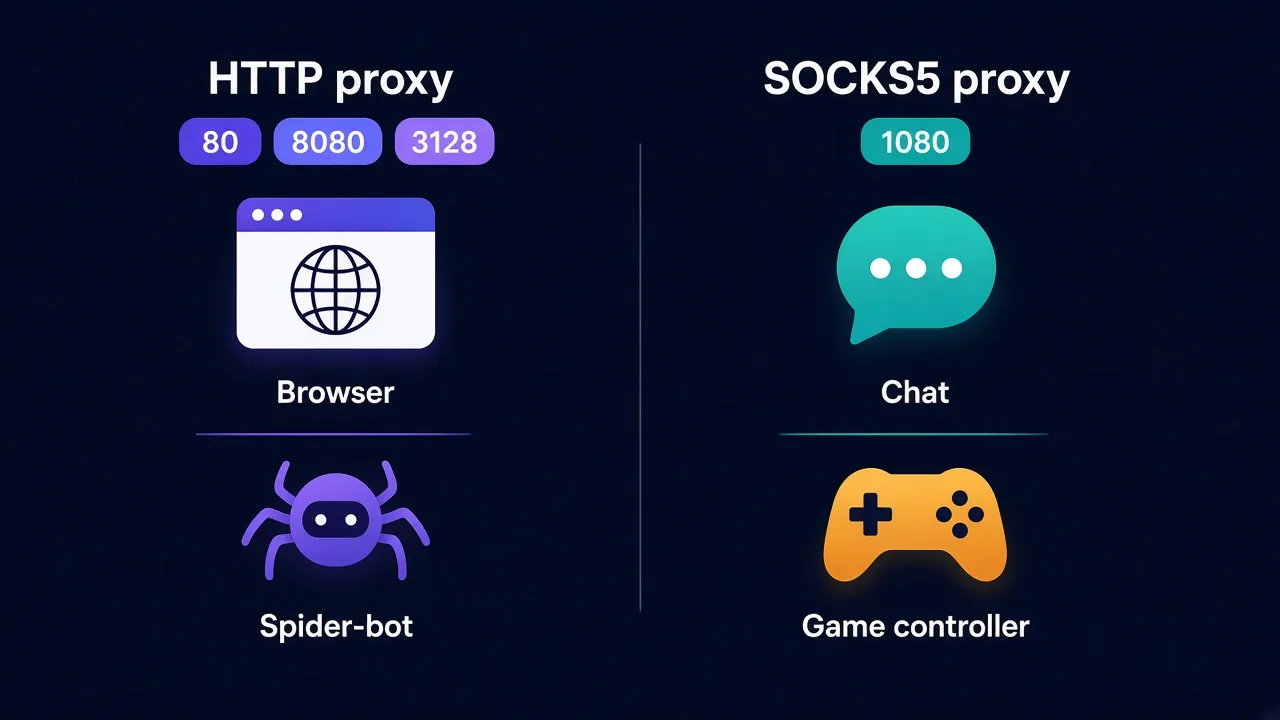
So 3128 almost always means a plain HTTP proxy. It handles web traffic and HTTPS tunnels, but it won't speak SOCKS.
That matters more than it sounds. Point a SOCKS-only app at a 3128 proxy, like some Telegram proxy setups, and it fails with a vague error.
Nothing's wrong with the port. It's a protocol mismatch.
Port 1080: the SOCKS standard
Port 1080 is the registered home of the SOCKS protocol. If a provider gives you a SOCKS5 endpoint without a custom port, this is the number you'll most likely see.
SOCKS5 works one level lower than HTTP. It doesn't care whether the traffic is web, email, a game or a chat app. It just passes the bytes along.
That makes 1080 the port you want for anything that isn't a browser or a scraper. Discord, Telegram, torrent clients and some game launchers all speak SOCKS.
Not sure which protocol you need? Our HTTP vs SOCKS5 comparison walks through it. The short rule: browsers and scrapers are happy with HTTP, while everything else usually wants SOCKS5.
8888, 8118 and 9050: the local helpers
A few ports show up mostly on your own computer, not on a provider's server.
Port 8888 is the default for Tinyproxy, a lightweight HTTP proxy. Charles and Fiddler, two web-debugging tools, also listen there by default. If a tutorial tells you to set your proxy to 127.0.0.1:8888, it usually means one of these.
Port 8118 belongs to Privoxy, a filtering proxy people chain in front of Tor to strip ads and trackers.
Port 9050 is where the Tor service exposes its SOCKS proxy. Tor Browser uses 9150 instead, so two Tor apps on one machine don't fight over the same door.
The address 127.0.0.1 means "this computer". So a proxy on 127.0.0.1:9050 never leaves your machine until Tor sends it on. That's a neat trick, and it's the core idea behind proxy chaining.
Why does your provider use a weird port like 10000?
Here's the loop we opened at the start. Commercial proxy providers often skip the famous numbers entirely. You'll see ports in the thousands or tens of thousands.
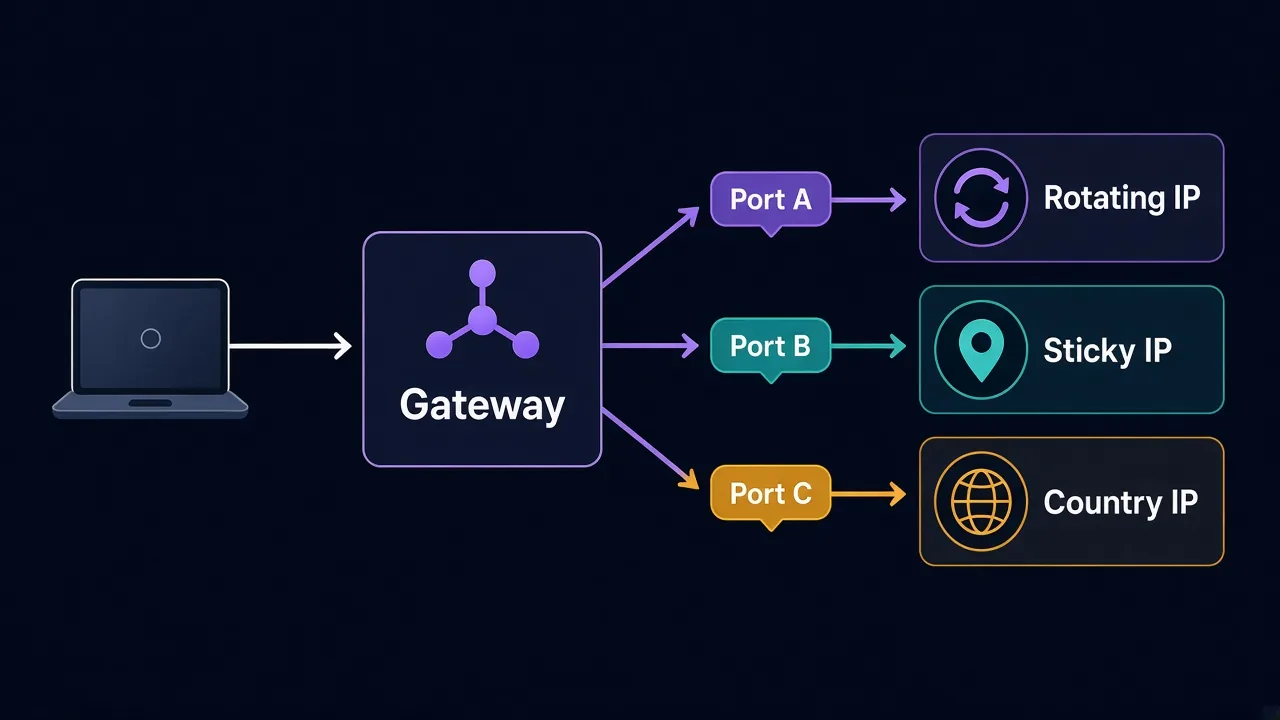
Why? Because on a big provider, the port often controls which IP you get, not just which door you knock on.
Many residential and mobile providers run one gateway address for everyone. Behind it sits a huge proxy pool. The port you pick tells the gateway how to route you. Depending on the provider, a port can mean:
- a rotating session that gives you a new IP on every request
- a sticky session that keeps the same IP for a set time
- a specific country, city or state
- one fixed IP out of a static list
Say you're given a gateway and a port range.
One port in that range might hold you on a single US IP for ten minutes. The next port up might be a different sticky IP. Another port entirely might rotate on every request.
Every provider maps this differently. Some put the targeting in the username instead, like adding a country code after your login. Others use a mix of both.
Don't copy ports between providers
A port that means "rotating US IPs" on one service means nothing on another. Always take the port from your own dashboard or setup docs, not from a forum post.
So if your sticky session keeps rotating, or your "Germany" IP lands in France, check the port before you blame the pool. It's often the culprit. Our guide to sticky vs rotating proxies explains when each mode makes sense.
How do you know which port to use?
Good news: you almost never have to guess. Work through it in this order.
- Check your provider's dashboard. It usually lists the host, port and protocol together, often with a ready-made proxy string.
- Match the protocol to your app. HTTP ports for browsers and scrapers, a SOCKS port for everything else.
- Pick the session type. If the provider ties sessions or locations to ports, choose the one that fits your task.
- Check your network. If you're behind a strict firewall, ask whether the provider offers an endpoint on 80 or 443.
Got a proxy from a list with no docs? Then the port is your only clue. 3128 and 8080 point to HTTP. 1080 points to SOCKS. Anything else, try HTTP first and SOCKS5 second.
Fair warning, though. Proxies from public lists are often slow, short-lived or worse. Here's why we'd rarely use them: free vs paid proxies.
Is your port actually open? Three quick tests
You've set everything up and it still won't connect. Is the port the problem, or something else?
Start by testing whether the port answers at all. On macOS or Linux, open a terminal and run:
nc -vz proxy.example.com 8080"Succeeded" or "open" means the door exists and is listening. "Connection refused" or a timeout means it doesn't, or something in between is blocking it.
On Windows, PowerShell has its own version:
Test-NetConnection proxy.example.com -Port 8080Look for TcpTestSucceeded : True in the output.
An open port only proves something is listening. To check the proxy works end to end, send a real request through it with curl:
curl -x http://user:pass@proxy.example.com:8080 https://api.ipify.orgIf it prints an IP that isn't yours, the proxy works. For a SOCKS port, swap http:// for socks5://. Our curl proxy guide covers more flags, and how to check if a proxy is working goes further.
The port errors you'll hit most, and what they mean
Most port problems fall into a few patterns. Once you know them, the error messages stop being scary.
| What you see | Likely cause | Try this |
|---|---|---|
| Connection refused | Nothing listens on that port | Recheck the port in your dashboard |
| Timeout | A firewall drops the traffic | Test another network, or ask for a 443 endpoint |
| 407 Proxy Authentication Required | Port is fine, login failed | Check username, password or whitelisted IP |
| Garbled response or instant disconnect | Wrong protocol for that port | Switch between HTTP and SOCKS5 |
| Works, but wrong country or IP | Port mapped to a different session | Use the port for your target location |
That 407 one is good news in disguise. It means you reached the proxy and the port is right. Only the login is off.
The protocol mismatch is the sneaky one. Your app speaks HTTP, the port expects SOCKS, and neither side understands the other. The error message rarely says so.
Pro tip
Write the full proxy string once, with the scheme in front, like socks5://user:pass@host:1080. Most tools then pick the right protocol without any extra setting.
Still getting blocked after the connection works? That's a different problem. Your port is fine, but the website doesn't like your IP. Our guide on why proxies get banned picks it up from there.
Does the port change your speed or safety?
Short answer: no, not by itself.
A port number doesn't make traffic faster or slower. Speed comes from the server, its distance from you, the type of IP and how busy the pool is. Port 1080 isn't quicker than 8080 because of the number.
Safety works the same way. Moving a proxy from 3128 to some random port won't stop a determined attacker.
It does cut down on lazy, automated scans, which is a nice bonus. But a strong password or an IP whitelist does the real work.
There's one indirect effect worth knowing. Some websites and networks treat traffic on unusual ports with more suspicion than traffic on 443. If a strict network keeps dropping your connection, a provider endpoint on 443 can help.
So pick the port for compatibility, not for speed. Then judge the provider on the things that matter: residential or datacenter IPs, pool quality and location coverage.
So which port should you actually use?
The one your provider gives you, matched to your app's protocol.
HTTP ports like 8080 and 3128 suit browsers and scrapers. Port 1080 and other SOCKS endpoints suit everything else. On a provider gateway, the port also picks your session type and location, so choose it on purpose.
Ready to find a provider with clear setup docs? Browse the proxy providers we've reviewed and compare their protocols side by side.
Then the number after the colon stops being a mystery.
Frequently asked questions
A proxy port is the number after the colon in a proxy address that tells the server which service should handle your connection. The IP finds the server, and the port finds the proxy program running on it.
HTTP proxies most often use port 8080 or 3128, and sometimes 80, 443 or 8888. Those are conventions, so always use the exact port your provider lists.
SOCKS5 proxies traditionally use port 1080, the registered SOCKS port. Many commercial providers assign their own custom ports, and the local Tor service uses 9050.
Many providers use custom ports to route you to a session type or location, such as rotating IPs, sticky sessions or a specific country. The mapping differs between providers, so check your dashboard.
No, the port number itself doesn't change speed. Speed depends on the server, its distance from you, the IP type and how busy the pool is.
Run nc -vz host port on macOS or Linux, or Test-NetConnection host -Port port in Windows PowerShell. Then send a real request with curl -x to confirm the proxy itself works.