










You typed the proxy details into your phone. The browser still shows your home IP.
Or worse, nothing loads at all. Sound familiar? Phones hide their proxy settings a few taps deep, and each one has quirks the desktop guides never mention.
Here's the good news. Setting up a proxy on Android and iPhone takes about two minutes once you know where to look. Both have a built-in manual proxy option inside the Wi-Fi settings.
The catch is one detail that trips up almost everyone, and it has nothing to do with typing the address wrong. We'll get to it. First, let's be clear about what a phone proxy covers.
What does a proxy on your phone actually change?
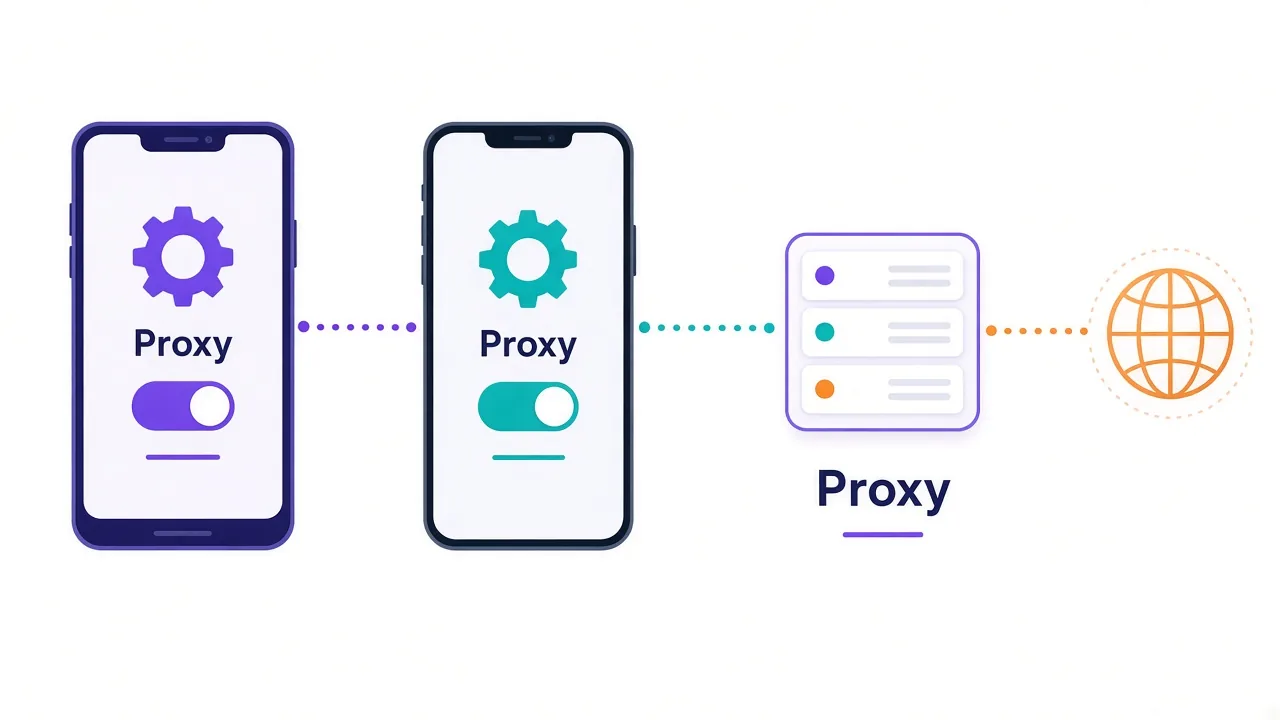
A proxy sits between your phone and the websites you visit. Your traffic goes to the proxy server first, and the site sees the proxy's IP instead of yours.
On a phone, the built-in setting is an HTTP proxy. That means it's designed for web traffic. Browsers follow it reliably. Many apps do too, but not all of them.
That's the first honest warning. An app can ignore the system proxy if its developers built their own networking. Some games, video calls and messaging apps do exactly that.
So if you need every byte from the phone to leave through another IP, the built-in setting isn't the right tool. A VPN-style proxy app is. We cover that option further down.
Not sure whether you want a proxy or a VPN in the first place? Our proxy vs VPN breakdown explains the difference in plain terms.
What you need from your provider before you start
Grab these details from your proxy dashboard before you open Settings. It saves a lot of switching between apps.
- The proxy host, either a hostname like gate.example.com or an IP address
- The port number, such as 8080 or 10000
- Your username and password, if the proxy uses login details
- The protocol, which needs to be HTTP or HTTPS for the built-in setting
Check that last one carefully. If your provider only gave you a SOCKS5 endpoint, the phone's Wi-Fi settings won't speak to it. Many providers offer both on different ports, so look for an HTTP port first.
Our guide to HTTP vs SOCKS5 proxies covers why the two aren't interchangeable.
Pro tip
Copy the host into a notes app first. Long hostnames are painful to type on a phone keyboard, and one wrong letter means no connection.
How to set up a proxy on Android, step by step
These steps follow stock Android, the version on Google Pixel phones. Menu names shift a little between versions, but the path is the same idea everywhere.
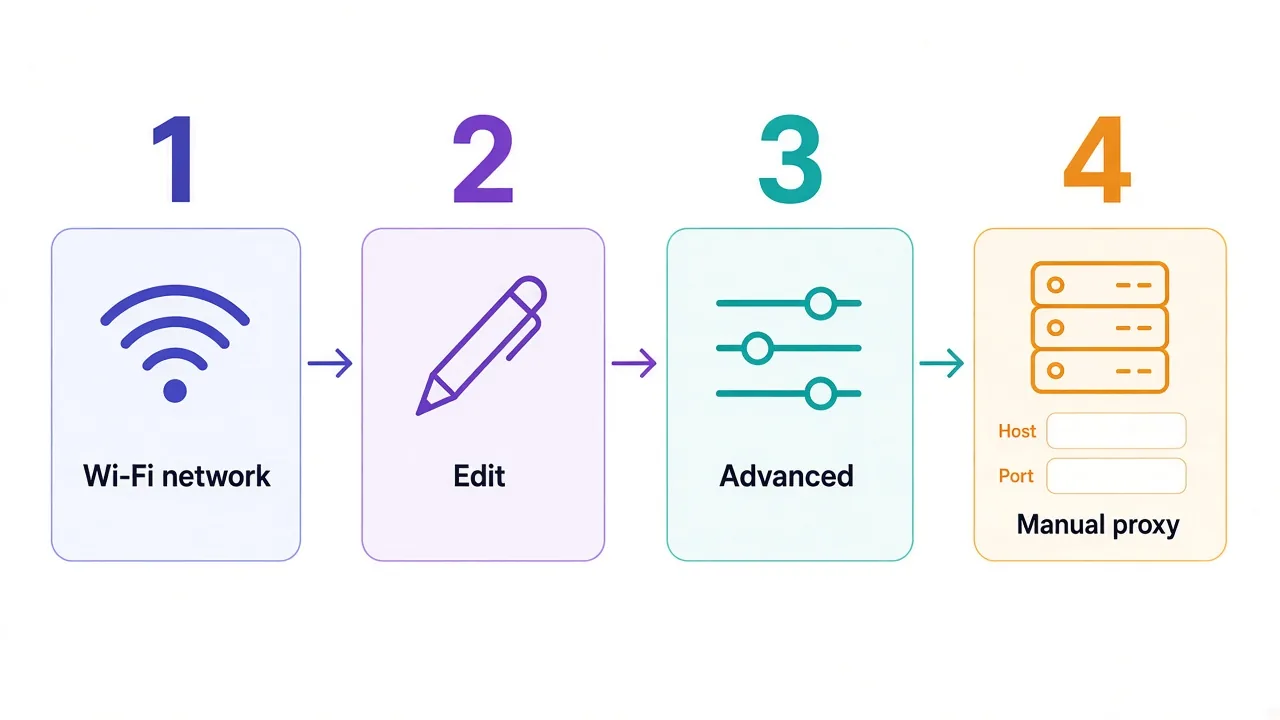
- Open Settings and tap Network & internet.
- Tap Internet, then tap the gear icon next to the Wi-Fi network you're connected to.
- Tap the pencil icon at the top to edit the network.
- Open Advanced options.
- Find Proxy and change it from None to Manual.
- Enter the proxy hostname and the proxy port.
- Add any sites that should skip the proxy in the bypass field, separated by commas.
- Tap Save.
That's it. The phone now sends web traffic on that Wi-Fi network through your proxy.
You'll also see a third choice called Proxy Auto-Config. It asks for a PAC URL, which is a small file that tells the phone which traffic goes where. Use it only if your provider or IT team gave you one.
Samsung Galaxy menus look a little different
Samsung phones run their own skin on top of Android, so the labels change. The proxy option is still in the Wi-Fi settings.
- Open Settings and tap Connections.
- Tap Wi-Fi, then the gear icon next to your current network.
- Tap View more to show the hidden options.
- Tap Proxy and pick Manual.
- Fill in the hostname and port, then tap Save.
On other brands, like Xiaomi or OnePlus, look for the same pattern. Open the Wi-Fi network's details, find an advanced or "more" section, and the proxy field will be inside.
Can't find it at all? Some phones only show the option after you forget the network and join it again. The proxy choice then appears under advanced options on the join screen.
Where do the username and password go on Android?
Here's a quirk that confuses many people. Android's Wi-Fi proxy screen has no field for a username or password.
So what happens to your login? It depends on the app. Chrome usually pops up a sign-in box the first time it hits the proxy. Type your details there and it remembers them for the session.
Many other apps can't show that prompt. They simply fail to connect, which looks like broken internet.
The cleaner fix is IP whitelisting. You add your current public IP to the provider's allowlist, and the proxy lets you in without a password. No prompt needed.
The downside? Your home IP can change, and then the allowlist stops matching. Our guide to proxy authentication methods walks through when each option makes sense.
Heads up
Whitelisting your home Wi-Fi IP won't help on mobile data. Your carrier hands you a different IP, often one shared with many other customers.
How to set up a proxy on iPhone and iPad
Apple keeps it simpler, and it handles logins better than Android does. The steps are the same on iPhone and iPad.
- Open Settings and tap Wi-Fi.
- Tap the small i icon next to your connected network.
- Scroll to the bottom and tap Configure Proxy.
- Choose Manual.
- Enter the Server (the host) and the Port.
- If your proxy needs a login, turn on Authentication and enter the username and password.
- Tap Save in the top corner.
That Authentication toggle is the big win on iOS. The phone stores your login and hands it to the proxy itself, so apps don't have to ask.
The Automatic option works like Android's auto-config. Paste a PAC URL there if you have one. Otherwise, stick with Manual.
Setting up a laptop too? We have the same walkthrough for macOS and Windows 11.
Why your proxy vanishes the moment you leave Wi-Fi
Remember the detail from the start that trips up almost everyone? This is it.
On both Android and iPhone, the proxy belongs to one Wi-Fi network. It isn't a phone-wide setting.
Walk out of the house and switch to mobile data, and the proxy is gone. Join a café's Wi-Fi, and it's gone there too. Each network needs its own setup.
Plenty of people set it up at home, test it once, and assume it's always on. Then they open an app on 5G and their real carrier IP shows up.
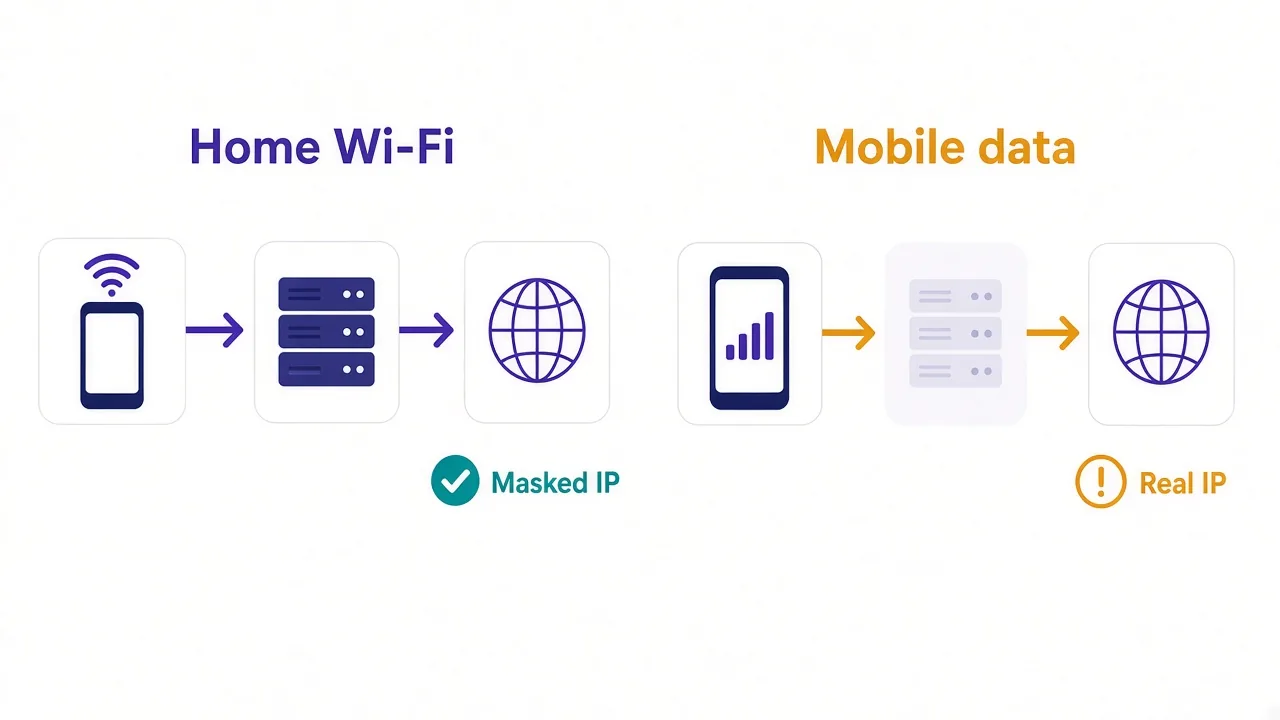
Is there a way to proxy mobile data? On Android, a few phones expose a proxy field inside the mobile network's access point settings, often called APN. Whether it works depends on your carrier, and editing APN settings can break your data connection.
On iPhone, there's no normal menu for a mobile data proxy. A global proxy exists, but it needs a managed device set up through a company's device management tools.
For most people, the practical answer is a proxy app. That's next.
Need SOCKS5 or every app covered? Use a proxy app
Proxy client apps solve both big gaps in the built-in settings. They work on mobile data, and most of them support SOCKS5.
Here's how they do it.
The app uses the phone's VPN feature to capture all traffic. It then forwards that traffic to your proxy server instead of a VPN server. You'll see a VPN or key icon in the status bar while it runs.
That approach has real advantages:
- Every app goes through the proxy, not just the ones that respect system settings
- It keeps working when you switch between Wi-Fi and mobile data
- SOCKS5 endpoints and username logins are usually supported
- Many let you choose which apps use the proxy and which skip it
The catch? You're giving that app access to all your traffic. Stick to well-reviewed apps from the official Play Store or App Store, and check what the developer collects.
Also, you can't run a proxy app and a real VPN at the same time on most phones. Both want the same VPN slot, so one will switch the other off.
Skip free proxy lists
A random free proxy sees every page you load over it. On a phone full of logged-in accounts, that's a bad trade. Here's what you really get with free vs paid proxies.
What a proxy won't hide on your phone
A proxy swaps your IP address. That's all it does, and phones leak location in plenty of other ways.
Say you set a UK proxy on a phone in India. Websites see a UK IP. But apps can still read other signals:
- GPS location, if the app has location permission
- The time zone and language your phone is set to
- Your SIM card's country and carrier
- The accounts you're already logged in to
Most websites in a browser only see the IP and the time zone. Apps are nosier. A shopping or social app with location access can tell the IP doesn't match where the phone really is.
So if location matters for your task, turn off location access for that app. Then match the phone's time zone to the proxy country while you work.
How do you know the proxy is working?
Don't trust the settings screen. Saving a proxy only proves you typed something. It doesn't prove traffic goes through it.
Use this quick check instead:
- Before you turn the proxy on, open an IP checker site in your browser and note the IP and location.
- Turn the proxy on and save.
- Close the browser tab fully, then reload the IP checker.
- Confirm the IP and location now match your proxy, not your ISP.
Then test one app you care about. A browser passing the test doesn't mean every app will.
For deeper checks, including DNS and WebRTC leaks, follow our guide on how to check if your proxy is working.
Proxy on, internet off? Here's what to check
Most phone proxy problems come down to a handful of causes. Work through them in this order.
| What you see | Likely cause | Fix |
|---|---|---|
| Nothing loads at all | Wrong host or port, or a SOCKS5 port in an HTTP field | Re-enter both, and confirm the port is for HTTP |
| Browser works, apps don't | Apps ignore the system proxy, or can't show a login prompt | Use IP whitelisting or a proxy app |
| Error 407 or repeated login boxes | Wrong username or password | Re-copy the login from your dashboard |
| Real IP shows up outside the house | You're on mobile data or another Wi-Fi network | Set the proxy on that network, or use a proxy app |
| Some sites block you or ask for captchas | The proxy IP has a poor reputation | Switch to a residential or mobile IP |
That last row deserves a word. A cheap datacenter IP works for browsing, but social apps often flag it fast. Phone-heavy tasks usually do better on residential or mobile proxies.
Our comparison of mobile vs residential proxies explains which one fits, and when a sticky session matters. A sticky session keeps the same IP for a set time, which stops apps from seeing you jump around.
One more fix worth trying when everything looks right but nothing works: toggle Wi-Fi off and on. Phones sometimes keep old connections open after you change the proxy.
So, which setup should you use?
Match the setup to what you need covered.
Just browsing through another IP at home? The built-in Wi-Fi proxy is enough. On iPhone, add your login in the Authentication field. On Android, lean on IP whitelisting.
Need every app covered, on mobile data too, or a SOCKS5 endpoint? Use a trusted proxy app and accept that it takes the VPN slot.
Either way, test your IP before you trust it.
Still shopping for a proxy that plays nicely with phones? Compare the proxy providers we've reviewed and pick one with HTTP ports and clear login options.
Frequently asked questions
Open Settings, go to your Wi-Fi network's details, open Advanced options, set Proxy to Manual and enter the host and port. On Samsung, the option sits under Connections, Wi-Fi, the gear icon and View more.
Go to Settings, Wi-Fi, tap the i next to your network, then Configure Proxy and choose Manual. Enter the server and port, and turn on Authentication if your proxy needs a username and password.
No, the built-in proxy only applies to the Wi-Fi network you set it on. For mobile data, use a trusted proxy app that routes traffic through the phone's VPN feature.
Not through the built-in Wi-Fi settings, which only support HTTP proxies. You need a proxy client app that supports SOCKS5, or an HTTP port from your provider instead.
Android's Wi-Fi proxy screen has no login fields. Chrome usually prompts for credentials, but many apps can't, so IP whitelisting with your provider is the more reliable option.
Apps that use their own networking can skip the system proxy setting. If every app must go through the proxy, use a proxy app that captures all traffic through the VPN slot.