










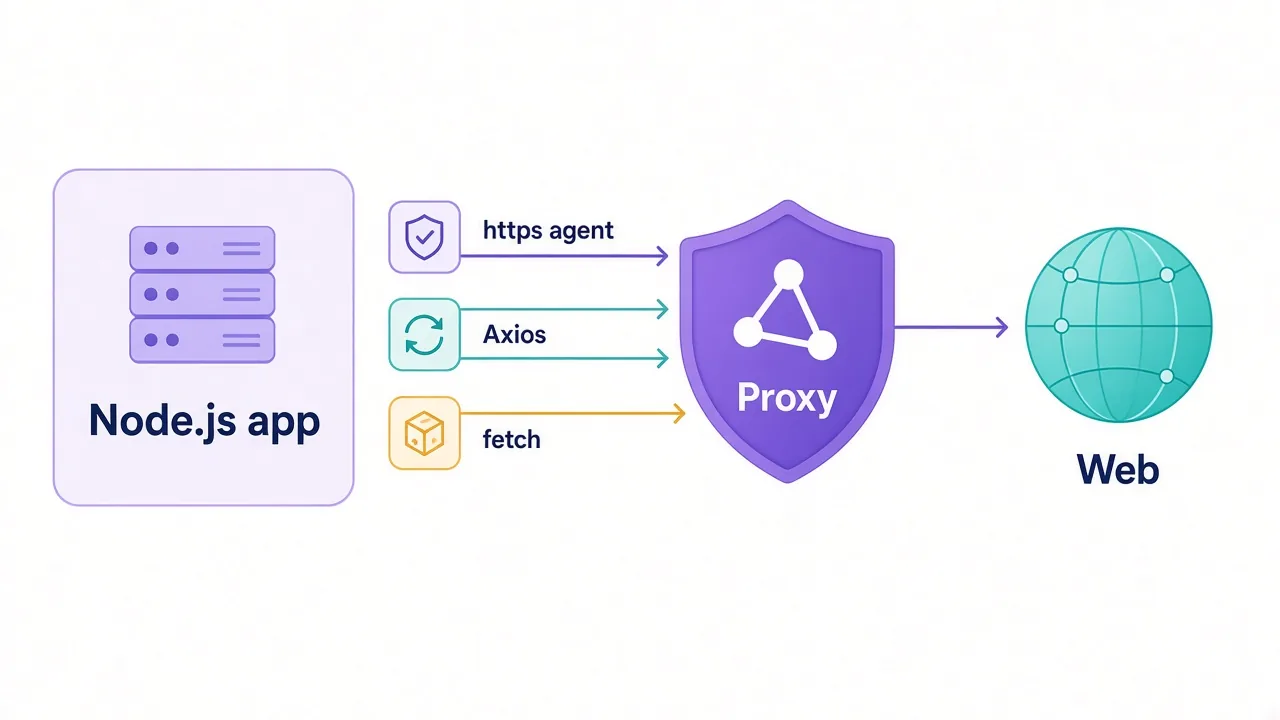
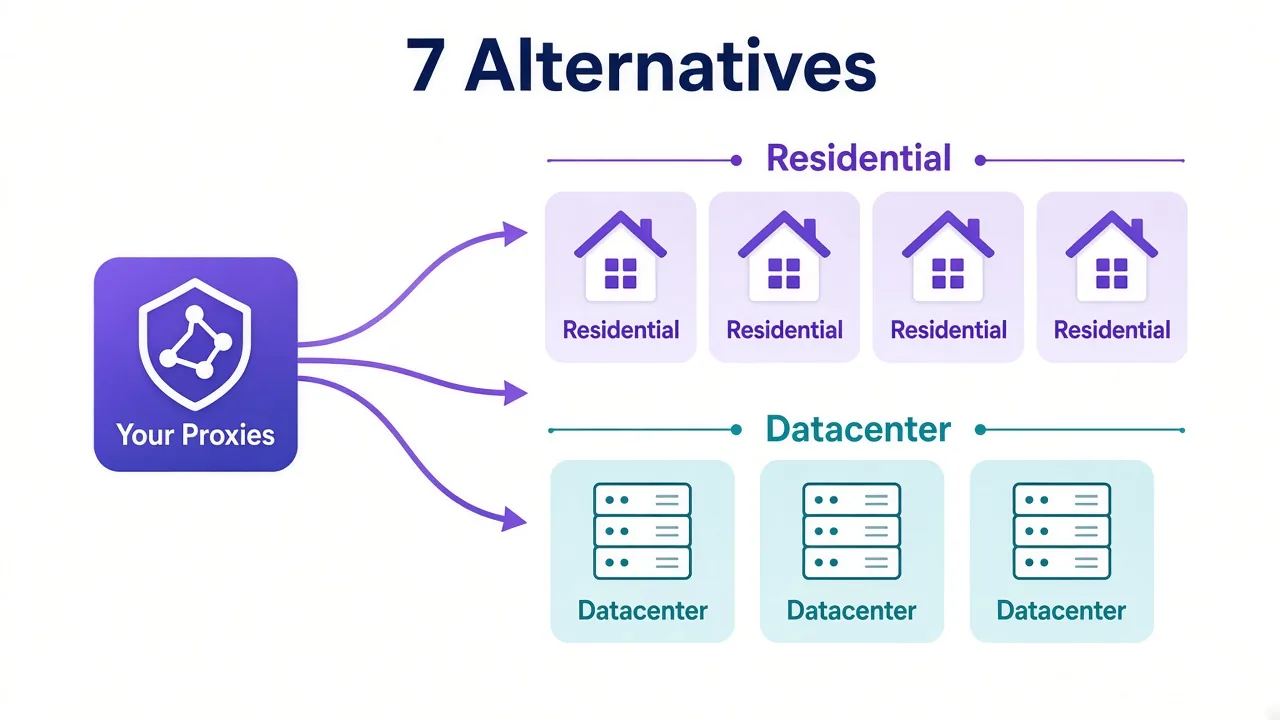
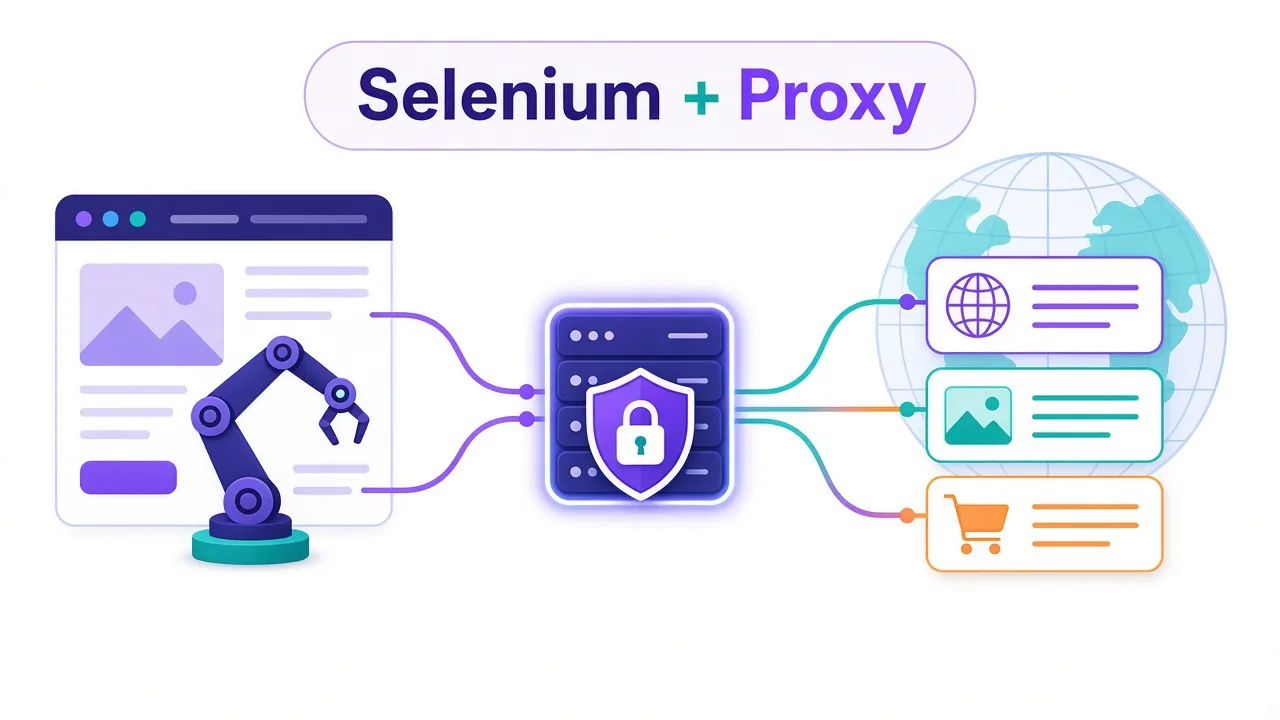
Your Selenium script works perfectly on your laptop. Then you point it at a real target, and by page 40 it's staring at a CAPTCHA wall.
Same code, same browser. The site just noticed that every request comes from one IP.
The fix is a proxy, and adding a proxy to Selenium takes one line. Chrome gets a --proxy-server flag, Firefox gets a few preferences, and you're done.
Until your proxy needs a username and password. That's where most tutorials quietly stop working, and it's the part we'll spend the most time on. So which setup fits your script? Let's start with the easy one.
What does a proxy change for a Selenium browser?
A proxy sits between the browser and the website. The site sees the proxy's IP address instead of yours.
For Selenium, that matters more than it does for a simple HTTP script. A real browser loads the page, then every image, script, font and tracking call on it. All of that traffic has to go through the proxy, or the site sees two different IPs for one visitor.
Here's the good news. When you set the proxy at the browser level, Chrome and Firefox route everything for you. You don't touch individual requests the way you would with Python Requests.
The catch? A proxy only changes your IP. It doesn't change the fact that Selenium announces itself in a few other ways. We'll come back to that, because it's the reason some people add a proxy and still get blocked.
How do you add a proxy to Selenium in Chrome?
For a proxy without a login, this is all you need. It works with Selenium 4 in Python:
from selenium import webdriver

PROXY = "203.0.113.10:8080"  # host:port from your provider

options = webdriver.ChromeOptions()
options.add_argument(f"--proxy-server=http://{PROXY}")

driver = webdriver.Chrome(options=options)
driver.get("https://api.ipify.org")
print(driver.find_element("tag name", "body").text)
driver.quit()
Run it and the printed IP should be the proxy's, not yours.
A few details people miss:
- Put the scheme in the flag. Use
http://for HTTP proxies andsocks5://for SOCKS5. - Use one proxy per browser session. Chrome reads the flag at launch and won't switch mid-session.
- Recent Selenium versions fetch the right ChromeDriver for you through Selenium Manager, so you can skip manual driver downloads.
Not sure whether you have an HTTP or SOCKS5 proxy? Your provider's dashboard will say. If you're choosing between them, our HTTP vs SOCKS5 breakdown covers the trade-offs.
Is there a cleaner way using Selenium's Proxy class?
Yes. Selenium ships a Proxy object that works across browsers. It's handy if your code switches between Chrome and Firefox.
from selenium import webdriver
from selenium.webdriver.common.proxy import Proxy, ProxyType

proxy = Proxy()
proxy.proxy_type = ProxyType.MANUAL
proxy.http_proxy = "203.0.113.10:8080"
proxy.ssl_proxy = "203.0.113.10:8080"

options = webdriver.ChromeOptions()
options.proxy = proxy

driver = webdriver.Chrome(options=options)
Set both http_proxy and ssl_proxy. Almost every site you'll scrape uses HTTPS, so forgetting ssl_proxy means most of your traffic skips the proxy entirely.
That's an easy mistake to miss, because the page still loads. It just loads from your real IP.
Don't trust a page that loads
A working page proves nothing about the proxy. Always check the outgoing IP on an IP-echo page before you run a real job.
What about Firefox and GeckoDriver?
Firefox doesn't use command-line flags for this. You set preferences on the options object instead:
from selenium import webdriver

options = webdriver.FirefoxOptions()
options.set_preference("network.proxy.type", 1)  # 1 = manual
options.set_preference("network.proxy.http", "203.0.113.10")
options.set_preference("network.proxy.http_port", 8080)
options.set_preference("network.proxy.ssl", "203.0.113.10")
options.set_preference("network.proxy.ssl_port", 8080)

driver = webdriver.Firefox(options=options)
For a SOCKS5 proxy, swap those for the SOCKS preferences:
options.set_preference("network.proxy.type", 1)
options.set_preference("network.proxy.socks", "203.0.113.10")
options.set_preference("network.proxy.socks_port", 1080)
options.set_preference("network.proxy.socks_version", 5)
options.set_preference("network.proxy.socks_remote_dns", True)
That last line is the one people skip. With socks_remote_dns off, Firefox looks up domain names itself, from your own network. The site never sees it, but your ISP's resolver does.
These preferences work the same in headless mode. Firefox reads them from the profile at launch, so there's nothing extra to set.
Why does proxy authentication break in Selenium?
Here's the part most guides skip. You'd think this would work:
options.add_argument("--proxy-server=http://user:pass@203.0.113.10:8080")It doesn't. Chrome ignores credentials in the --proxy-server flag.
Instead, the browser opens a sign-in pop-up asking for the proxy username and password. That pop-up isn't part of the web page, so Selenium can't see it or type into it. Your script hangs, or fails with a timeout that looks like a network error.
Sound familiar? Firefox behaves much the same way. And most paid residential and mobile proxies use username and password logins, often with session settings packed into the username.
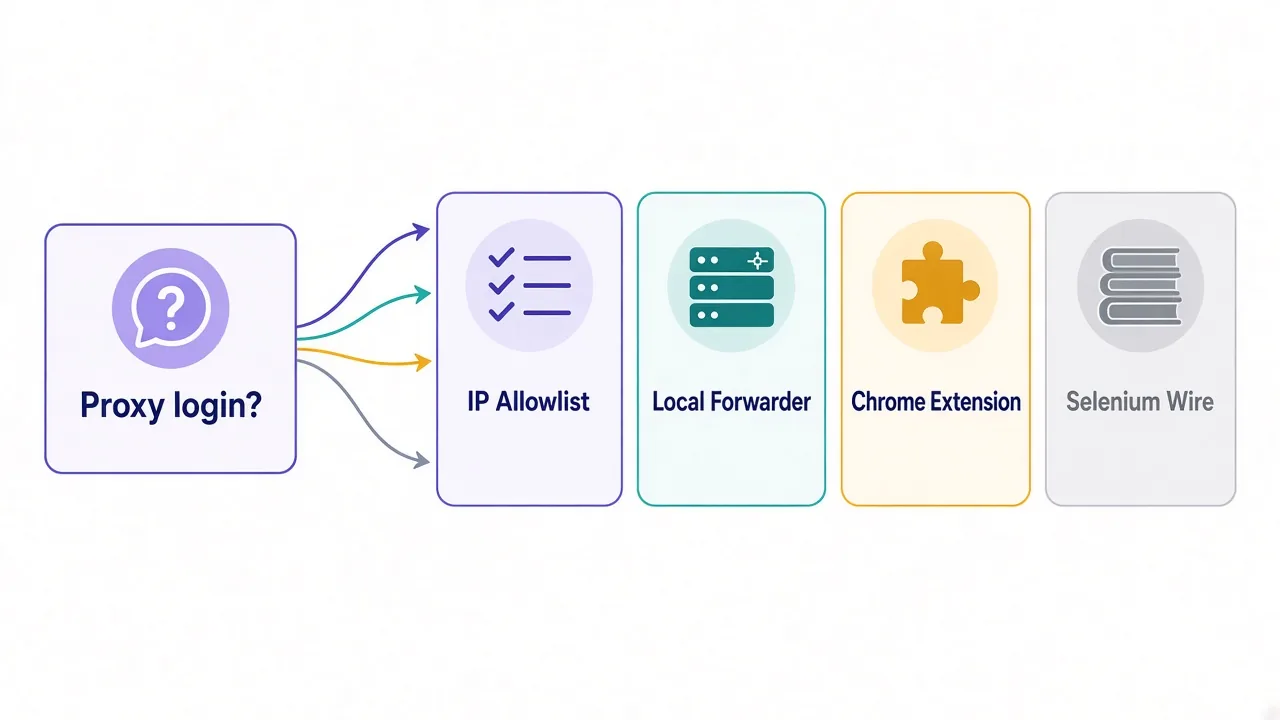
So you have four ways out. Each one has a real catch, so pick the one that matches how you run your scripts.
| Method | Best for | Main catch |
|---|---|---|
| IP allowlisting | A script on a fixed server | Breaks when your own IP changes |
| Local forwarding proxy | Any browser, any language | One more process to run |
| Small Chrome extension | Chrome-only setups | Extension loading can be fiddly |
| Selenium Wire | Old projects that already use it | No longer maintained |
Option 1: skip the password with IP allowlisting
Most proxy providers let you add your server's IP to an allowlist (sometimes called IP whitelisting). Once it's listed, the proxy accepts your connections with no login at all.
Then you're back to the simple one-line setup from earlier. No pop-up, nothing extra to install.
This is what we'd do first if your script runs on a VPS or a cloud server with a static IP. It's the least fragile option by a wide margin.
The downside shows up on a laptop. Your home IP can change overnight, and some mobile hotspots change it hourly. Each change means a new trip to the provider's dashboard.
Also check how your provider handles session settings. Some put the country or sticky-session options in the username. With allowlisting, those settings usually move to the port number or a separate gateway host instead.
Option 2: run a local forwarding proxy
This is the most flexible fix, and it works for every browser and every language Selenium supports.
The idea is simple. You run a small proxy on your own machine with no login. It forwards traffic to your real proxy and adds the username and password on the way out.
Selenium only ever talks to 127.0.0.1, so the browser never sees a login prompt.
One tool that does this is mitmproxy, using its upstream mode:
mitmdump --listen-port 8081 \
  --mode upstream:http://gate.example.com:7000 \
  --upstream-auth USERNAME:PASSWORD
Then point Chrome at the local port:
options.add_argument("--proxy-server=http://127.0.0.1:8081")There's one catch with mitmproxy. It reads HTTPS traffic by acting as a middleman, so the browser needs to trust mitmproxy's certificate. Install its CA certificate on the machine, or you'll see certificate errors on every page.
Lighter forwarders that just pass the encrypted traffic through exist too. Whichever you pick, the pattern is the same: login lives in the forwarder, Selenium stays simple.
Why we like this pattern
Your credentials stay out of browser flags and Selenium code. Swap providers by restarting one process, not by editing every script.
Option 3: a tiny Chrome extension that answers the login
Chrome extensions can set the proxy and reply to the login request before the pop-up appears. You build one with two files and load it into the Selenium browser.
The manifest.json:
{
  "manifest_version": 3,
  "name": "Proxy Auth",
  "version": "1.0",
  "permissions": ["proxy", "webRequest", "webRequestAuthProvider"],
  "host_permissions": ["<all_urls>"],
  "background": { "service_worker": "background.js" }
}
The background.js:
chrome.proxy.settings.set({
  value: {
    mode: "fixed_servers",
    rules: { singleProxy: { scheme: "http", host: "gate.example.com", port: 7000 } }
  },
  scope: "regular"
});

chrome.webRequest.onAuthRequired.addListener(
  () => ({ authCredentials: { username: "USERNAME", password: "PASSWORD" } }),
  { urls: ["<all_urls>"] },
  ["blocking"]
);
Load the folder with options.add_argument("--load-extension=/path/to/proxy-auth") and drop the --proxy-server flag, since the extension sets the proxy itself.
So what's the catch? Extension loading has been a moving target.
Old-style headless Chrome ignored extensions, and recent branded Chrome builds have tightened command-line extension loading. If it fails silently, try it with Chrome for Testing before you debug your code.
It also bakes the password into a file on disk. Fine for your own machine, less fine for a shared repo.
Option 4: what about Selenium Wire?
You'll see Selenium Wire in a lot of older answers. It wraps Selenium and lets you pass an authenticated proxy in a single dictionary.
It worked well for years. But its GitHub page now says the project is no longer maintained.
That matters because Selenium and Chrome both move fast. A library that stopped updating will break on some future release, and nobody will fix it.
If an existing project already uses it and it still runs, you don't need to rip it out today. For anything new, we'd reach for the local forwarder from Option 2 instead. It does the same job and doesn't depend on one library keeping up.
How do you rotate proxies in Selenium?
Remember that Chrome reads the proxy once, at launch? That shapes how rotation works.
You have two real choices.
Rotate at the provider. Most residential providers give you one gateway address that hands out a new IP per request or per session. You configure Selenium once, and the provider does the rotating.
Rotate per browser. Keep a list of proxies and start a fresh driver for each one:
import random
from selenium import webdriver

proxies = ["203.0.113.10:8080", "203.0.113.11:8080", "203.0.113.12:8080"]

def new_driver():
    options = webdriver.ChromeOptions()
    options.add_argument(f"--proxy-server=http://{random.choice(proxies)}")
    return webdriver.Chrome(options=options)

for url in urls:
    driver = new_driver()
    try:
        driver.get(url)
        # scrape here
    finally:
        driver.quit()
Starting a browser takes a few seconds, so this is slower than rotating inside a Requests script. For heavy jobs, batch several pages per browser before you switch.
Now the bigger question. Should you rotate at all?
If you're logging into an account, no. A new IP on every page load looks like the session is jumping countries. That's when you want a sticky session, which keeps one IP for a set time. Our guide to sticky vs rotating proxies walks through when each one wins.
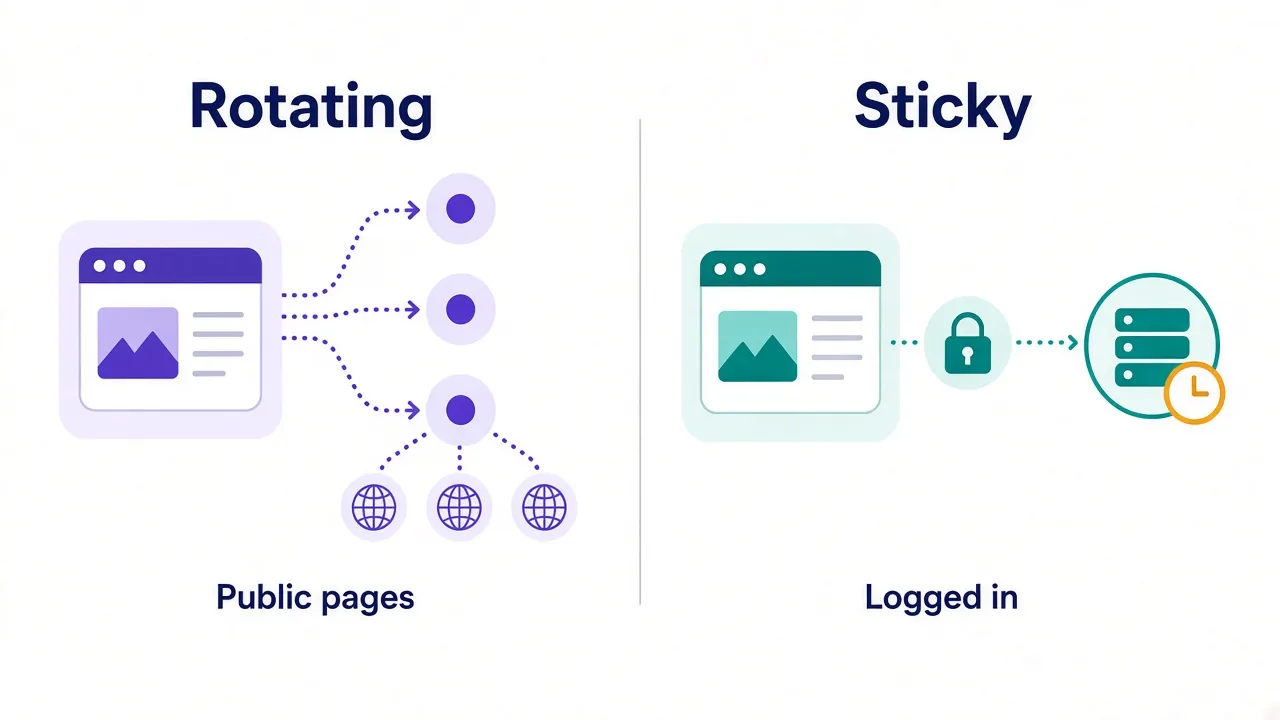
Building the rotation logic in plain Python instead? Our guide on rotating proxies in Python covers retry and backoff patterns you can reuse here.
How do you check the proxy is working?
Don't guess. Check three things before a real run.
- Load an IP-echo page such as
https://api.ipify.organd confirm the IP isn't yours. - Look up that IP's country and make sure it matches what you paid for.
- Test for WebRTC leaks, since WebRTC can reveal your real IP even behind a proxy.
For Chrome, you can stop most WebRTC leaks with a launch flag:
options.add_argument("--force-webrtc-ip-handling-policy=disable_non_proxied_udp")Our walkthrough on how to check a proxy is working goes deeper on leak tests and what each result means.
Seeing ERR_PROXY_CONNECTION_FAILED or ERR_TUNNEL_CONNECTION_FAILED? Those usually mean a wrong host or port, the wrong scheme, or a login the proxy didn't get.
Test the same proxy with cURL first. If cURL fails too, the problem isn't Selenium.
Why do you still get blocked with a good proxy?
This is the other half of the story we promised at the start.
A proxy hides your IP. It doesn't hide the browser. Out of the box, a Selenium-driven Chrome sets navigator.webdriver to true. That flag comes from the W3C WebDriver spec, so sites can tell automation apart.
Anti-bot systems check that flag, plus your screen size, fonts, time zone and dozens of other signals. If your IP says Germany and your browser's time zone says India, that mismatch alone stands out.
So pick the proxy type for the target:
- Datacenter IPs are fast and cheap, and fine for sites that barely fight back.
- Residential IPs look like home users and get blocked far less on tough targets.
- Mobile IPs suit social platforms that trust carrier networks.
Our residential vs datacenter comparison helps you choose. For account work at scale, pairing proxies with an antidetect browser handles the fingerprint side that a proxy can't.
Quick win
Match the browser's language and time zone to your proxy's country. It costs nothing and removes one of the easiest mismatches to spot.
Does this work the same in Java, C# and JavaScript?
Mostly, yes. The browser does the proxy work, so the flags and preferences don't change between languages. Only the syntax does.
In Java, the Chrome setup looks like this:
ChromeOptions options = new ChromeOptions();
options.addArguments("--proxy-server=http://203.0.113.10:8080");
WebDriver driver = new ChromeDriver(options);
The authentication problem is the same in every language too. Chrome still won't read credentials from the flag, so the allowlist, forwarder and extension options apply everywhere.
That's one more reason we like the local forwarder. Write it once, and your Java, Python and Node scripts all point at the same 127.0.0.1 port.
If you're open to other tools, it's worth knowing that Playwright and Puppeteer handle proxy logins more directly. Playwright takes a username and password in its launch options.
So, which Selenium proxy setup should you use?
Start with how your proxy logs you in, not with the code.
No login, or a server with a fixed IP? Use the one-line --proxy-server flag with IP allowlisting. Username and password? Run a local forwarder and keep Selenium pointed at localhost.
Then check the IP before every real job, and match your proxy type to how hard the site fights back.
Still need a proxy that fits? Compare the providers we've reviewed in our proxy directory.
Your script is ready. Give it a good IP.
Frequently asked questions
Add options.add_argument("--proxy-server=http://host:port") to your ChromeOptions before starting the driver. Chrome reads it at launch, so use one proxy per browser session.
Chrome ignores credentials in the --proxy-server flag and shows a login pop-up Selenium can't fill. Use IP allowlisting, a local forwarding proxy, or a small Chrome extension instead.
Not for new projects, because its GitHub page says it's no longer maintained. Existing scripts that still run are fine for now, but a local forwarding proxy is the safer long-term setup.
Either use a rotating gateway from your provider or start a new driver with a different proxy for each batch of pages. Chrome can't change its proxy mid-session.
Load an IP-echo page like api.ipify.org and confirm the IP isn't yours. Then check the IP's country and run a WebRTC leak test before any real job.
A proxy only hides your IP, not the fact that the browser is automated. Sites also check navigator.webdriver, time zone and fingerprint signals, so match those to your proxy's location.